EasyManua.ls Logo

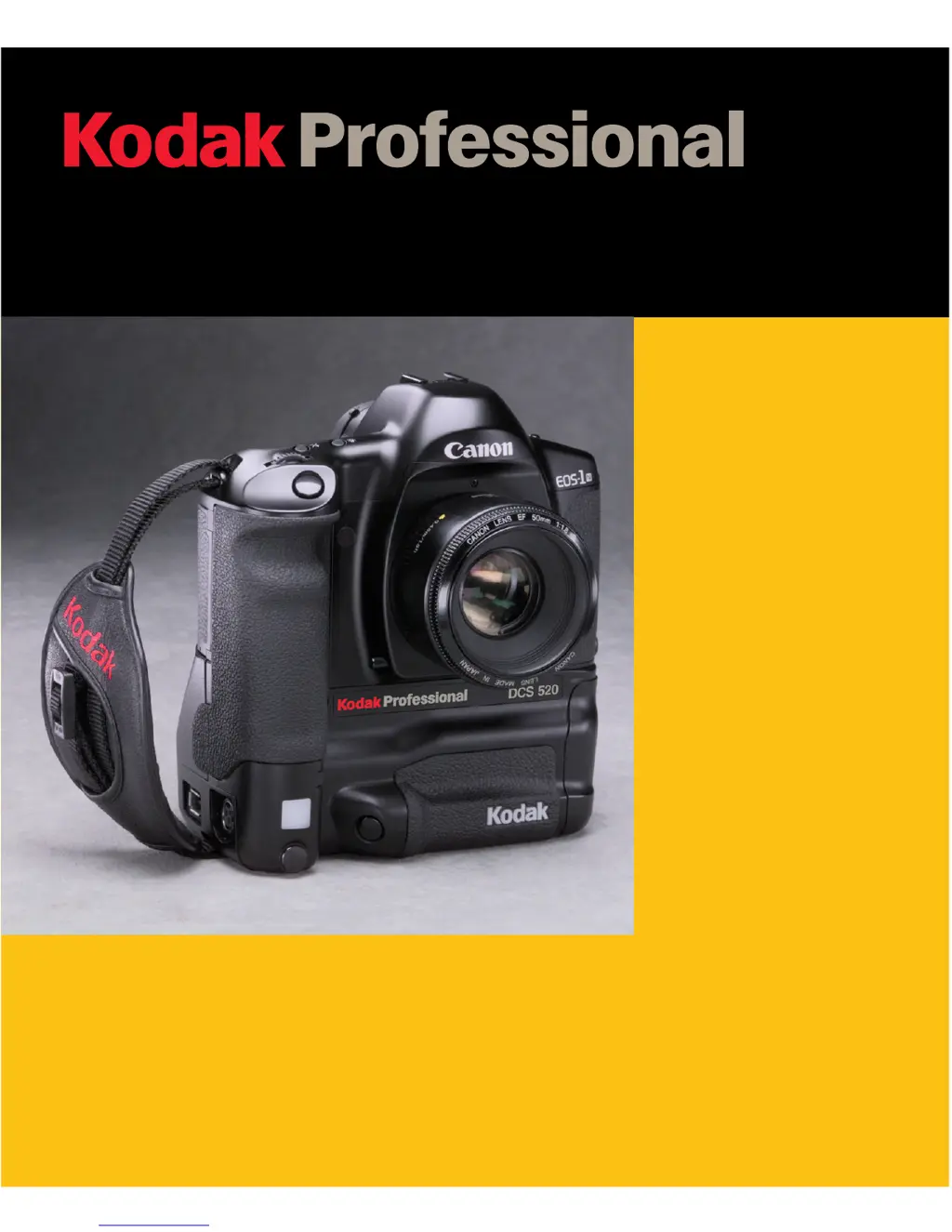
Kodak DCS 500 Series - User Manual

Kodak DCS 500 Series
251 pages
Print Icon
To Next Page IconTo Next Page
Loading...
User’s Guide
for DCS 500 Series Digital Cameras
DCS 500 Series Digital Cameras

Table of Contents

Other manuals for Kodak DCS 500 Series

Questions and Answers

  • P
    Philip OconnellAug 12, 2025
    What to do if my Kodak DCS 500 shutter does not release?
    • P
      Phillip RobertsonAug 12, 2025
      There could be several reasons why the shutter isn't releasing. First, ensure the Main switch is set to (A). If the subject is not focused (the in-focus indicator is blinking), press the Shutter button halfway again. If it still cannot focus, consult “Difficult Subjects for Autofocus” in Chapter 8. Also, check if the PC Card is full; if so, replace it or delete images. Finally, make sure a PC Card is inserted in the camera.
  • B
    Barbara AndersonAug 16, 2025
    How to fix a Kodak DCS 500 that is locked and not working?
    • D
      David SpencerAug 16, 2025
      If your Kodak Digital Camera is locked, first, remove and re-insert the battery to ensure it's securely in place. If that doesn't work, try resetting the camera by removing the battery, opening the Battery/PC Card door, and gently inserting a paper clip into the Reset button until you feel a slight click.
  • D
    daniel85Aug 20, 2025
    What to do if my Kodak DCS 500 autofocus isn't working?
    • S
      Steven DavisAug 20, 2025
      If autofocus isn't working on your Kodak Digital Camera, check if the lens’ Focus Mode switch is set to (M). If so, set it to (AF). Also, if custom function F-4 is set to 1, press the AE Lock button to autofocus, or set custom function F-4 to 0 and press the Shutter button halfway.
  • J
    Jennifer FieldsAug 23, 2025
    Why does the “F” not appear on my Kodak DCS 500 Digital Camera?
    • M
      Megan BurgessAug 25, 2025
      The “F” may not appear because the camera is saving images; wait until the PC Card icon and the red Card Busy light stop blinking. Also, ensure a PC Card is inserted. If the PC Card is full, indicated by 0 frames remaining, insert a new card or delete images. Finally, a discharged battery may cause this; replace it with a freshly charged one.
  • A
    aprildavisAug 27, 2025
    Why is the “ bc “ blinking on my Kodak Digital Camera?
    • A
      Ashley ThomasAug 27, 2025
      The blinking “ bc “ indicator suggests the camera has undergone a malfunction. Remove and reload the battery. If the blinking persists after several attempts, the camera has a malfunction. Take the camera to your service representative.
  • C
    christinajonesAug 31, 2025
    Why is my Kodak DCS 500 Top LCD panel blank?
    • R
      Ryan ReevesAug 31, 2025
      If nothing appears in the Top LCD panel, ensure the Main switch is not set to (L). Also, the battery may need to be recharged. Replace it with a charged battery or connect the camera to the AC adapter.
  • J
    Jesus MullinsSep 4, 2025
    What does it mean when the Card icon flashes on my Kodak Digital Camera?
    • A
      Aaron MartinSep 4, 2025
      When the Card icon flashes after exposing a burst of images, it indicates that it takes time to save those images. Wait a few seconds.
  • A
    Amy AllenSep 7, 2025
    Why does my Kodak DCS 500 Digital Camera say 0 frames remaining?
    • R
      Randall Yang IISep 7, 2025
      If the Frames Remaining indicator reads 0, the PC Card is full. Insert a different PC Card or delete some images from the PC Card.

Summary

Warranty Information

Warranty Time Period

Details the duration of Kodak's warranty for the camera.

Warranty Repair Coverage

Explains what is covered under the warranty for repairs.

Warranty Limitations

Outlines exclusions and conditions not covered by the warranty.

Obtaining Service Outside the US

Provides information on warranty terms for countries other than the US.

How to Obtain Service

Instructions and contact information for obtaining service.

Important Information

System Requirements for Your Computer

Lists hardware and software needed to run the DCS Host software.

Warnings

Alerts users to potential hazards and improper usage.

Important Safeguards and Precautions

Provides essential safety guidelines for camera operation.

Electromagnetic Emissions

Details compliance with FCC and other radio interference regulations.

About Your Camera

Camera Features Overview

Describes key features and specifications of the DCS 520 and 560 cameras.

Camera Nomenclature

Identifies external parts and controls of the camera.

Camera Controls Layout

Illustrates and labels camera controls on front, back, top, and sides.

LCD Panels and Displays

Explains the Top and Back LCD panels and image display functions.

Navigation Techniques

Guides users on navigating camera menus and options.

Powering Your Camera

Turning the Camera On and Off

Instructions for powering the camera on and off using the main switch.

Battery Management

Information on battery types, performance, warnings, and care.

Battery Charger Operation

Details on using the battery charger, including status lights.

AC Adapter Usage

Guidelines for using the AC adapter for power and charging.

Using PC Cards

PC Card Basics

Information on PC Card compatibility, handling, and types.

Dual Slots for PC Cards

Explains the use and limitations of the camera's two PC Card slots.

Inserting and Removing PC Cards

Step-by-step instructions for managing PC Cards in the camera.

Formatting a PC Card

Procedure for formatting PC Cards for use with the camera.

Selecting a PC Card or Folder

How to choose active PC Cards and folders for image storage.

Saving Files

JPEG and TIFF File Processing

Details on image processing options for JPEG and TIFF files.

Processing Images

Instructions on enabling and managing image processing.

Changing Processing Settings

Customizing settings like file type, resolution, and noise reduction.

Working with TIFF Custom Files

Using software applications to work with TIFF Custom files.

IPTC Data Management

Includes International Press Telecommunication Council data in image headers.

Configuring Your Camera

Date and Time Settings

Procedure for setting the date and time associated with captured images.

Custom Functions Guide

Explains how to tailor camera functions to personal preferences.

Camera Properties Settings

Adjusting properties like display off time and file resolution.

Quick Start Guide

Before You Start Setup

Initial steps before using the camera, including battery and PC Card.

Capturing Your First Image

Steps for framing and taking an image using the camera.

Reviewing and Managing Images

How to view, tag, delete, and associate sound files with images.

Controlling Exposure and Color Balance

White Balance Settings

Explanation of white balance, preset options, and custom settings.

Setting the ISO Value

Instructions for setting the camera's ISO sensitivity.

Shooting Modes Explained

Details on available shooting modes like Program AE, Shutter-priority AE.

Exposure Compensation

How to adjust exposure compensation using camera controls.

Auto Exposure Bracketing (AEB)

Using AEB to capture sequences of images at different exposures.

Focusing Your Camera

Selecting the AF Mode

Guide to choosing between One-shot AF and AI Servo AF modes.

Manual Focusing Techniques

Instructions for manual focus adjustment and using USM lenses.

Checking Depth of Field

How to preview and understand the depth of field.

Capturing Images

Shutter Button Operation

Details on using the shutter button for autofocus and exposure.

Changing Drive Modes

Selecting between single and continuous exposure modes.

Using the Self-timer

Instructions for using the 10-second and 2-second self-timer functions.

Locking the Mirror Up

Using custom function F-12 to prevent mirror shock.

Working with Images on the Camera

Image Review Modes

Overview of Single, Four, and Nine Image Review modes.

Adjusting Display Contrast

How to change the contrast for better image viewing.

Tagging Images

Identifying images for processing or deletion.

Deleting Images

Procedures for deleting single or multiple images.

Recovering Deleted Images

Steps to recover images previously deleted from a PC Card.

Connecting to Your Computer

Connection Options Overview

Comparing IEEE 1394 connection and card reader methods.

Connecting Your Camera via IEEE 1394

Step-by-step guide for connecting the camera to a computer.

Disconnecting from the Computer

Safe procedures for disconnecting the camera from the computer.

Transmitting Data

Connecting to the Serial Port

How to connect external devices to the camera's serial port.

Accessing Serial Port Options

Settings for Baud Rate, Serial In, and Serial Out modes.

Camera Care and Maintenance

Handling Your Camera Safely

Precautions for safely handling the camera to prevent damage.

Cleaning Camera Components

Instructions for cleaning the camera body, panels, and lens.

Anti-aliasing and IR Filters

Information on filters, including removal and cleaning.

Imager Cleaning and Inspection

How to determine if the imager is dirty and how to clean it.

Installing Camera Firmware

Steps for updating camera firmware from a PC Card.

Appendix A - Specifications

Camera and Major Components

Technical specifications for camera type, format, lenses, and mount.

Viewfinder Information

Details on viewfinder viewing areas and display elements.

Exposure Control Specifications

Technical data on metering, shooting modes, and exposure compensation.

Autofocus System Specifications

Technical details on AF system, points, modes, and working range.

Appendix B - Troubleshooting

Top LCD Panel Issues

Resolving issues like blank panel, blinking indicators, or low battery.

Camera Settings and Operation Problems

Troubleshooting for unchangeable settings or non-operating autofocus.

Shutter Release and Image Saving Issues

Resolving problems with shutter not releasing or card saving errors.

Camera Lock-up Issues

Steps to resolve camera lock-ups, including battery reset.

Appendix C - Problem Report Form

Kodak DCS 500 Series Specifications

General IconGeneral
Camera TypeDigital SLR
Sensor TypeCCD
Storage MediaPCMCIA card
Shutter Speed1/8000 to 30 sec
LCD Screen Size2 inch
BatteryNiMH

Related product manuals