EasyManua.ls Logo

Konica Minolta DI2510 - User Manual

Konica Minolta DI2510
210 pages
Print Icon
To Next Page IconTo Next Page
Loading...
2
Introduction
Available Features
Before Making Copies
Basic Copy Operations
Copy Paper
Original Documents
Specifying Copy Settings
Touch Panel Messages
Troubleshooting
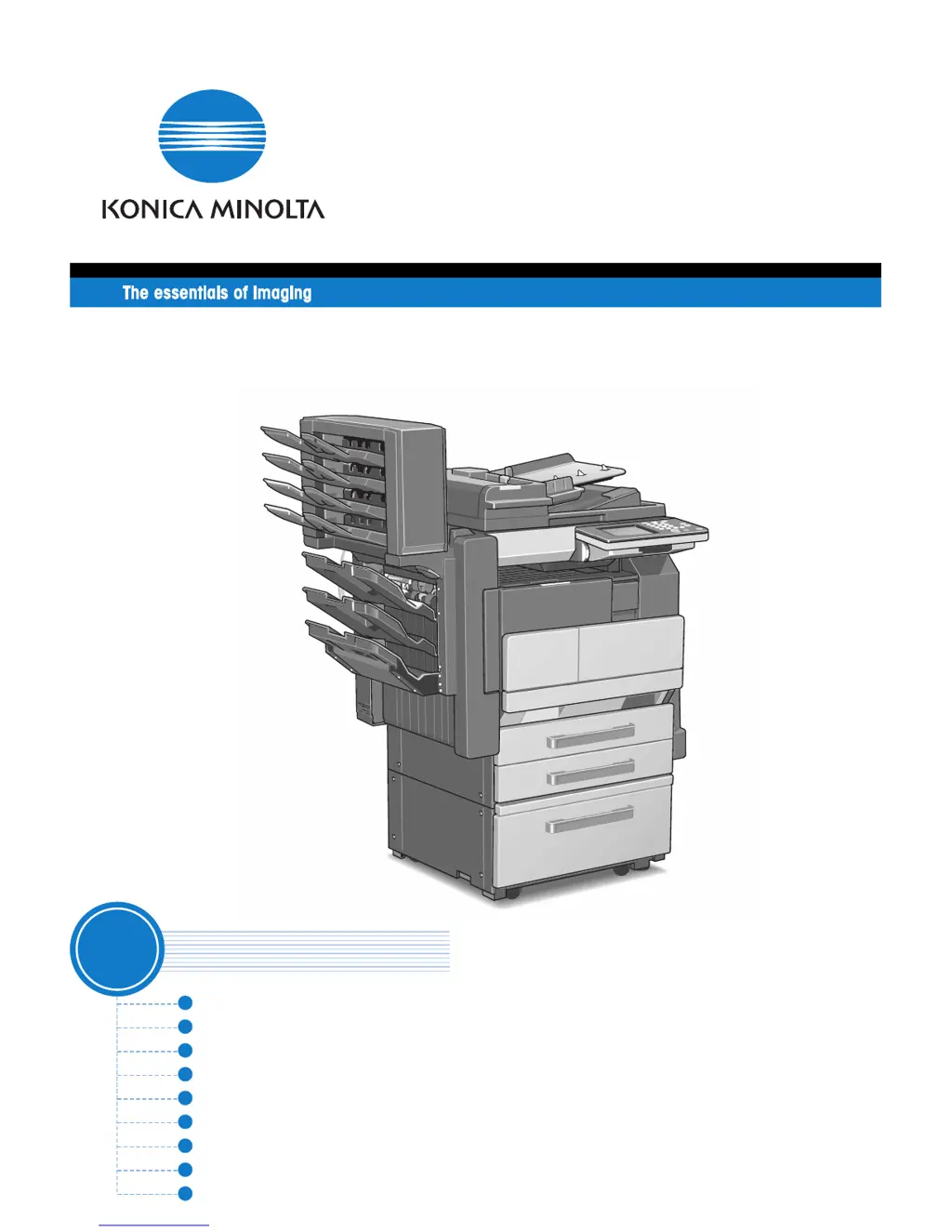
Di2510/Di3010/Di3510
User Manual
[
Basic Operations
]
www.konicaminolta.net

Table of Contents

Other manuals for Konica Minolta DI2510

Questions and Answers

  • M
    Michael PatelAug 18, 2025
    What to do if my Konica Minolta All in One Printer says to close the section indicated by the arrow?
    • V
      vkeyAug 18, 2025
      If your Konica Minolta All in One Printer shows a message indicating that you need to properly close a section indicated by an arrow, it means that a door or cover is open. Ensure that all doors and covers are properly closed.
  • S
    sandovalmelindaAug 21, 2025
    What to do if Konica Minolta DI2510 says maximum copies reached?
    • K
      Kristin HarrisAug 21, 2025
      If your Konica Minolta All in One Printer displays a message indicating that the maximum number of copies allowed for the registered account has been reached, it means that you have reached the total amount of copies as set by the administrator. Ask the administrator to clear the number of copies.
  • D
    Daniel SchneiderAug 23, 2025
    Why Konica Minolta All in One Printer says not enough memory?
    • U
      ucruzAug 23, 2025
      If your Konica Minolta All in One Printer displays a message saying 'Cannot XXXXXXXX (not enough free memory),' it means the memory is full, preventing further scanning. Print pages or delete queued jobs to clear some memory.
  • E
    Elizabeth MillerAug 26, 2025
    What to do if Konica Minolta DI2510 says maximum print jobs reached?
    • M
      murphykatherineAug 26, 2025
      If your Konica Minolta All in One Printer displays a message indicating that the maximum number of jobs to be printed has been reached, it means that you have reached the total amount of jobs to be printed as set by the administrator. Ask the administrator to clear the number of jobs to be printed.
  • C
    Carlos MartinAug 28, 2025
    Why Konica Minolta DI2510 is paused?
    • T
      Teresa FlowersAug 28, 2025
      If your Konica Minolta All in One Printer is paused, when making 2in1 copies, the second document page could not be scanned while scanning manually. Position the second document page or press [Finish].
  • S
    Shannon McdanielAug 31, 2025
    Why this mode cannot be selected on Konica Minolta DI2510 All in One Printer?
    • D
      David SchultzAug 31, 2025
      If your Konica Minolta All in One Printer displays the message 'This mode cannot be selected with XXXXXXXX', it means that functions that cannot be used together are selected. Make copies using only one of the functions.
  • S
    Sandra JonesSep 2, 2025
    Why are there dark spots on my Konica Minolta All in One Printer prints?
    • D
      Dr. Jacob HudsonSep 2, 2025
      Dark specks, spots, or streaks on your Konica Minolta All in One Printer output usually indicate a dirty original glass or document pad. Try wiping the glass with a dry, soft cloth. If that doesn't work, clean the document pad with a soft cloth dampened with a mild detergent.
  • M
    Mary HintonSep 4, 2025
    What to do if nothing appears on the Konica Minolta All in One Printer touch panel?
    • R
      Ryan VillaSep 4, 2025
      If nothing appears on the touch panel of your Konica Minolta All in One Printer, it might be in Energy Saver or Sleep mode. Press any key on the operation panel to cancel it. Alternatively, the printer might not be turned on. Check that the power switch is set to ā€œIā€ and the sub power switch has been pressed in.
  • B
    briansmithSep 7, 2025
    Why is the print blurry on my Konica Minolta All in One Printer?
    • S
      Spencer AllenSep 7, 2025
      Blurry output from your Konica Minolta All in One Printer can be due to damp paper. Try replacing the paper. It could also be that the document wasn't pressed closely enough against the original glass. Make sure to position the document correctly.
  • T
    tstevensonSep 9, 2025
    What to do if Konica Minolta All in One Printer says not enough memory?
    • A
      Allison JohnsSep 10, 2025
      If your Konica Minolta All in One Printer displays an error indicating not enough free memory, print or delete queued jobs to clear some memory.

Summary

Introduction to Konica Minolta Di2510;Di3010;Di3510

Manual Structure and Conventions

Explains the manual's division into volumes and explains manual conventions and symbols.

Basic Concepts and Symbols Explained

Defines terms like 'Width' and 'Length', and explains orientation, display, and paper supply icons.

Copier Components and Functions

Details the various optional and standard components of the copier and their functions.

Part Names and Functions of the Copier

Identifies and describes the parts of the copier, including the touch panel and output tray.

Available Features

Useful Operations: Copying a Book or Magazine

Step-by-step guide to copying pages from books or magazines onto double-sided copies.

Useful Operations: Copying to Form a Booklet

Procedure for copying documents to create a booklet format, requiring duplexing document feeder.

Useful Operations: Automatic Stapling

Instructions for automatically stapling sets of copies using the finisher and sort/group settings.

Useful Operations: Reducing Paper Usage

Techniques for economizing paper through double-sided and 2in1 copying methods.

Useful Operations: Reducing Electricity Usage

Guidance on using Energy Save and Sleep modes to conserve energy.

Before Making Copies

Control Panel Parts and Functions

Identifies and explains the function of each key and component on the copier's control panel.

Checking and Changing Settings

How to review, change, and store current copier settings using the Mode Check function.

User Accessibility Operations

Customizing settings for easier use, such as screen display and key speed settings.

Turning the Copier On and Off

Detailed steps for powering the copier on and off, including sub power switch operation.

Adjusting Control Panel Angle

Instructions on how to adjust the control panel to three different angles for optimal viewing.

Using the Touch Panel

Overview of the touch panel interface, default settings, and operating procedures.

Copy Paper Specifications and Handling

Paper Specifications: Types and Sizes

Details on supported paper types, sizes, and their availability across different paper sources.

Unsuitable Paper Types

Lists paper types that should not be used to avoid print quality issues or machine damage.

Print Area Limitations

Specifies the margins on a page that are not copied, indicating the printable area.

Paper Storage Precautions

Guidelines for storing paper correctly to maintain quality and prevent issues.

Automatic Paper Source Selection

Explains how the copier automatically selects paper from another drawer when one runs out.

Loading Paper into Drawers and Trays

Instructions for loading paper into the paper drawers, large capacity cabinet, and bypass tray.

Selecting Paper for Copying

How to choose the paper loaded in a drawer or the bypass tray for copying jobs.

Original Documents Handling

Feeding Documents into the Feeder

Information on document types, uniform sizes, and mixed width detection for the document feeder.

Feeding Documents via Duplexing Feeder

Steps for loading documents into the duplexing document feeder for copying or faxing.

Positioning Documents on the Original Glass

Guidance on correctly placing sheet, transparent, and bound documents on the glass.

Loading Documents for Specific Applications

Table detailing document feed methods and copy settings for various applications.

Handling Large Documents (A3;B4 L)

Precautions for copying large documents, including orientation and finishing limitations.

Specifying Copy Settings

Specifying Finishing Settings: Sorting, Stapling, Hole Punching

Details on available finishing options like Non-Sort, Sort, Group, Corner Staple, and Hole Punch.

Specifying Zoom Settings for Enlargement;Reduction

Covers various zoom options including Auto Size, Full-Size, Enlarge, Reduce, CustomZoom, and X/Y Zoom.

Selecting Original to Copy Settings

Options for matching original document types (single/double-sided) to copy output.

Specifying Copy Density Settings

Instructions for adjusting copy density using Text, Photo, or Text/Photo settings.

Touch Panel Messages and Error Handling

Message: Ready to copy Please add toner.

Indicates low toner and provides guidance on replacing the toner bottle.

Message: Please add toner.

Appears when toner is empty; details the process for replacing the toner bottle.

Message: Stapler empty.

Indicates an empty staple cartridge and provides instructions for replacement.

Paper Misfeed Locations and Clearing

Identifies common paper misfeed locations and provides step-by-step clearing instructions.

Message: Cannot Staple.

Occurs when staples are jammed; provides procedures to clear jammed staples.

Message: Hole Punch collection box is full.

Indicates the punch box is full and needs emptying.

Troubleshooting Common Issues

Main Messages and Their Remedies

Lists common error messages, their causes, and recommended remedies.

Troubleshooting: Incorrect Copies Printed

Diagnoses issues causing light, dark, or blurry copies and provides solutions.

Troubleshooting: Copier Not Operating Correctly

Addresses issues like blank touch panel, non-responsive keys, or inability to start copying.

Manual Index

Konica Minolta DI2510 Specifications

General IconGeneral
Printing TechnologyLaser
Print Speed (Black/A4)25 ppm
Print Resolution600 x 600 dpi
Copy Speed (A4)25 cpm
Copy Resolution600 x 600 dpi
Scan Resolution600 x 600 dpi
TypeDigital
FunctionsCopier, Printer, Scanner
Original SizeA3
Paper SizesA3
Supported Operating SystemsWindows 2000/XP

Related product manuals