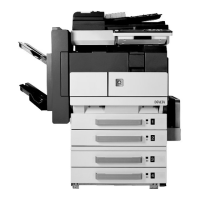
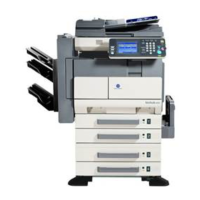
This document serves as a User Manual for Konica Minolta Di2010, Di2510, Di3010, Di3510, Di2010f, Di2510f, Di3010f, and Di3510f series devices, focusing on additional functions related to administrator management and machine access. The manual outlines the procedures for administrators to manage various settings and security features of the machine, ensuring controlled and secure operation.
The primary function described is the Administrator Management Screens, which provide a centralized interface for configuring critical aspects of the device. To access these screens, an administrator must first press the [Utility] key, then select [Admin. Management]. A crucial security measure is the requirement to input an 8-digit administrator code (Admin. Password) using the 10-Key Pad, followed by touching [Enter]. This step ensures that only authorized personnel can access and modify the machine's settings. The manual emphasizes the importance of keeping this administrator code secure and hidden from general users to prevent unauthorized access.
A key usage feature is the Administrator Code Input screen, which allows for the modification of the administrator access code. This is a vital security feature, enabling administrators to regularly update their password for enhanced security. The process involves first entering the currently specified 8-digit administrator code, then typing in the new 8-digit code, and finally retyping the new code for confirmation. The manual provides clear instructions on how to correct input errors, such as pressing the [C] key to erase text or touching [Cancel] to return to the previous screen. It also highlights potential error messages that may appear if the codes do not match or are not 8 digits long, guiding the user through troubleshooting.
Another significant function is the Access Lock feature, which enhances the security of the machine by monitoring access attempts to Administrator mode, lock jobs, and user boxes. When "Access Lock" is set to "On," the machine counts incorrect access attempts. After three incorrect attempts, access to the machine is denied. This prevents brute-force attacks and unauthorized access. To regain access to Administrator mode after it has been locked, the machine must be turned off and then on again. For lock jobs and user boxes, a "penalty" must be removed, with further details available in the Printer Controller User Manual. This feature is configurable through the Administrator Management 2 screen, where administrators can toggle the "Access Lock" function between "ON" and "OFF" as needed.
The manual also touches upon Account Management settings, which become visible on the Administrator Management screens under specific conditions. The [Account Reg] and [Account Counter] keys appear only if certain optional components are installed, such as a Printer Controller, Network Interface Card, or Network Scan Kit. Furthermore, these keys are only displayed if "Copy Track Mode" is not set to "1000 Accounts" or "OFF." This indicates that the device supports advanced user and job tracking functionalities, which are integrated with specific hardware configurations. These features are essential for managing usage, tracking copies, and potentially billing, providing a comprehensive solution for environments requiring detailed operational oversight.
Maintenance features, while not explicitly detailed as separate sections, are implicitly supported through the administrator's ability to manage and secure the machine. By controlling access codes and implementing the "Access Lock" feature, administrators can prevent unauthorized changes that might compromise the machine's functionality or data integrity. The ability to reset access after a lockout by power cycling the machine for Administrator mode, or removing a penalty for lock jobs and user boxes, demonstrates a built-in recovery mechanism. This ensures that the machine remains manageable even after security incidents, contributing to its overall reliability and ease of maintenance from a security perspective.
The document also includes important notes regarding the display of certain keys and functions, such as the [Account Reg] and [Account Counter] keys, which depend on the installation of specific optional hardware like the Printer Controller, Network Interface Card, or Network Scan Kit. This highlights the modularity and expandability of the device, allowing users to customize its capabilities based on their specific needs. The manual also clarifies that these keys will not appear if "Copy Track Mode" is set to "1000 Accounts" or "OFF," indicating a flexible approach to managing user accounts and tracking usage.
The manual emphasizes the importance of secure practices, such as keeping the administrator code confidential, to maintain the integrity and security of the device. The detailed steps for changing the administrator code and configuring the "Access Lock" feature are designed to empower administrators with the tools necessary to protect their machine from unauthorized access and ensure smooth operation. The inclusion of troubleshooting advice for incorrect code entries further enhances the user's ability to manage the device effectively.
In summary, this manual provides essential guidance for administrators to manage the security and operational settings of the Konica Minolta Di2010/Di2510/Di3010/Di3510 and Di2010f/Di2510f/Di3010f/Di3510f series devices. It covers the display and navigation of Administrator Management Screens, the procedure for changing the administrator access code, and the configuration of the "Access Lock" function. These features are crucial for maintaining the security, control, and efficient operation of the machine in various professional environments. The manual's clear, step-by-step instructions and emphasis on security best practices make it an invaluable resource for device administrators.


 To Next Page
 General