Wireless Stereo Headset 7
Music playback
You can listen to music in high-quality stereo on
your computer or an audio player if the device
supports wireless streaming audio (through a
Bluetooth AV profile). You can purchase a Bluetooth
wireless-enabled dongle (transmitter/receiver) that
connects to the USB connector on the computer;
some models also connect to the audio-out
connector on an MP3 player or other audio device.
Pairing with a computer for
music playback
This section assumes you have already installed a
Bluetooth wireless technology USB dongle on your
computer. Before you can use the headset for music
playback with your computer, you must pair the
headset with your computer. The headset must be
turned on in pairing mode. The following
instructions are for pairing with the Toshiba
®
Bluetooth Setting utility.
1. To put the headset in pairing mode, with the
headset powered off, long-press until the
LED flashes red/blue.
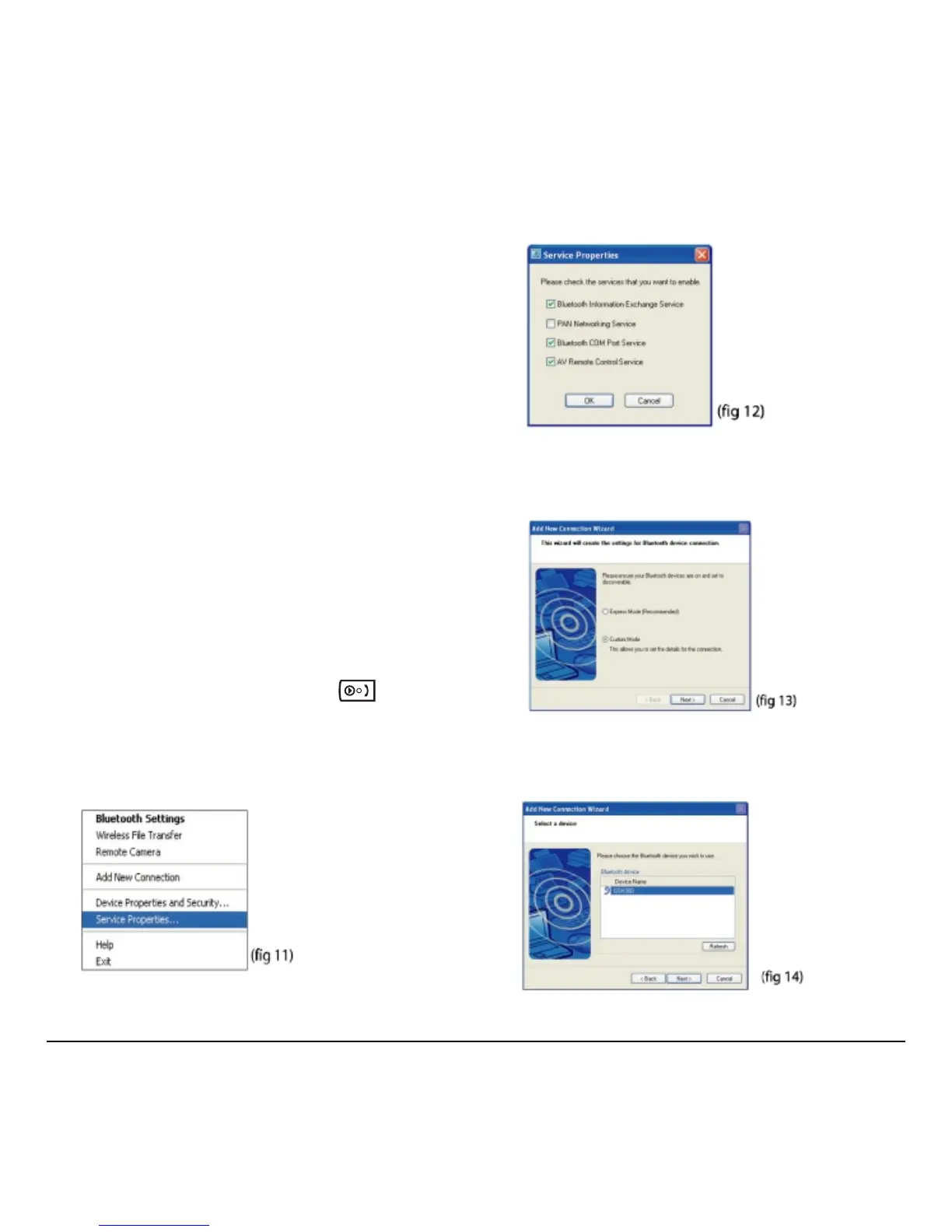
2. Right-click the Bluetooth Manager icon in the
system tray and select
Service Properties
(fig 11).
3. In the Service Properties window, check AV
Remote Control Service
and click OK (fig 12).
4. Right-click the Bluetooth Manager icon in
the system tray and select
Add New
Connection
(fig 13).
5. Select the Custom Mode radio button and click
Next. The wizard searches for the device and
the following screen appears (fig 14).



 To Next Page