12 82-G1652-1EN, Rev. 002
Taking Skype calls
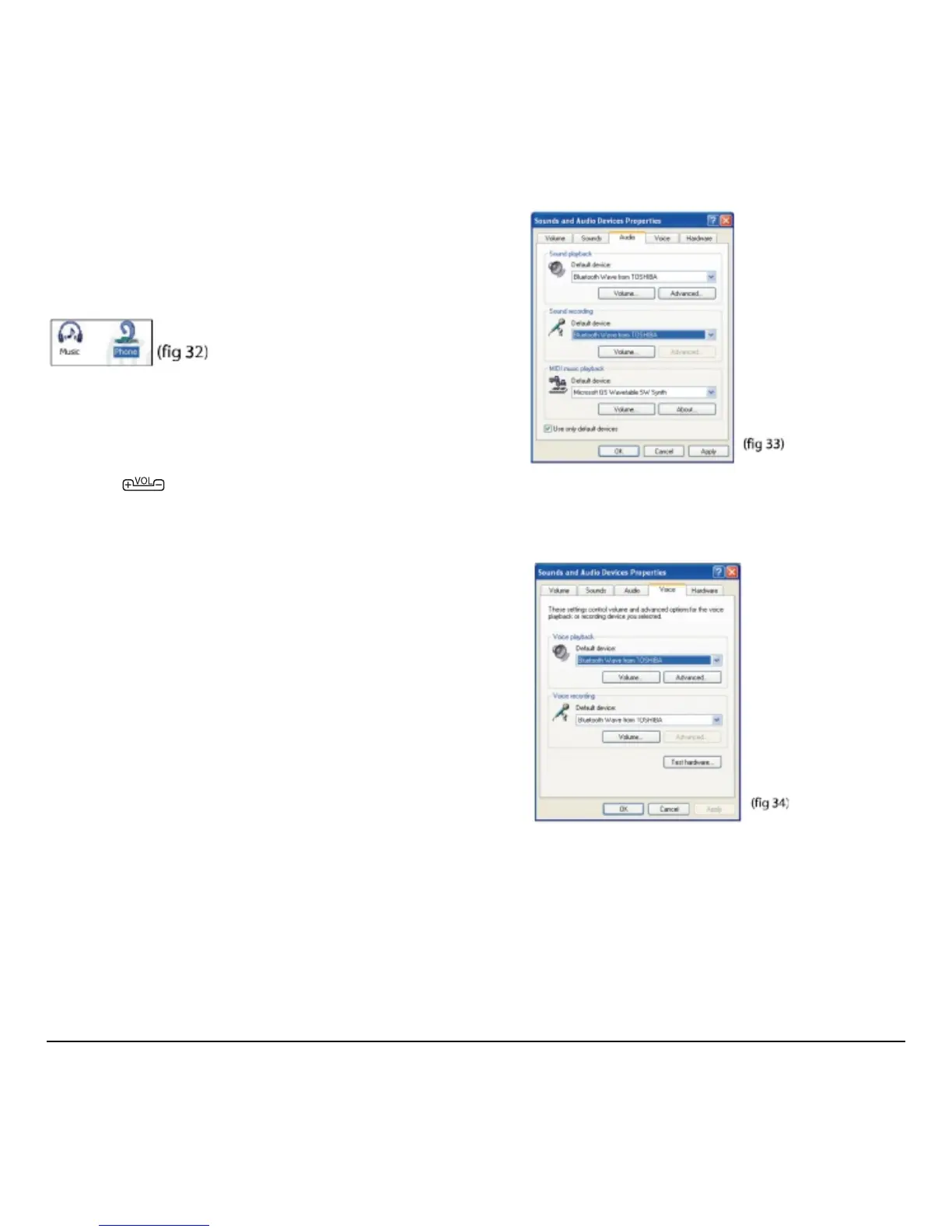
When taking Skype calls you must connect to the
Phone (headset) profile. If you take a call when
connected to the Music (AV) profile, the
microphone will not function (fig 32).
Note: The headset only controls volume. Use the
Skype interface for all call functions.
1. Answer or place a call with the Skype interface.
2. Press on the headset to adjust
the volume.
3. Use the Skype interface to end the call.
Troubleshooting
If you cannot get the headset to work,
try the following:
• Turn off the devices and turn them on again.
• Ensure the headset is charged.
• Ensure devices are within the 10M (30 ft.) range.
• Ensure no obstructions such as thick concrete
walls are between connecting devices.
Try the following to troubleshoot an audio problem
when connected to a computer.
1. Click Start → Control Panel.
2. In Control Panel, open Sounds and
Audio Devices.
3. Select the Audio tab and ensure your Bluetooth
wireless technology enabled device is selected
under
Sound playback and Sound recording
(fig 33).
4. Select the Voice tab and ensure your Bluetooth
wireless technology enabled device is selected
under
Voice playback and Voice recording
(fig 34)
5. Click Test hardware and follow the instructions
in the Wizard.



 To Next Page