Wireless Stereo Headset 11
8.
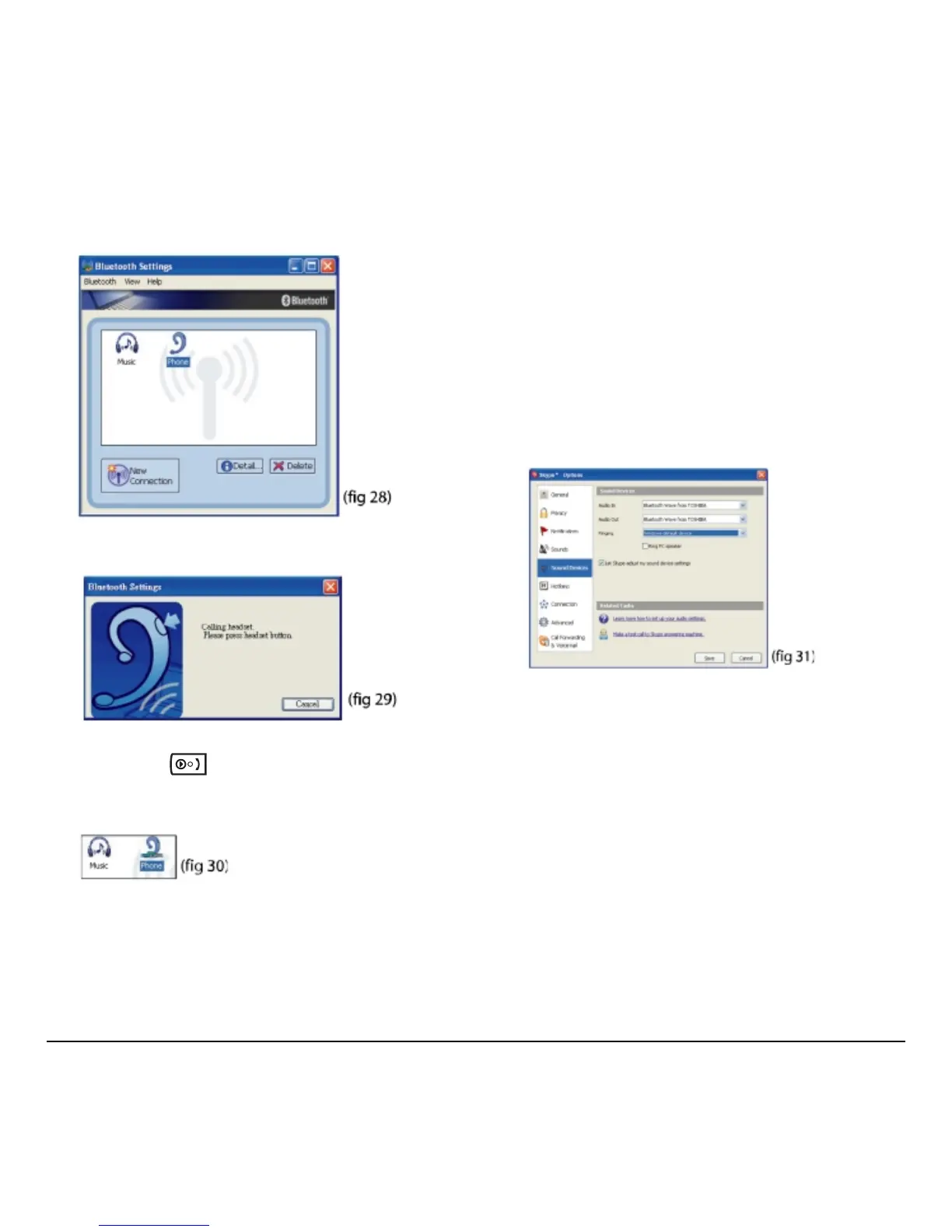
Click Finish to complete the connection. The
new connection is shown in the Bluetooth
Settings window (fig 28).
9. Right-click the Phone icon and select Connect
(fig 29).
10. When you hear a signal tone on the headset,
short-press .
Once connected, the icon changes to a
handshake (fig 30).
Setting sound options for Skype™
Skype PC-to-PC calls are free, and there is a
per-minute charge to call normal phones. Skype can
be downloaded from http://www.skype.com. Before
you can take a Skype call through the headset, you
must configure Skype sound options.
1. Make sure you are connected to the
Skype profile.
2. On the Skype menu bar click Too ls → Options.
3. In the Options window, select Sound Devices
(fig 31).
4. Select Bluetooth from the Audio In and Audio
Out drop-down menus, and click
Save.
(If you are not connected to the headset,
Bluetooth audio will not be available under
Sound Devices.)
5. Under Skype Contacts, click Skype Test Call
to check whether the headset speakers and
microphone are working.
(Refer to “Troubleshooting” on page 12 if you
have an audio problem.)



 To Next Page