EasyManua.ls Logo

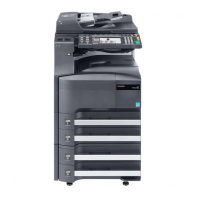
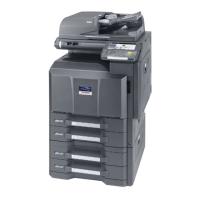
Kyocera TASKalfa 306ci - Service Manual

Kyocera TASKalfa 306ci
430 pages
Print Icon
To Next Page IconTo Next Page
Loading...
TASKalfa 306ci
TASKalfa 356ci
TASKalfa 406ci
PF-5120/5130/5140
DP-5100/5110
AK-5100/JS-5100
DF-5100/5110/5120
PH-5100/5110/MT-5100
FAX System 10/11
SERVICE
MANUAL
Published in February 2016
842R4114
2R4SM064
Rev.4

Other manuals for Kyocera TASKalfa 306ci

Questions and Answers

  • K
    katherine75Aug 13, 2025
    What to do if an error occurs on Kyocera Printer?
    • T
      teresaallenAug 13, 2025
      If an error occurs on the Kyocera Printer, adhere to the instructions displayed on the screen to resolve the error. Consult the Operation Guide on the Product Library disc for detailed guidance.
  • M
    Michael RamosAug 16, 2025
    Why my Kyocera Fax Machine cannot send fax?
    • K
      Kathryn SolisAug 16, 2025
      There could be several reasons why your Kyocera Fax Machine is unable to send faxes: * First, ensure the modular cord is correctly connected. * Second, verify that the Permitted FAX No. or Permitted ID No. are registered correctly. * Third, if a communication error occurred, check the error codes in the TX/RX Result Report and Activity Report. If the error code starts with "U" or "E", perform the corresponding procedure. * Fourth, the destination FAX line may be busy, so try sending again. * Fifth, the destination FAX machine may not be responding, so try sending again. * Finally, if none of the above reasons apply, you should contact your Service Representative.
  • A
    Amanda ShawAug 20, 2025
    What to do if my Kyocera Fax Machine cannot receive document?
    • J
      Jeffrey WarnerAug 20, 2025
      If your Kyocera Fax Machine is not receiving documents, consider the following: * Ensure the modular cord is correctly connected. * If a Communication error is displayed, remedy the cause of the error and ask the sender to retry. * If you are using an IP telephone line, you may be able to temporarily clear the communication error by changing the setting of [RX Start Speed] in Reception. * Check if RX (reception) restriction is activated, and if so, cancel the RX restriction.
  • M
    Mr. Marcus SanchezAug 25, 2025
    How to fix sub address transmission issues on Kyocera Fax Machine?
    • V
      Veronica BrowningAug 25, 2025
      If you're having trouble with sub address transmission on your Kyocera Fax Machine: * First, confirm that the recipient fax machine is equipped with a sub address transmission feature. Sub address transmission cannot be performed unless the recipient fax machine has a similar sub address transmission feature. * Second, verify that the entered sub address or sub address password is identical to the sub address or sub address password registered in the recipient fax machine. If your entry is correct, check with the recipient. Note that this machine does not use a sub address password for reception. * Third, ensure that there is free space available in the memory of the recipient fax machine. Check with the recipient.
  • T
    Tracey WaltersAug 28, 2025
    What to do if Kyocera Fax Machine cannot perform memory reception?
    • C
      Christopher BrownAug 28, 2025
      If your Kyocera Fax Machine cannot perform memory reception, ensure that there is free space available in the memory. Receive after the memory has free space, or create free space in the memory.
  • K
    katelynnelsonSep 1, 2025
    Why Kyocera Fax Machine has no print output after reception?
    • E
      Edward PerrySep 1, 2025
      If there is no print output after reception on your Kyocera Fax Machine, check if memory forwarding is activated and verify the forwarding destination.
  • E
    evan29Sep 4, 2025
    How to troubleshoot memory forwarding with sub address on Kyocera Fax Machine?
    • C
      Christian HarrisSep 4, 2025
      If you're experiencing issues with memory forwarding using a sub address on your Kyocera Fax Machine: * First, verify that the recipient fax machine is equipped with a sub address transmission feature. Sub address transmission cannot be performed unless the recipient fax machine has a similar sub address transmission feature. * Second, confirm that the entered sub address is identical to the sub address registered in the recipient fax machine. If your entry is correct, check with the recipient. Note that this machine does not use a sub address password for reception.
  • N
    Nathan ShahSep 8, 2025
    What to check if Kyocera Fax Machine cannot perform memory forwarding?
    • B
      boydkimberlySep 8, 2025
      If your Kyocera Fax Machine cannot perform memory forwarding, check the memory forwarding setting to ensure it is set to [On].

Summary

Maintenance Mode

Maintenance Mode Overview

Explains the maintenance function for servicing the machine.

Maintenance Modes List (30 ppm Model)

Lists available maintenance modes for the 30ppm model.

High Voltage System Maintenance

Details maintenance procedures for the high voltage system.

Operation Section and Support Equipment

Covers operation section details and support equipment.

Mode Settings

Configuration options for various operational modes.

Image Processing Adjustments

Adjustments and settings for image processing functions.

FAX System Maintenance

Maintenance and settings for the FAX functionality.

Other Maintenance Items

Miscellaneous maintenance items and settings.

Kyocera TASKalfa 306ci Specifications

General IconGeneral
N-up printing2, 4, 6, 9, 16
Print technologyLaser
Resolution color600 x 600 DPI
Maximum resolution9600 x 600 DPI
Economical printingYes
Duplex printing modeAuto
Time to first page (black, normal)7 s
Time to first page (color, normal)8 s
Print margins (top, bottom, right, left)4 mm
Print speed (black, normal quality, A4/US Letter)30 ppm
Copier resize25 - 400 %
Maximum number of copies999 copies
N-in-1 copy function (N=)2, 4
Time to first copy (black, normal)6.4 s
Time to first copy (color, normal)7.8 s
Copy speed (black, normal quality, A4)30 cpm
Scan toE-mail, FTP, File, Image, PC, SMB, TWAIN, USB, WIA
Scanner typeFlatbed & ADF scanner
Grayscale levels256
Maximum scan area210 x 297 mm
Scan speed (black)40 ppm
Image formats supportedJPG, TIF
Duplex scan speed (black)17 ppm
Duplex scan speed (color)13 ppm
Document formats supportedPDF
FaxingMono faxing
Printing colorsBlack, Cyan, Magenta, Yellow
Maximum duty cycle100000 pages per month
Recommended duty cycle3000 - 5000 pages per month
Number of print cartridges4
Page description languagesMicrosoft XPS, PCL 5c, PCL 6, PCL XL, PDF 1.7, PDF 1.7+, PostScript 3
Wi-FiNo
Email protocolsSMTP
Cabling technology10/100/1000Base-T(X)
Ethernet LAN data rates10, 100, 1000 Mbit/s
Mobile printing technologiesApple AirPrint, Google Cloud Print, Kyocera Mobile Print, Mopria Print Service
Memory slots2
Internal memory1024 MB
Processor familyPowerPC
Compatible memory cardsSD, SDHC
Maximum internal memory2048 MB
Sound pressure level (copying)49.2 dB
Sound pressure level (quiet mode)45.9 dB
Paper input typeCassette
Total input capacity600 sheets
Total output capacity500 sheets
Maximum input capacity3100 sheets
Maximum number of input trays5
Multi-Purpose tray input capacity100 sheets
Auto document feeder (ADF) input capacity75 sheets
Paper tray media typesBond paper, Envelopes, Glossy paper, Heavy paper, Labels, Plain paper, Pre-Printed, Recycled paper, Semi-glossy paper, Thick paper, Thicker paper, Thin paper, Transparencies
Non-ISO print media sizesLegal
ISO A-series sizes (A0...A9)A4, A5, A6
ISO B-series sizes (B0...B9)B5, B6
Multi-purpose tray media typesBond paper, Envelopes, Glossy paper, Heavyweight paper, Labels, Letterhead, Plain paper, Recycled paper, Thick paper, Thicker paper, Thin paper, Transparencies
Maximum ISO A-series paper sizeA4
Multi-Purpose Tray media weight60 - 220 g/m²
Auto Document Feeder (ADF) media weight50 - 120 g/m²
DisplayTFT
Control typeTouch
Product colorBlack, Blue
Display diagonal4.3 \
Display resolution480 x 272 pixels
Standard interfacesEthernet, USB 2.0
Optional connectivityEthernet, Wireless LAN
AC input voltage220 - 240 V
AC input frequency50 - 60 Hz
Power consumption (max)1300 W
Power consumption (off)0.15 W
Power consumption (ready)77 W
Power consumption (sleep)2.5 W
Power consumption (standby)38 W
Power consumption (average operating)533 W
Energy Star Typical Electricity Consumption (TEC)1.7 kWh/week
Mac operating systems supportedMac OS X 10.10 Yosemite, Mac OS X 10.5 Leopard, Mac OS X 10.6 Snow Leopard, Mac OS X 10.7 Lion, Mac OS X 10.8 Mountain Lion, Mac OS X 10.9 Mavericks
Sustainability certificatesBlue Angel, RoHS, ENERGY STAR
CertificationGS, TÜV, CE
Weight and Dimensions IconWeight and Dimensions
Depth507.5 mm
Width550 mm
Height736.6 mm

Related product manuals