EasyManua.ls Logo

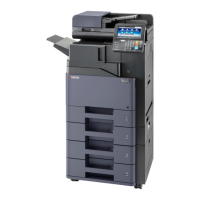
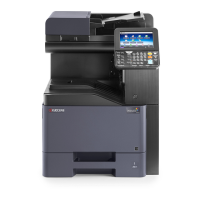
Kyocera TASKALFA 300I - User Manual

Kyocera TASKALFA 300I
426 pages
Print Icon
To Next Page IconTo Next Page
Loading...
OPERATION GUIDE
300i
Please read this Operation Guide before using this machine. Keep it close to the machine for easy reference.

Table of Contents

Other manuals for Kyocera TASKALFA 300I

Questions and Answers

  • B
    brendagomezNov 21, 2025
    What to do if Kyocera All in One Printer network connection fails?
    • S
      Shawn BrewerNov 21, 2025
      If a network connection fails, for example, indicated by a Send Error, try the following: * Connect the network cable and properly set up TCP/IP. * Check folder sharing and access permissions in the Folder Properties dialog box. * Enable the SMB protocol setting. * Verify the host name of the destination computer and the name of the shared folder. * Confirm the domain name and domain user name are correct. * Ensure the login password is correct. * If the domain name specified in [Host Name] differs from the one specified in [Login User Name], delete the domain name and a \\ from the name entered in [Login User Name]. * Also, ensure the time setting is the same between the machine, PC, and the domain server. * To configure Windows Firewall, open Control Panel from the Sta...
  • G
    Gloria BassAug 25, 2025
    Why Kyocera All in One Printer cannot send document?
    • J
      jenkinselizabethAug 26, 2025
      If your Kyocera All in One Printer cannot send a document, make sure the modular cord is correctly connected. If a send error is displayed, identify the cause of the error and try sending again. Also, verify whether TX (transmission) restriction is activated and, if so, cancel the TX restriction.
  • A
    amandamanningAug 27, 2025
    Why Kyocera All in One Printer cannot receive document?
    • W
      Wendy SinghAug 27, 2025
      If your Kyocera All in One Printer cannot receive a document, first check that the modular cord is correctly connected. If a communication error is displayed, address the cause of the error and ask the sender to retry. Additionally, check if RX (reception) restriction is activated and, if it is, cancel the RX restriction.
  • W
    wilsonstephenAug 27, 2025
    Why Kyocera TASKALFA 300I has no print output after reception?
    • W
      wwilliamsAug 27, 2025
      If there is no print output after reception on your Kyocera All in One Printer, check if memory forwarding is activated and verify the forwarding destination.
  • K
    Kent HaynesAug 28, 2025
    What to do if Kyocera TASKALFA 300I says to add paper?
    • R
      Robert SmithAug 28, 2025
      If your Kyocera All in One Printer displays this message, it means the indicated cassette or MP tray is out of paper. Add paper of the same size as indicated. If a specific type of printing paper is specified, the necessary paper types will also be displayed. To use a different paper source, select the desired paper source and press [Continue]. You can also press [MP Tray Setting] to change the paper size/type of the MP tray. Also, make sure that the cassette is securely loaded; remove it and reload it completely.
  • B
    Bryan GlennSep 14, 2025
    Why Kyocera All in One Printer cannot use polling reception?
    • K
      Kayla ProctorSep 14, 2025
      If your Kyocera All in One Printer cannot use polling reception, check with the recipient to ensure that polling transmission is being used correctly on the sending machine.
  • G
    gabriel97Sep 12, 2025
    Why Kyocera TASKALFA 300I cannot store memory forwarding data in a FAX Box?
    • J
      Jamie GriffinSep 12, 2025
      If your Kyocera All in One Printer cannot store memory forwarding data in a FAX Box, verify that the FAX Box is specified correctly in the memory forwarding setting. Also, ensure there is free space available in the memory.
  • M
    Miss Tammy Ray DDSSep 13, 2025
    Why Kyocera All in One Printer cannot output from a FAX Box?
    • F
      Frank ArmstrongSep 13, 2025
      If your Kyocera All in One Printer cannot output from a FAX Box, make sure you enter the correct box password if one has been set.
  • I
    Ian SmithSep 5, 2025
    Why Kyocera TASKALFA 300I cannot perform memory forwarding?
    • J
      Jillian HendersonSep 5, 2025
      If your Kyocera All in One Printer cannot perform memory forwarding, check whether memory forwarding is set to [On] in the settings.
  • E
    eprestonSep 3, 2025
    Why Kyocera TASKALFA 300I cannot perform broadcast transmission?
    • B
      Breanna MooreSep 3, 2025
      If your Kyocera All in One Printer cannot perform broadcast transmission, it's likely because there isn't enough free space in the memory. Try again after freeing up memory, or create free space in the memory.

Summary

Part Names

Preparation before Use

Basic Operation

Copying Functions

Sending Functions

Document Box

Status; Job Cancel

Default Setting (System Menu)

Maintenance

Troubleshooting

Management

Kyocera TASKALFA 300I Specifications

General IconGeneral
Duplex printingYes
Print technologyLaser
Maximum resolution600 x 600 DPI
Time to first page (black, normal)5.8 s
Print speed (black, normal quality, A4/US Letter)- ppm
Copier resize25 - 400 %
Maximum number of copies999 copies
Time to first copy (color, normal)5.1 s
Scan toE-mail, FTP, USB
Grayscale levels256
Scan speed (black)50 ppm
Scan speed (color)15 ppm
FaxingMono faxing
Fax memory12 MB
Modem speed33.6 Kbit/s
Fax coding methodsJBIG, MH, MMR (Fax coding method), MR
Fax transmission speed3 sec/page
Digital senderNo
Maximum duty cycle- pages per month
Page description languagesMicrosoft XPS, PCL 6, PostScript 3
Paper input typeCassette, Paper tray
Total input capacity1200 sheets
Total output capacity250 sheets
Maximum input capacity2200 sheets
Multi-Purpose tray input capacity200 sheets
Maximum print size297 x 420 mm
Duplex media weight60 - 80 g/m²
Paper tray media typesPlain paper
Paper tray media weight60 - 120 g/m²
ISO A-series sizes (A0...A9)A3
Multi-Purpose Tray media weight45 - 200 g/m²
DisplayLCD
Control typeTouch
Product colorBlack
Market positioningBusiness
Standard interfacesEthernet, USB 2.0
Mobile printing technologiesNot supported
Internal memory2048 MB
Processor familyPowerPC
Internal storage capacity160 GB
Sound pressure level (copying)66.5 dB
Sound pressure level (quiet mode)47 dB
AC input voltage220 - 240 V
AC input frequency50 - 60 Hz
Power consumption (standby)130 W
Power consumption (PowerSave)12 W
Power consumption (average operating)610 W
Mac operating systems supportedMac OS X 10.2 Jaguar, Mac OS X 10.3 Panther, Mac OS X 10.4 Tiger, Mac OS X 10.5 Leopard, Mac OS X 10.6 Snow Leopard, Mac OS X 10.7 Lion, Mac OS X 10.8 Mountain Lion
Sustainability certificatesENERGY STAR
CertificationGS, TÜV, CE
Weight and Dimensions IconWeight and Dimensions
Depth630 mm
Width570 mm
Height767.2 mm

Related product manuals