EasyManua.ls Logo

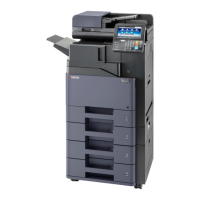
Kyocera TASKALFA 300I - User Manual

Kyocera TASKALFA 300I
426 pages
Print Icon
To Next Page IconTo Next Page
Loading...
OPERATION GUIDE
300i
Please read this Operation Guide before using this machine. Keep it close to the machine for easy reference.

Table of Contents

Other manuals for Kyocera TASKALFA 300I

Questions and Answers

  • A
    Anthony PenningtonSep 12, 2025
    Why Kyocera TASKALFA 300I cannot use the remote switching function?
    • W
      William StewartSep 12, 2025
      If you cannot use the remote switching function on your Kyocera All in One Printer, consider the following: * If you are using a pulse line, some phones may transmit tone signals using buttons. Consult your phone's manual. * Verify that the remote switching number is correct. (Default: 55)
  • M
    Maria CampbellSep 10, 2025
    Why Kyocera All in One Printer cannot perform memory forwarding using a sub address?
    • D
      Desiree SmithSep 10, 2025
      If your Kyocera All in One Printer cannot perform memory forwarding using a sub address, ensure the recipient fax machine is equipped with a sub address transmission feature. Also, verify that the entered sub address is identical to the sub address registered in the recipient fax machine. If your entry is correct, check with the recipient.
  • L
    lisayoungSep 9, 2025
    Why Kyocera TASKALFA 300I cannot perform sub address transmission?
    • M
      Michelle PerezSep 9, 2025
      If your Kyocera All in One Printer cannot perform sub address transmission, consider the following: * Ensure the recipient fax machine has sub address transmission feature. * Verify the entered sub address or password matches the recipient's. * Check if the recipient fax machine has available memory.
  • J
    jacquelineprattAug 25, 2025
    How to fix Kyocera TASKALFA 300I All in One Printer machine failure?
    • R
      Rebecca SchroederAug 25, 2025
      If your Kyocera All in One Printer is showing a machine failure message, try turning the main power switch off and on, or unplug the power cord and plug it in again. If the message persists, make a note of the error code, turn the main power switch off, unplug the power cord, and call your service representative.
  • J
    Jeffrey MarshallSep 6, 2025
    Why Kyocera TASKALFA 300I cannot perform encrypted communication?
    • A
      Allison BartonSep 7, 2025
      If your Kyocera All in One Printer cannot perform encrypted communication, double-check the registrations both at the sender and the recipient to ensure they are correct.
  • I
    Ian SmithSep 5, 2025
    Why Kyocera TASKALFA 300I cannot perform memory forwarding?
    • J
      Jillian HendersonSep 5, 2025
      If your Kyocera All in One Printer cannot perform memory forwarding, check whether memory forwarding is set to [On] in the settings.
  • M
    Mr. Eric ThompsonSep 4, 2025
    What to do if Kyocera TASKALFA 300I displays 'Scheduled sending jobs exceeded'?
    • Y
      ybullockSep 4, 2025
      If the number of scheduled sending jobs has been exceeded on your Kyocera All in One Printer, it means you've reached the limit for delayed transmission. Press [End] to cancel the current job. Wait until the delayed transmissions are completed, or cancel some of the delayed transmissions before trying the job again.
  • E
    eprestonSep 3, 2025
    Why Kyocera TASKALFA 300I cannot perform broadcast transmission?
    • B
      Breanna MooreSep 3, 2025
      If your Kyocera All in One Printer cannot perform broadcast transmission, it's likely because there isn't enough free space in the memory. Try again after freeing up memory, or create free space in the memory.
  • A
    Adrian HarrisSep 2, 2025
    Why Kyocera TASKALFA 300I cannot perform memory reception?
    • L
      Linda JonesSep 2, 2025
      If your Kyocera All in One Printer cannot perform memory reception, it is likely due to insufficient free space in the memory. To resolve this, either free up memory space or receive the document after the memory has free space.
  • N
    Nicholas JohnsonSep 1, 2025
    What to do if Kyocera TASKALFA 300I displays 'Job Accounting restriction exceeded'?
    • C
      Cassidy WilsonSep 1, 2025
      If your Kyocera All in One Printer indicates that the Job Accounting restriction has been exceeded, it means the number of pages used has surpassed the preset limit. No further operation is possible. Press [End] to cancel the job. To continue, reset the limit for paper use and try the job again.

Summary

Part Names

Preparation before Use

Basic Operation

Copying Functions

Sending Functions

Document Box

Status; Job Cancel

Default Setting (System Menu)

Maintenance

Troubleshooting

Management

Kyocera TASKALFA 300I Specifications

General IconGeneral
Duplex printingYes
Print technologyLaser
Maximum resolution600 x 600 DPI
Time to first page (black, normal)5.8 s
Print speed (black, normal quality, A4/US Letter)- ppm
Copier resize25 - 400 %
Maximum number of copies999 copies
Time to first copy (color, normal)5.1 s
Scan toE-mail, FTP, USB
Grayscale levels256
Scan speed (black)50 ppm
Scan speed (color)15 ppm
FaxingMono faxing
Fax memory12 MB
Modem speed33.6 Kbit/s
Fax coding methodsJBIG, MH, MMR (Fax coding method), MR
Fax transmission speed3 sec/page
Digital senderNo
Maximum duty cycle- pages per month
Page description languagesMicrosoft XPS, PCL 6, PostScript 3
Paper input typeCassette, Paper tray
Total input capacity1200 sheets
Total output capacity250 sheets
Maximum input capacity2200 sheets
Multi-Purpose tray input capacity200 sheets
Maximum print size297 x 420 mm
Duplex media weight60 - 80 g/m²
Paper tray media typesPlain paper
Paper tray media weight60 - 120 g/m²
ISO A-series sizes (A0...A9)A3
Multi-Purpose Tray media weight45 - 200 g/m²
DisplayLCD
Control typeTouch
Product colorBlack
Market positioningBusiness
Standard interfacesEthernet, USB 2.0
Mobile printing technologiesNot supported
Internal memory2048 MB
Processor familyPowerPC
Internal storage capacity160 GB
Sound pressure level (copying)66.5 dB
Sound pressure level (quiet mode)47 dB
AC input voltage220 - 240 V
AC input frequency50 - 60 Hz
Power consumption (standby)130 W
Power consumption (PowerSave)12 W
Power consumption (average operating)610 W
Mac operating systems supportedMac OS X 10.2 Jaguar, Mac OS X 10.3 Panther, Mac OS X 10.4 Tiger, Mac OS X 10.5 Leopard, Mac OS X 10.6 Snow Leopard, Mac OS X 10.7 Lion, Mac OS X 10.8 Mountain Lion
Sustainability certificatesENERGY STAR
CertificationGS, TÜV, CE
Weight and Dimensions IconWeight and Dimensions
Depth630 mm
Width570 mm
Height767.2 mm

Related product manuals