36
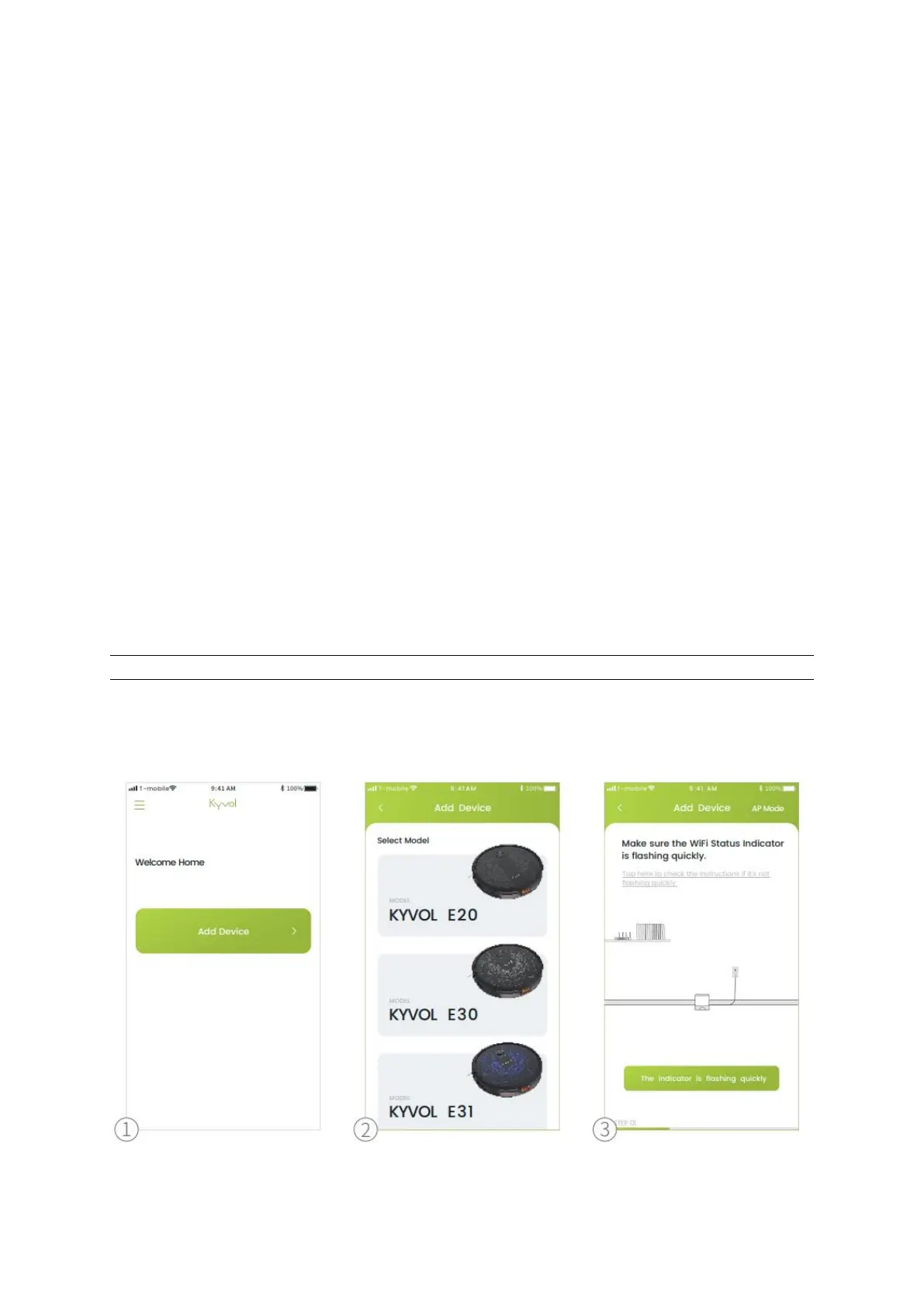
WiFi Connection
IMPORTANT:
For Your Robot:
Make sure the robot has enough power and the Power Switch of the robot is pressed to
ON.
For WiFi Network:
1. Make sure your mobile device is connected to a 2.4GHz WiFi. If your router is a
dual-band router, please select the 2.4GHz network.
2. Make sure you´ve entered the correct WiFi name and password when
connecting.
3. Avoid using an emoji or special characters or symbols in your WiFi name and
password.
4. It´s not recommended to use a VPN (Virtual Private Network) or Proxy Server.
5. Make sure the robot and your mobile device are close to the router when
connecting.
WiFi Status Indicator


 To Next Page