LaCie d2 Thunderbolt 2 | USB 3.0 User Manual 26
How to daisy chain
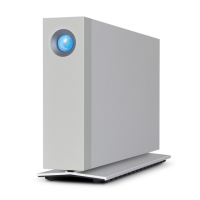
Connect the Thunderbolt cable to one of the Thunderbolt 2 ports on the back of the LaCie d2 and to your
computer. The additional port may be used to daisy chain compatible first generation Thunderbolt and
Thunderbolt 2 peripherals, such as hard drives and monitors. If you have another Thunderbolt 2 storage device,
make certain to connect it to the LaCie d2 before adding first generation Thunderbolt technology devices and/or
displays.
Important cable info: When connecting your enclosure to a computer or compatible devices, use cables
specifically constructed to support Thunderbolt technology. Thunderbolt technology cables are compatible
with Thunderbolt 2 technology devices and first generation Thunderbolt technology devices.
Important info: To reach Thunderbolt 2 technology transfer rates of up to 20Gb/s bi-directional, the LaCie
d2 must be connected to a computer that supports Thunderbolt 2 technology. Connecting the LaCie d2 to a
computer that supports first generation Thunderbolt technology allows for transfer rates up to 10Gb/s
bi-directional.
Daisy chain: power-saving mode
You can daisy chain Thunderbolt 2 technology and first generation Thunderbolt technology devices when the
LaCie d2 is in power-saving mode. Though the hard drive spins down when the LaCie d2 enters power-saving
mode, the Thunderbolt 2 signal remains constant. Therefore, daisy-chained devices continue data operations
without interruption.
As described in LED Power Button, you can set the Mac operating system to automatically place the LaCie d2
into power-saving mode. However, the power-saving setting may not take effect if you have daisy-chained
powered Thunderbolt 2 devices to the LaCie d2. For example, a hard drive or monitor that receives power via a
power outlet. Follow the instructions below to manually place the LaCie d2 into power-saving mode:
Make certain that the LaCie d2’s volumes are not being accessed.1.
Eject the volumes (see Unmounting Your Hard Drive).2.
Apply a short press to the LED button. A short press lasts no longer than 1 second.3.
To wake up the LaCie d2, apply another short press.




 To Next Page