EasyManua.ls Logo

LaCie Drive - User Manual

LaCie Drive
28 pages
Print Icon
To Next Page IconTo Next Page
Loading...
LaCie Brick Mobile Hard Drive
User Manual
page 1
Table of Contents
Table of Contents
Health and Safety Precautions 3
General Use Precautions 3
1. Introduction to the LaCie Hard Drive 5
1.1. Box Content 6
1.2. Minimum System Requirements 7
1.3. Stacking Bricks 8
2. Getting Connected 9
2.1. Installing Silverlining 98 and USB 2.0 Driver (Windows 98 and Me Users) 10
2.2. Installing Silverlining Pro (Mac OS 9.x Users) 11
2.3. Connecting the USB 2.0 Interface Cable 12
2.4. Connecting the Optional Power Sharing Cable 13
2.5. Disconnecting Your LaCie Hard Drive 14
3. Formatting and Partitioning 15
3.1. Formatting for Windows Users 16
3.1.1. Windows 98 SE and ME 16
3.1.2. Windows 2000 and XP 16
3.2. Formatting for Mac Users 18
3.2.1. Mac OS 9.x 18
3.2.2. Mac OS 10.x 18
4. Interface and Data Transfer Information 20
4.1. USB 2.0 Connection 20
4.2. Data Transfers 21
5. Troubleshooting 22
5.1. Mac Users 22
5.2. Windows Users 24
6. Contacting Customer Support 26
6.1. LaCie Technical Support Contacts 27
7. Warranty Information 28

Questions and Answers

  • B
    Brandi ArmstrongJul 27, 2025
    What to do if my LaCie Network Card drive is not recognized?
    • M
      moralesrichardJul 27, 2025
      If the LaCie Network Card's drive icon isn't visible on your desktop, begin by reviewing the troubleshooting steps. Ensure your system meets the minimum requirements as detailed on page 1.2. Next, carefully follow the USB 2.0 interface cable connection instructions on page 2.4. Verify both ends of the USB cable are securely plugged into their ports, and try disconnecting and reconnecting them after 10 seconds. If the issue persists, try restarting your computer.
  • J
    jeremiahprestonAug 8, 2025
    Why is my LaCie Network Card not turning on?
    • M
      Matthew HughesAug 8, 2025
      If the LED on the front of your LaCie Network Card isn't lit, it might not be getting enough power from your computer's USB. Try connecting the USB power sharing cable as explained in section 2.4, Connecting the Optional Power Sharing Cable.

Summary

Health and Safety Precautions

General Use Precautions

Provides essential advice for daily operation and environmental handling of the hard drive.

Introduction to the LaCie Hard Drive

Box Content

Itemizes all components included in the product packaging for initial setup.

Minimum System Requirements

Outlines the necessary hardware and software specifications for compatibility.

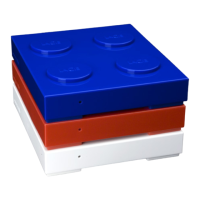
Stacking Bricks

Details the design feature for stacking drives and its cooling limitations.

Getting Connected

Installing Silverlining 98 and USB 2.0 Driver (Windows 98 and Me Users)

Installation instructions for specific drivers and software on older Windows systems.

Installing Silverlining Pro (Mac OS 9.x Users)

Installation guide for Silverlining Pro software on Mac OS 9.x systems.

Connecting the USB 2.0 Interface Cable

Instructions for physically connecting the drive to the computer using the USB cable.

Connecting the Optional Power Sharing Cable

Guidance on using the power sharing cable for additional power if needed.

Disconnecting Your LaCie Hard Drive

Procedures for safely ejecting and disconnecting the drive to prevent data loss.

Formatting and Partitioning

Formatting for Windows Users

Step-by-step guide for formatting the drive on Windows operating systems.

Formatting for Mac Users

Step-by-step guide for formatting the drive on Mac operating systems.

Interface and Data Transfer Information

USB 2.0 Connection

Information on the USB 2.0 interface and its capabilities.

Data Transfers

Guidance on data transfer processes and troubleshooting.

Troubleshooting

Mac Users

Troubleshooting steps specific to Mac operating systems.

Windows Users

Troubleshooting steps specific to Windows operating systems.

Contacting Customer Support

LaCie Technical Support Contacts

Lists contact details for LaCie technical support across different regions.

Warranty Information

LaCie Drive Specifications

General IconGeneral
BrandLaCie
ModelDrive
CategoryNetwork Card
LanguageEnglish

Related product manuals