LaCie Brick Mobile Hard Drive
User Manual
page 18
Formatting and Partitioning
Mac OS 9.x users must install Silverlining Pro to
format and partition the drive. See section 2.2 for Sil-
verlining installation instructions.
3.2. Formatting for Mac Users
3.2.1. Mac OS 9.x ■
Connect the drive to the computer and turn on the 1.
drive.
Select 2. Utilities from the Go menu in the Finder
menu bar.
In the Utilities folder, double-click 3. Disk Utility.
e Disk Utility window will open. Select the volume 4.
labeled LaCie Hard Drive from the list of available
hard disks on the left side of the window.
Select the 5. Partition tab.
From the 6. Volume Scheme: menu, choose the num-
ber of partitions you want to divide the drive into
(Mac OS 10.x gives you the option of dividing the
drive into at most 16 partitions). You can adjust the
size of each partition using the slide bar between the
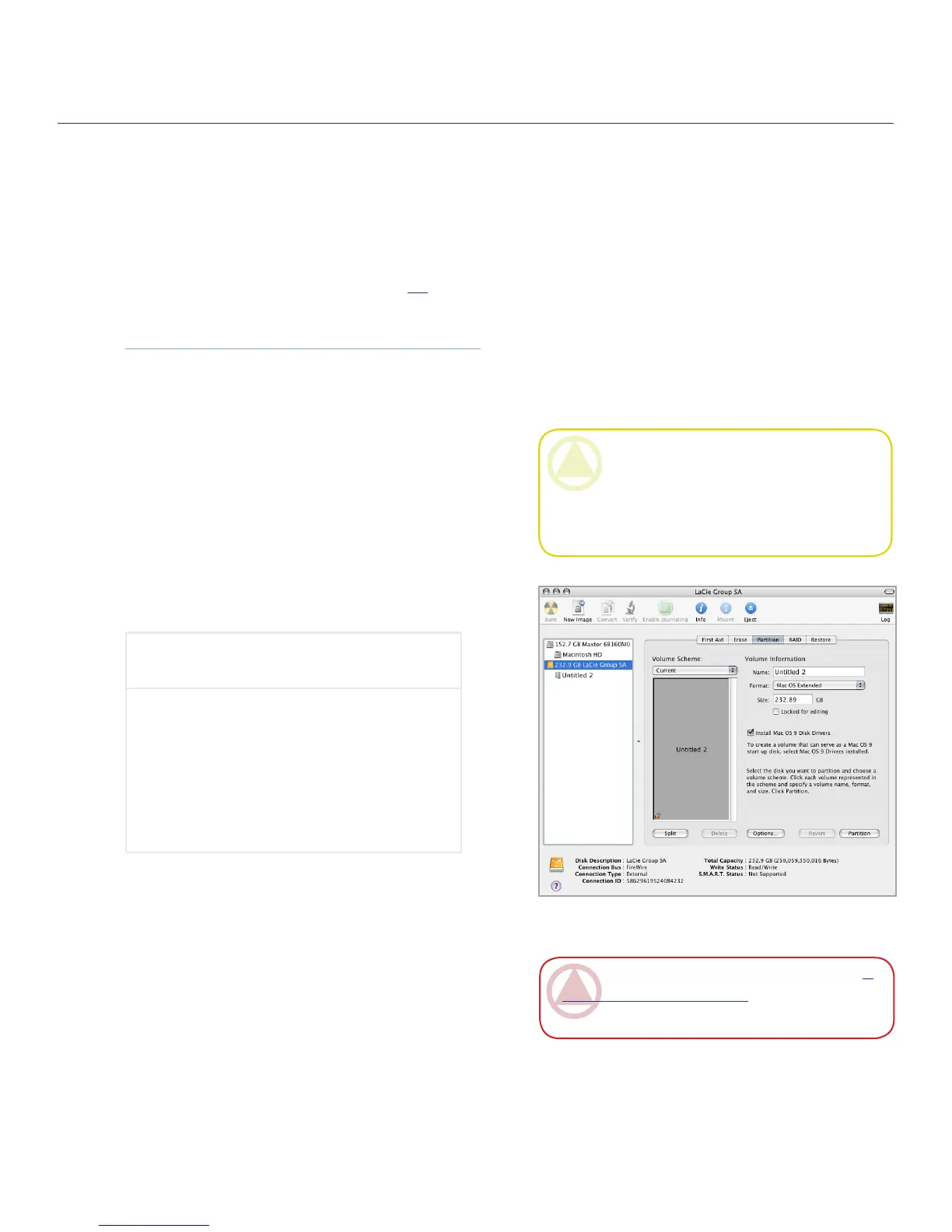
3.2.2. Mac OS 10.x ■
Fig. 3.2.2.
ImpOrTANT INfO: Please refer to section 3,
Formatting and Partitioning, for a more detailed
comparison of the various file system formats.
CAUTION: Following these steps will erase ev-
erything from the hard drive. If you have informa-
tion that you want to protect or continue to use,
back up this information before performing these
steps.
(continued on next page) ■
To reformat for use with Windows and
Mac:
Select the a. Erase tab.
Select b. MS-DOS File System from the Vol-
ume Format menu.
Enter a name for the drive of no more than 11 c.
characters. Click Erase. Click Erase again.
Continue to Step 5.d.





 To Next Page