15
Saved logs can be retrieved later using the VitalSim PC utility
program. Logs can be transferred to the PC for permanent
storage, additional comments and printing.
Log Controls
On the main display; using the left / right navigation buttons
highlight the Log functional area.
Press OK to activate the Log Control menu or select functions
directly from quick execution buttons.
Pause: Stops the clock. Any events or changes in settings
will not be logged. Resume logging and clock.
Restart: Restart the log. Erase current log.
Save Log. Saves the current log. Log is given a default name by
VitalSim, Logxx, where xx is a sequential number.This name can
be modified, using the backspace quick execution
button and the alphanumeric buttons.
Up to 25 logs can be saved. Logs are erased when
transferred to a PC, or they can be erased using
the Clear All Logs function.
Log
The top section of the main functional area controls log and scenario.
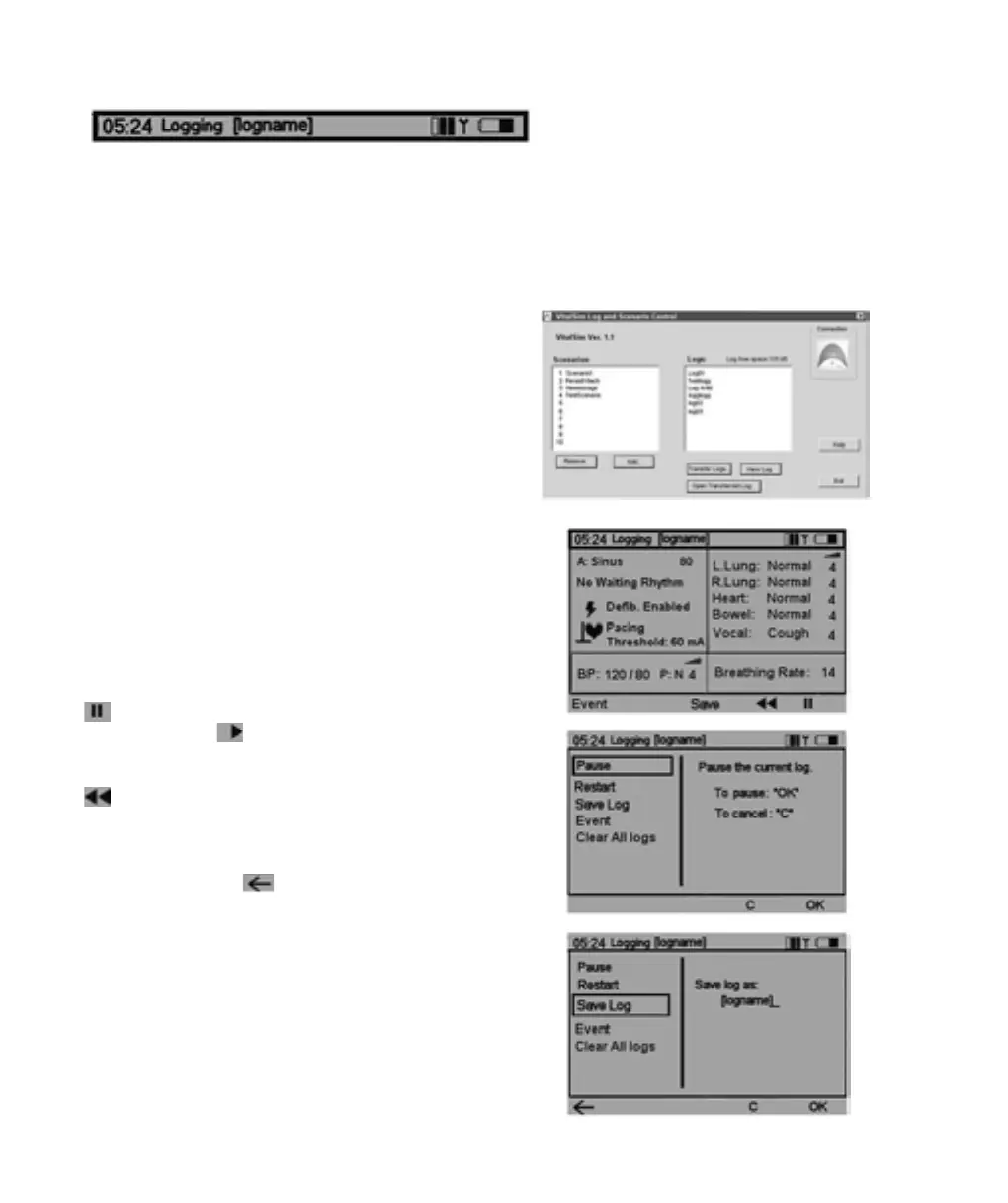
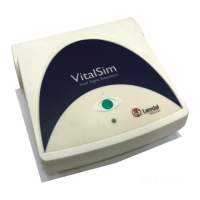
The VitalSim automatically generates a log of events from the moment the unit is turned on. Elapsed time and
name for the current log is displayed in the upper left corner of the display. Unless saved, the log will be erased
when the base unit is turned off. The Log / Scenario section have controls for Pause and Resume, Restart and
Save logs. In addition it is possible to log manual events from the remote control.
VitalSim06DfUengelsk 11.09.03 08:14 Page 15








 To Next Page