EXPLORING LAUNCHKEY
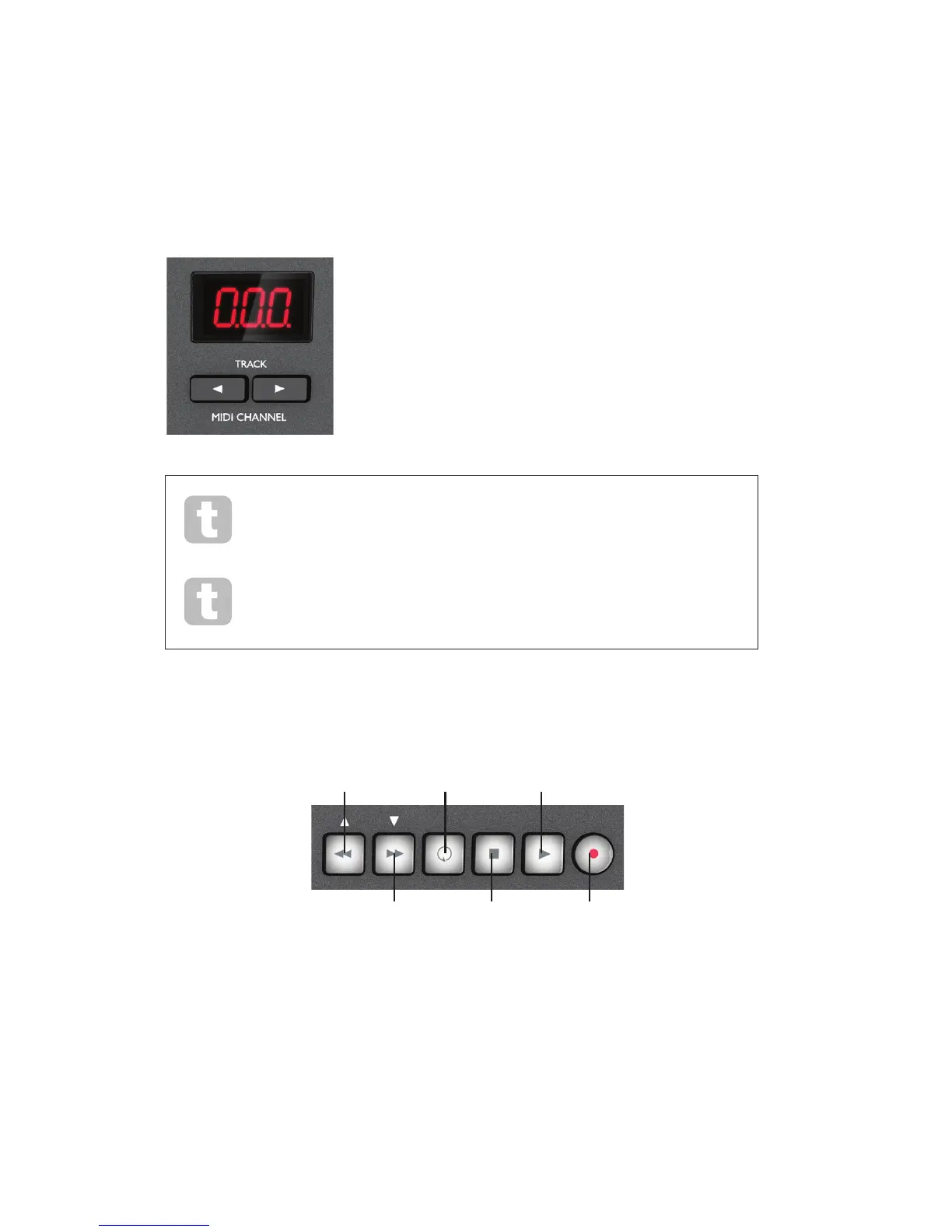
MIDI Channel
MIDI data can be sent on any one of 16 channels, and will only be received and interpreted
correctly if the receiving device is set to the same channel. The default MIDI channel is 01.
To select a different channel:
• Press the two TRACK buttons [13] simultaneously; the LED
display[11]willash,indicatingthecurrentMIDIchannel
• Use the TRACK I / H buttons, select the desired channel
number.
When powering-on, Launchkey ALWAYS defaults to MIDI Channel 01; if you
have re-powered since changing the MIDI channel number, you will need to
reset it.
The exception to the above are the launch pads; these ALWAYS transmit on
MIDI Channel 10, as this is the standard GM MIDI channel for percussion
instruments.
Transport controls
Launchkey is provided with a standard set of six ‘transport’ controls, which can be used to start,
stop, relocate, etc., within your DAW’s timeline. They act as a convenient remote control for the
software and duplicate the on-screen buttons.
Start
Fast Forward Stop Record
Rewind Loop
In InControl mode, these will control the DAW’s standard transport functions. In Basic Mapping
mode, each button will transmit its own unique MIDI CC message, and you may need to
congure your DAW to respond correctly. See the MIDI tables on page 24.
When Launchkey is used with the Novation iPad apps, the transport buttons are used for custom
functions,whicharespecictotheappinuse.


 To Next Page