• The rotary controllers [6] are always mapped directly to the eight rotary controls
displayed on-screen for each patch.
• Sliders1to8(49-and61-noteversions)[4]controltheprimaryAmplitude(sliders1to
4)andModulation(sliders5to8)EnvelopeADSRparameters.Theseassignmentsare
the same for all patches.
• The Master Slider always controls the overall synth volume.
• ThreeoftheTransportcontrolbuttons[7]operatethesyntharpfunctions:Play(H)
startsthearpsequence,Stop( A)stopsthearpsequence,andLoop( ) acts as an
Arp Latch control, and causes the sequence to run continuously.
• The C and Dbuttons(alsomarkedK and J) can be used to select the next or
previous patch.
• The upper bank of eight launch pads [8] permit storage and recall of your favourite
patches. To store a patch as a favourite, hold down the upper round Launch Pad button
[9] and press one of the eight pads. To recall a favourite patch, simply press a pad.
Note that storage of favourite patches is retained within the app; each favourite always
links to an existing patch, thus any alterations made to the parameters of a patch such
as knob positions will be lost when a new patch or favourite is selected.
• The lower bank of eight launch pads duplicate the on-screen performance Nodes.
Pressing a pad is equivalent to touching one of the Nodes.
Using Launchkey with the Launchpad iPad app
Connect your Launchkey keyboard to your iPad via the camera kit, following the instructions on
page 14.
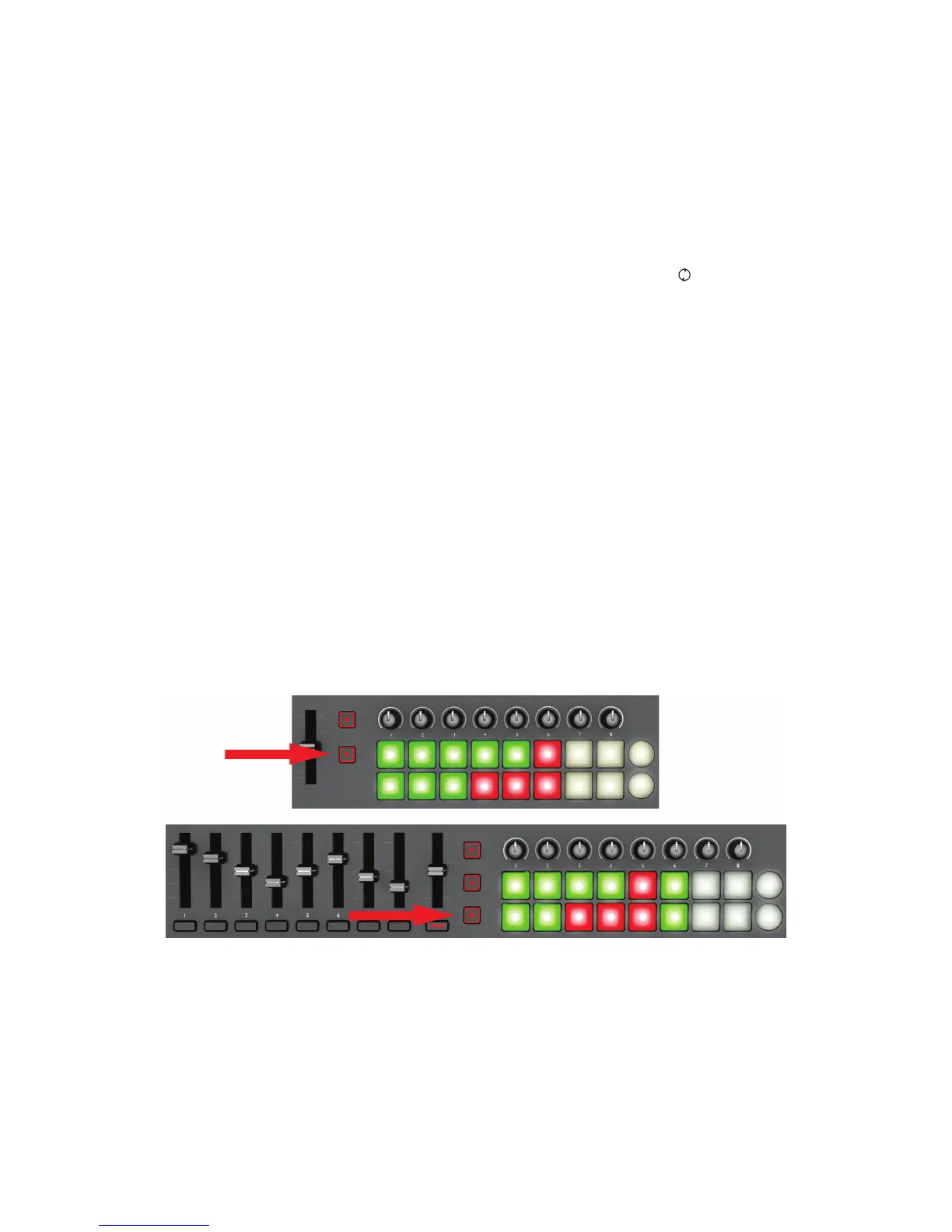
Press the InControl button for the launch pads to enable them to interface with the app.
The hardware launch pads will illuminate, representing 16 of the 48 Launchpad app pads. How
they illuminate will depend on the current Launchpad app session. Note that when the app is
rstloaded,thehardwarepadsaremappedtothetoptworowsoftheapp,andthisisconrmed
by the two “LEDs” at the left-hand end of the on-screen rows. Use the K and J buttons in the


 To Next Page