22
2. Operating and Programming / 2.7 Schedule Setting
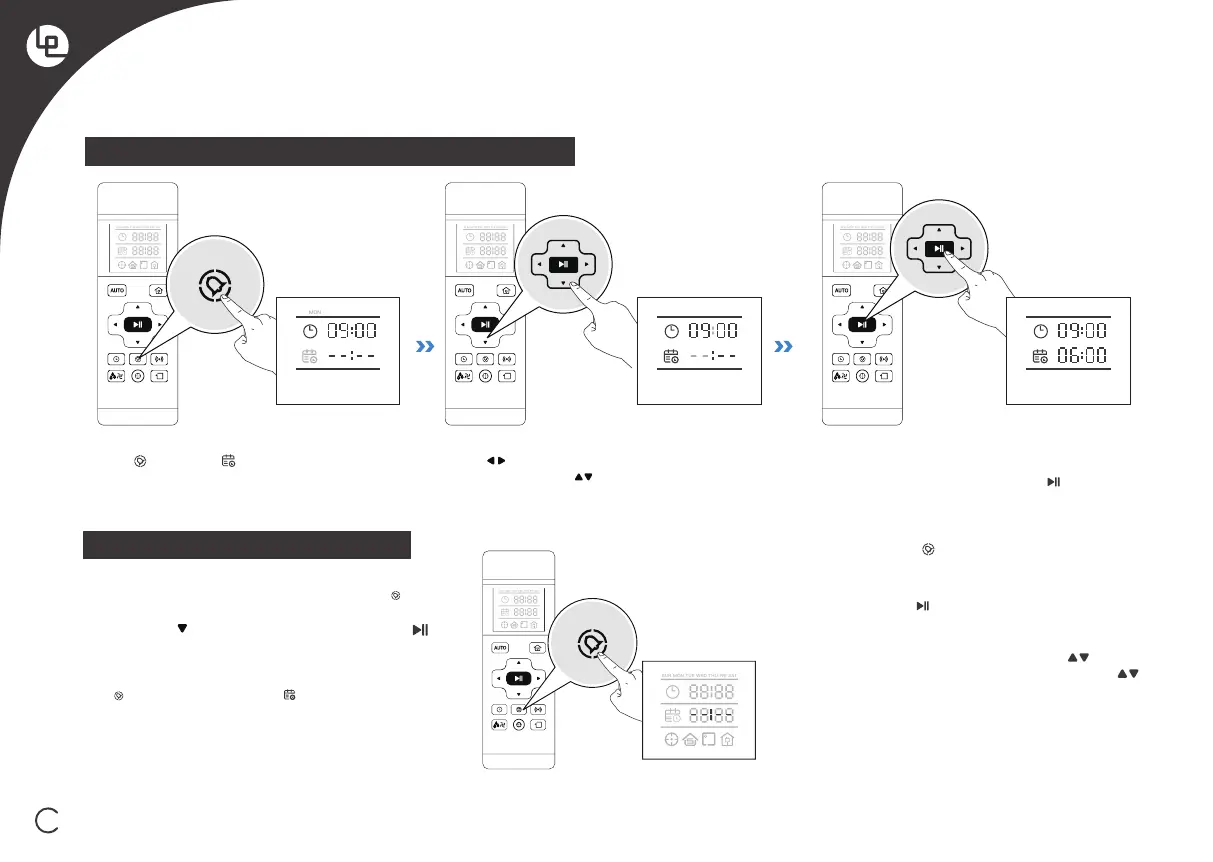
Schedule the Cleaning Time using Remote Control
Cancel Scheduled Cleaning Time
Press button, the icon and the week
column area flash on the Remote Control
screen.
Using Remote Control
Press the and
Set the time to 00:00. When the minute digit flashes
and press the button to change to --:--, then press
to cancel the Scheduled cleaning time of the day,
The robot will give a “beep’sound.
[Cancel all scheduled cleaning time] Press and hold
the button for 3 seconds, the icon disappears on
the screen to display --:--, the robot gives a“beep”
sound, canceling the scheduled cleaning time function.
*When the robot is powered off or the remote control
battery is removed, You need to reset the current time
and scheduled cleaning time setting.
If you do not press button to save, the scheduled
cleaning time setting is unsuccessful; the clock setting
is automatically exited after 10s without operation.
*Note: Adjust the hour each time you press button
hours +1/-1, adjust the minute each time you press
button minutes +5/-1.
After the scheduled cleaning time is adjusted, align the
remote control with the robot, press the button on
the remote control to save the settings, the robot will
give a “beep”sound, and go to the scheduling time
setting of the next day.After the configuration is
complete, press the button to exit the setup, and the
robot will automatically cleans at the scheduled cleaning
times.
Press the Buttons to switch “hour” “minute”
and“week”. Press the Buttons to adjust
“hour”, “minute”and “selected day of the week".
SUN MON TUE WED THU FRI SAT
MON MON



 To Next Page