EasyManua.ls Logo

lefant M201 - User Manual

lefant M201
20 pages
Print Icon
To Next Page IconTo Next Page
Loading...
Please read these instructions carefully before using
the product and keep it in a safe place
User Manual
Applicable for M201
Robot Vacuum Cleaner
Question and Answer IconNeed help?

Do you have a question about the lefant M201 and is the answer not in the manual?

Summary

Important Safety Instructions

Operating and Programming

Starting and Charging the Robot

Steps to turn on the robot, place it on the charging dock, and monitor charging status.

Start and Pause Cleaning

How to initiate and pause the automatic cleaning mode using the robot's button.

EZ Mode Network Pairing

Procedure for pairing the robot with the app using EZ mode via Wi-Fi.

AP Mode Network Pairing

Procedure for pairing the robot with the app using AP mode via Wi-Fi.

Maintenance

Dust Bin and Filter Maintenance

Steps for removing, emptying, and cleaning the dust bin and its filters.

Suction Assembly and Side Brush Maintenance

Instructions for cleaning the suction port, side brush, and driving wheels.

Indicator Light and Alarm Sounds

Troubleshooting

Overview

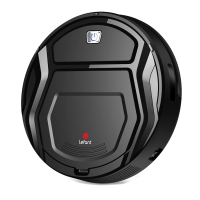
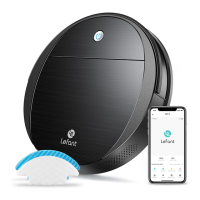
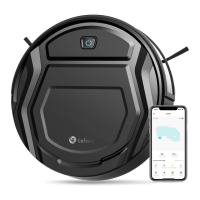
The Lefant M201 Robot Vacuum Cleaner is an autonomous cleaning device designed to maintain a clean home environment. It operates by navigating and vacuuming floors, offering convenience and freeing up users' time for other activities.

Function Description

The robot vacuum's primary function is to clean floors automatically. It is equipped with various sensors to detect its surroundings, including anti-drop sensors to prevent falls from steps or stairs, and anti-collision sensors to avoid obstacles. The device features a suction assembly for picking up dirt and debris, and side brushes to sweep particles into the suction path. It stores collected dust in a removable dust bin, which contains a filter net and a High Efficiency Filter (HEPA) to capture fine particles. The robot is rechargeable and returns to its charging dock automatically when its battery is low. It can be controlled manually via a start/pause button on the robot or through a dedicated mobile application, which allows for more advanced programming and monitoring.

Usage Features

Before operating the robot, users should prepare the cleaning area by removing power cords and small objects that could entangle the device. The robot is not suitable for long-pile carpets, and edges of area rugs should be folded under. A clearance of at least 8 cm (3 inches) is required for the robot to clean under furniture without complications. If there are steps or stairs, users should ensure the anti-drop sensors can detect them, or place a physical barrier to prevent falls.

Quick Start:

  1. Charging Dock Placement: The charging dock should be placed on a level floor surface against a wall, with a clear area of 2 meters (6.6 feet) in front and 1 meter (3.3 feet) on both sides, free of objects and reflective surfaces. The power adapter is then connected to the charging dock, and the power indicator light will glow.
  2. Side Brush Installation: Side brushes are attached to the bottom of the robot by pressing them into their designated slots until they click.
  3. Turning On and Charging: The robot's side power switch must be turned to the "ON" position. The start/pause button will glow blue when powered on. The robot is then placed on the charging dock, ensuring the charging contacts align. The start/pause button will breathe blue while charging and stop glowing when fully charged, which typically takes 3.5 hours from a low battery state.
  4. Starting and Pausing Cleaning: Pressing the start/pause button on the robot initiates automatic cleaning mode. Pressing it again will pause the cleaning.
  5. Returning to Charging Dock: When the battery is low, the robot automatically enters "Return to Charger Mode" and navigates back to the charging dock. Alternatively, users can double-click the start/pause button to manually send the robot back to charge.

APP Download and Network Configuration: The robot can be controlled via a mobile application called "Lefant Life," available on iOS (version 9.0 or above) and Android (version 4.0 or above). Users can download the app by scanning a QR code or searching for "Lefant Life" in their respective app stores.

Connecting to Wi-Fi: The mobile device must be connected to an indoor 2.4G Wi-Fi network with good signal quality. Users need to register and log in to the mobile app.

EZ Mode Network Pairing (Only 2.4G Wi-Fi supported):

  1. Turn on the side switch.
  2. Press and hold the start/pause key for approximately 3 seconds until a beep is heard, then release. The robot will enter EZ mode, and the start/pause button will flash quickly in blue.
  3. Open the app, select "add device," and follow the on-screen instructions to connect to the 2.4 GHz Wi-Fi network and enter the password.

If network pairing fails, users can restart the robot and try again, or use the AP mode network pairing method.

AP Mode Network Pairing (Only 2.4G Wi-Fi supported):

  1. Turn on the side switch.
  2. Press and hold the start/pause key for approximately 6 seconds until two beeps are heard, then release. The robot will enter AP mode, and the start/pause button will flash slowly in blue.
  3. In the app, select "AP mode" for network pairing.
  4. Connect the phone to a Wi-Fi network that starts with "SmartLife."
  5. Return to the app and start the network configuration.

Maintenance Features

Regular maintenance is crucial to ensure the robot's optimal performance and longevity.

Dust Bin and Filters:

  1. Emptying the Dust Bin: Open the top cover of the robot, remove the dust bin, open its cover, and empty the contents.
  2. Cleaning the High Efficiency Filter: Remove the High Efficiency Filter. Pat it clean; do not rinse it with water.
  3. Flushing the Dust Bin and Filter Net: Flush the dust bin and the filter net with water.
  4. Drying and Reinstalling: Ensure the High Efficiency Filter, dust bin, and filter net are completely dry before reinstalling them.

Suction Assembly and Side Brush:

  1. Cleaning the Suction Port: If dust accumulates in the suction port, clean it with a cloth.
  2. Cleaning the Side Brush: Remove the side brushes and wipe them and their slots with a dry cloth.
  3. Cleaning the Driving Wheels: Clean the driving wheels to maintain their effectiveness.
  4. Cleaning the Universal Wheel: Use the multi-function cleaning tool to cut and remove any hair tangled around the universal wheel.

Other Components:

  • Anti-Collision Sensors: Clean the anti-collision sensors.
  • Anti-Drop Sensors: Wipe the anti-drop sensors with the brush or felt side of the multi-function cleaning tool to maintain their effectiveness.
  • Charging Contacts and Charging Dock Pins: Wipe the charging contacts on the robot and the charging dock pins with the brush of the multi-function cleaning tool or a dry clean cloth to maintain their effectiveness.

Troubleshooting: The manual provides a detailed troubleshooting chart for common issues, including network connection problems, charging failures, robot getting stuck, and abnormal cleaning behavior. Solutions range from checking Wi-Fi settings and power connections to cleaning specific components or restarting the robot. If issues persist, users are advised to contact customer service at support@lefantlife.com.

Storage: If the robot will not be used for an extended period, it should be fully charged, powered off, and the charging dock unplugged for storage.

lefant M201 Specifications

General IconGeneral
Charging Time4-5 hours
Weight5.5 lbs
NavigationSmart Navigation
App ControlYes
Dustbin Capacity600 ml
Noise Level65 dB
Cleaning ModesAuto, Spot, Edge
Voice ControlYes
Run Time90-120 minutes

Related product manuals