6
ADDING SHADES
Once a hub has been activated, you can start adding shades to the network.
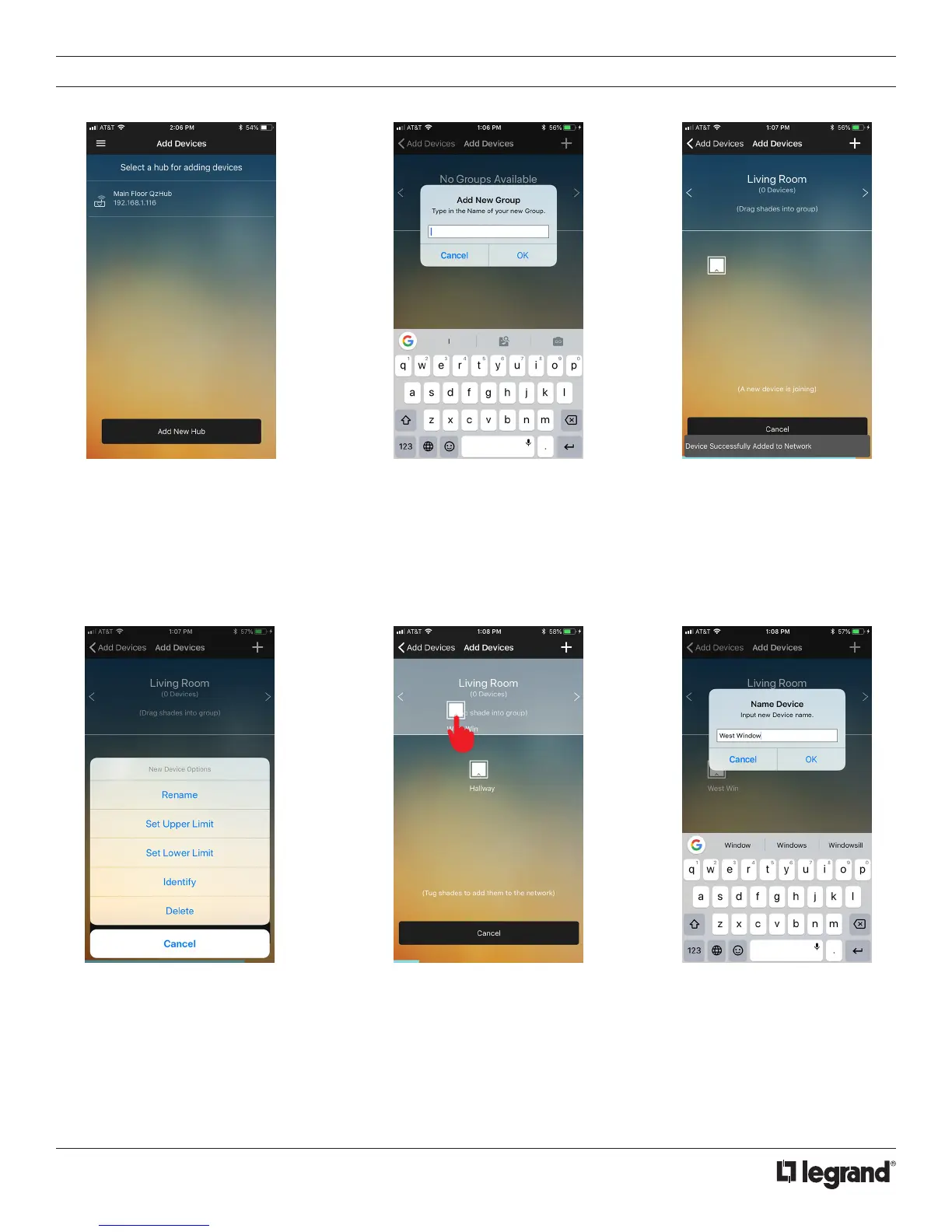
1. Navigate to the Add Devices
page and select the hub you want
to add shades to. This will take
you to the Add Shades page. The
top of the page will display device
groups.
NOTE: If for any reason you do not
drag the shade into a group, it will
appear in the Edit Devices page.
NOTE: If you are adding a large
group of shades all at once, the
shades will queue and appear
once previous shades have been
grouped.
5. Make sure the desired group is
selected above. You can then
drag and drop the shade into the
group.
3. Tap the Join button on the bottom
of the page. The QzHub will enter
join mode for approximately 45
seconds. Once in join mode,
begin manually tugging shades
to put them in their joining state.
Once the QzHub has discovered
the shade you will see the shade
icon appear on the screen.
4. Tap on the shade icon and an options
box will appear.
• Rename: Rename shade name
• Set Upper and Lower Limits: Set
limits for max and minimum shade
positions
• Identify: Shade will begin to jog
• Delete: Removes shade from network
2. Use the arrows to cycle between
groups, and the “+” icon to add a
new group.



 To Next Page