Note: To add family members, you need to sign in with a Microsoft account.
Step 3. Set the user name and password for the user account.
Enroll your fingerprint
If your computer includes a fingerprint reader, you can enroll your fingerprint for Windows sign-in.
Step 1. Open the Start menu and select Settings ➙ Accounts ➙ Sign-in options.
Note: If you are using a local account, the account must be password protected. Otherwise, you
cannot enroll fingerprints.
Step 2. Select Windows Hello Fingerprint ➙ Set up ➙ Get started.
Step 3. Follow on-screen instructions to complete the enrollment. Create a PIN when prompted, in case
your fingerprint cannot be recognized at Windows sign-in.
Note: You can enroll more than one fingerprint.
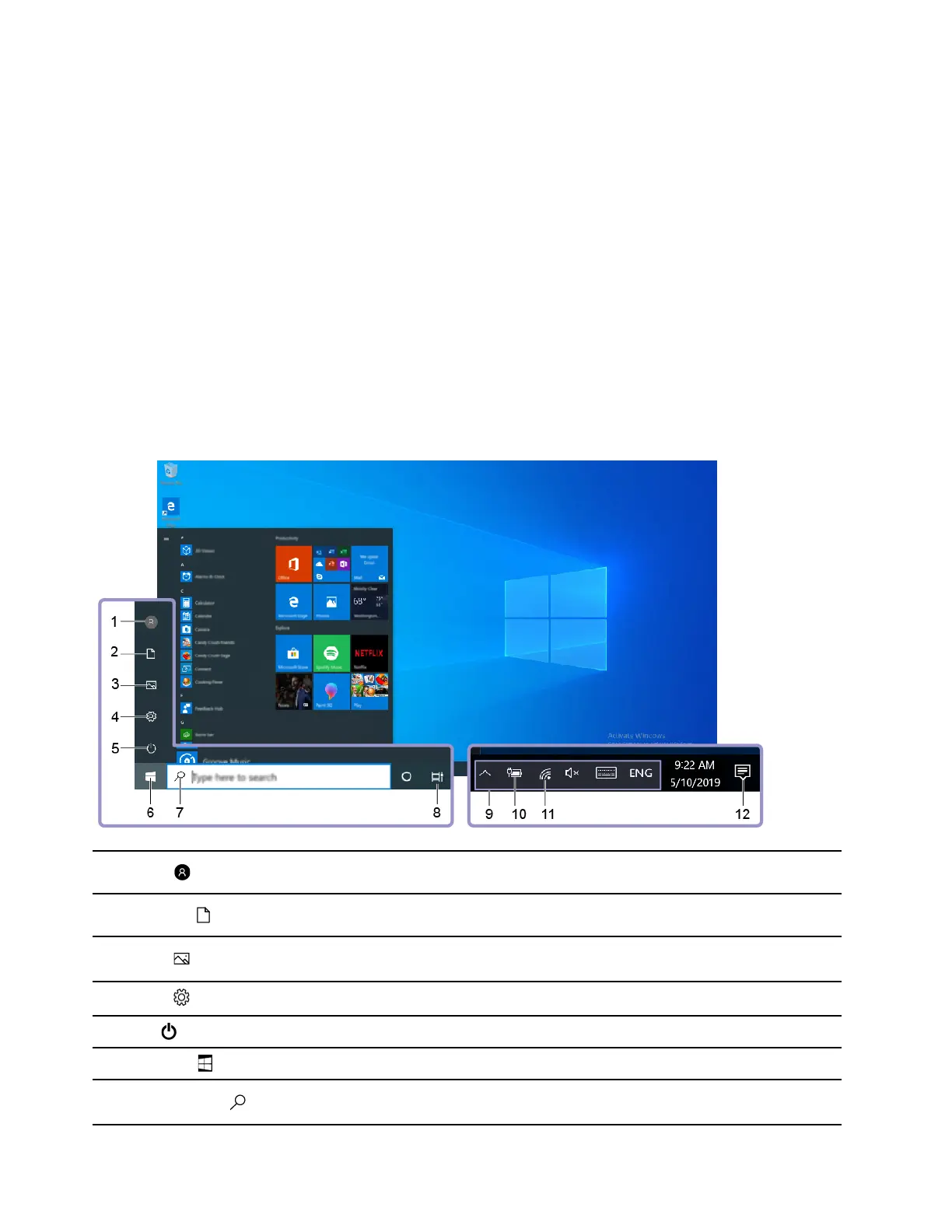
Windows desktop
1. Account
Change account settings, lock the computer, or sign out of the current
account.
2. Documents
Open the Documents folder, a default folder to save your received
files.
3. Pictures
Open the Pictures folder, a default folder to save your received
pictures.
4. Settings
Open Settings.
5. Power
Shut down, restart, or put the computer into sleep mode.
6. Start button
Open the Start menu.
7. Windows Search
Enter what you are looking for in the search box and get search results
from your computer and the Web.
10 User Guide




 To Next Page