Forget a Wi-Fi network
Windows saves a list of Wi-Fi networks you have connected to, along with their passwords and other
settings. By doing this, your computer is automatically connected when it is in the range of a previously
connected network. However, if the network password has been changed, you need to forget the network in
order to enter a new password.
Step 1. Select Start ➙ Settings ➙ Network & Internet ➙ Wi-Fi.
Step 2. Click Manage known networks.
Step 3. Click the network name and click Forget.
Turn airplane mode on and off
Airplane mode is a convenient setting to turn all wireless communications of your computer on and off. You
may need to turn it on when boarding an airplane.
Step 1. Click the action center icon in the Windows notification area.
Step 2. Click the Airplane mode icon to turn it on or off.
Note: Click Expand if you cannot find the airplane mode icon.
Interact with your computer
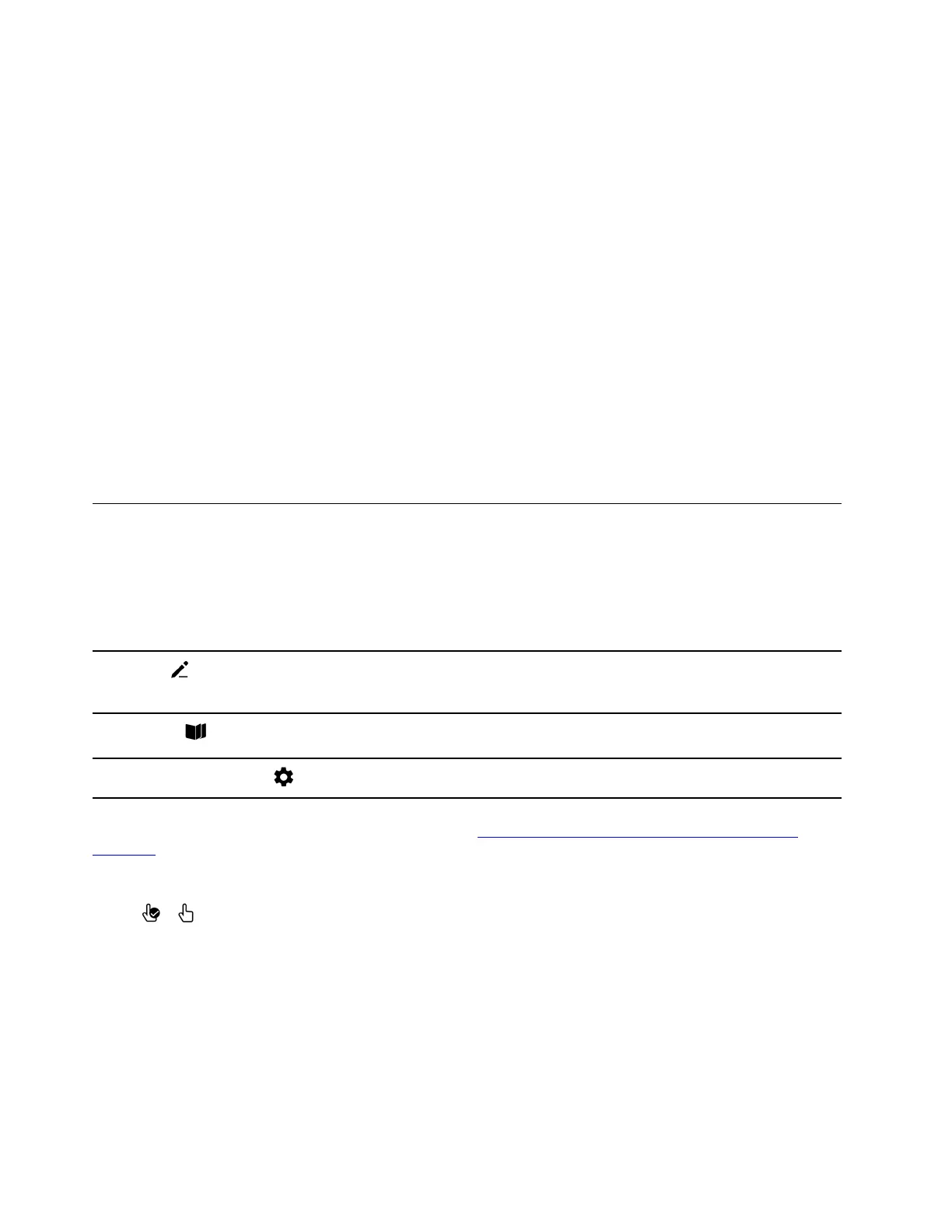
The E Ink touch screen
The lower right corner of the E Ink touch screen homepage has three function icons. Tap the icons to quickly
enter the corresponding functions.
E Ink Note
Select the E Ink Note icon to enter E Ink Note.
Note: Your E Ink notes are auto-saved as you write so that you can
keep focused on your work.
E Ink Reader
Select the E Ink Reader icon to enter the E Ink Reader. The E Ink
Reader supports TXT, Mobi, PDF and Epub files.
E Ink touch screen setting
Open the E Ink touch screen setting.
To learn more about using the E Ink touch screen, go to https://support.lenovo.com/solutions/thinkbook_
plusvideo
to watch the instructional video.
Writing method
Select / on the E Ink Note toolbar to switch between using touch and the Lenovo Precision Pen to
write or draw.
Touch and Lenovo Precision Pen options cannot be simultaneously used to write or draw.
Lenovo Precision Pen
The Lenovo Precision Pen has a magnet allowing it to attach to the designated area of your device for ease
and portability.
With the Lenovo Precision Pen and the E Ink Note application, you can create notes on the E Ink touch
screen and enjoy a natural writing experience.
12
User Guide




 To Next Page