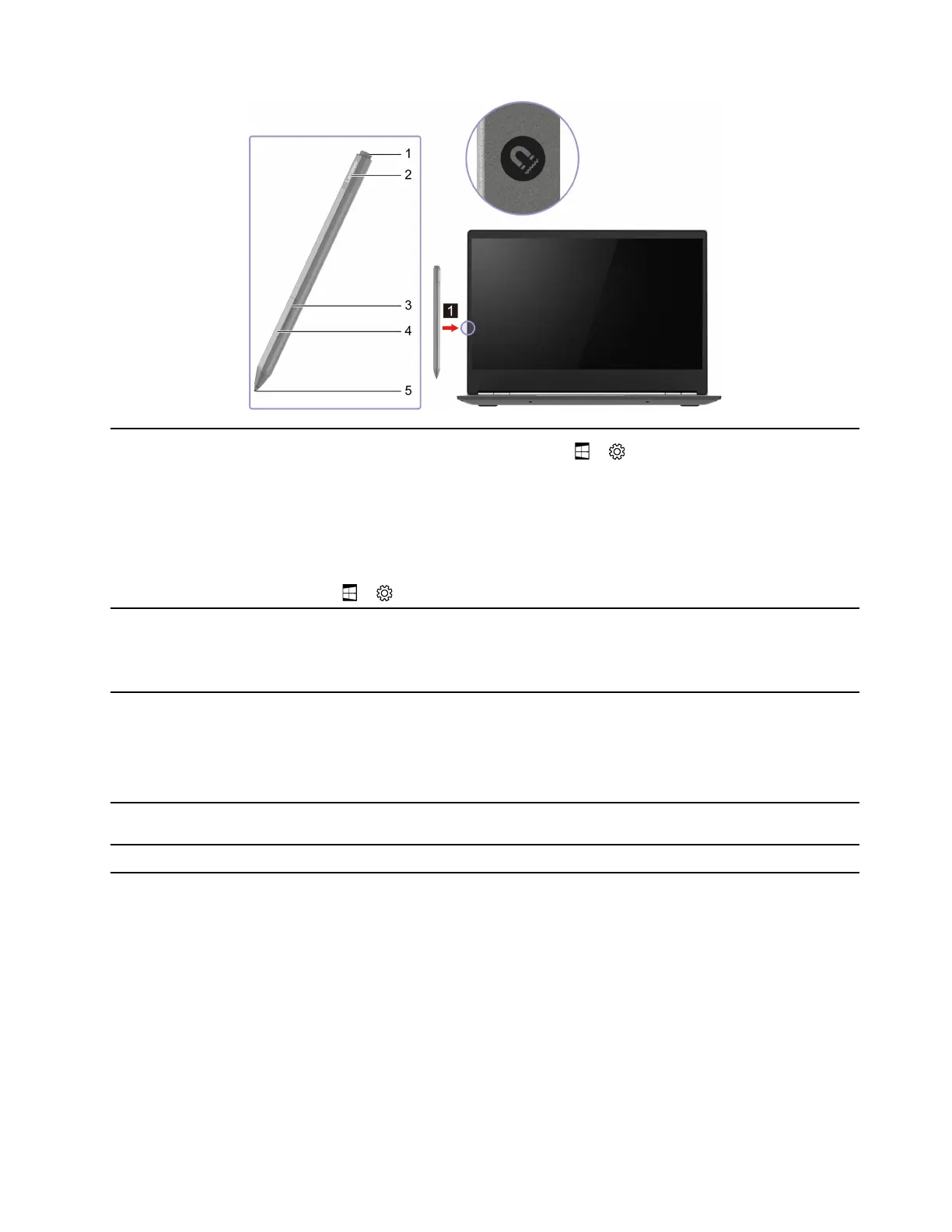
1. Bluetooth button
1. On the Windows desktop, select
➙ ➙ Devices ➙ Bluetooth and other
devices ➙ Add Bluetooth or other devices ➙ Bluetooth.
2. Press and hold the Bluetooth button for at least 3 seconds until the LED
indicator blinks white.
3. On your device, select Lenovo Precision Pen and start pairing.
Note: After connecting with Bluetooth, you can view or change functions of the
Bluetooth button according to your preferences: On the Windows desktop, select
➙ ➙ Devices ➙ Pen and Windows Ink.
2. Pen status light
• Blinking slow white: Bluetooth is in the process of pairing.
• Blinking fast white: Bluetooth has been paired.
• Blinking slow amber: The battery is low.
3. Upper side button
• E Ink Note mode: Hold down the upper side button and drawing a circle around
content will display the operation pop-up menu for the selected content.
• E Ink Reader mode: Hold down the upper side button to highlight the selected
content. The function of the button depends on the software version. Some
versions may not have the highlight function.
4. Lower side button Hold down the lower side button and move the tip over the area you want to
erase.
5. Tip Write or draw on the E Ink touch screen.
Chapter 2. Get started with your computer 13




 To Next Page