Fn+K
Equal the ScrLK or Scroll Lock key on a conventional external keyboard.
Fn+P
Equal the Pause key on a conventional external keyboard.
Fn+S
Equal the SysRq key on a conventional external keyboard.
Fn+4
Put the computer to sleep mode. To wake up the computer, press Fn or the power
button.
Fn+Left arrow key Equal the Home key.
Fn+Right arrow key Equal the End key.
Use the TrackPoint pointing device
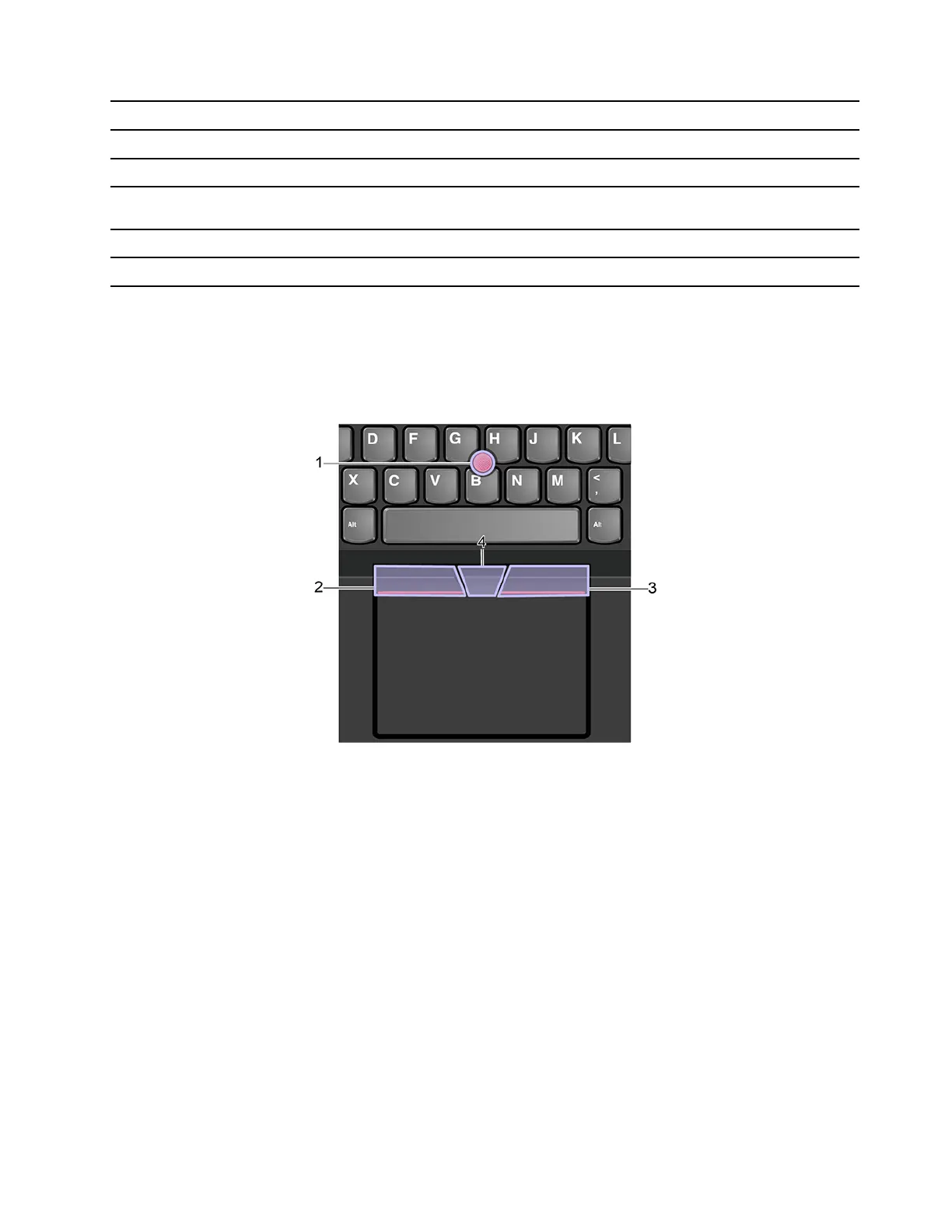
The TrackPoint pointing device enables you to perform all the functions of a traditional mouse, such as
pointing, clicking, and scrolling.
Use the TrackPoint pointing device
1. Pointing stick
Use your index finger or middle finger to apply pressure to the pointing-stick nonslip cap in any direction
parallel to the keyboard. The pointer on the screen moves accordingly but the pointing stick itself does not
move. The higher the pressure applied, the faster the pointer moves.
2. Left-click button
Press to select or open an item.
3. Right-click button
Press to display a shortcut menu.
4. Middle button
Press and hold the dotted middle button while applying pressure to the pointing stick in the vertical or
horizontal direction. Then, you can scroll through the document, Web site, or apps.
Chapter 2. Get started with your computer 15











 To Next Page