Disable the TrackPoint pointing device
The TrackPoint pointing device is active by default. To disable the device:
1. Open the Start menu, and then click Settings ➙ Devices ➙ Mouse.
2. Follow the on-screen instructions to disable TrackPoint.
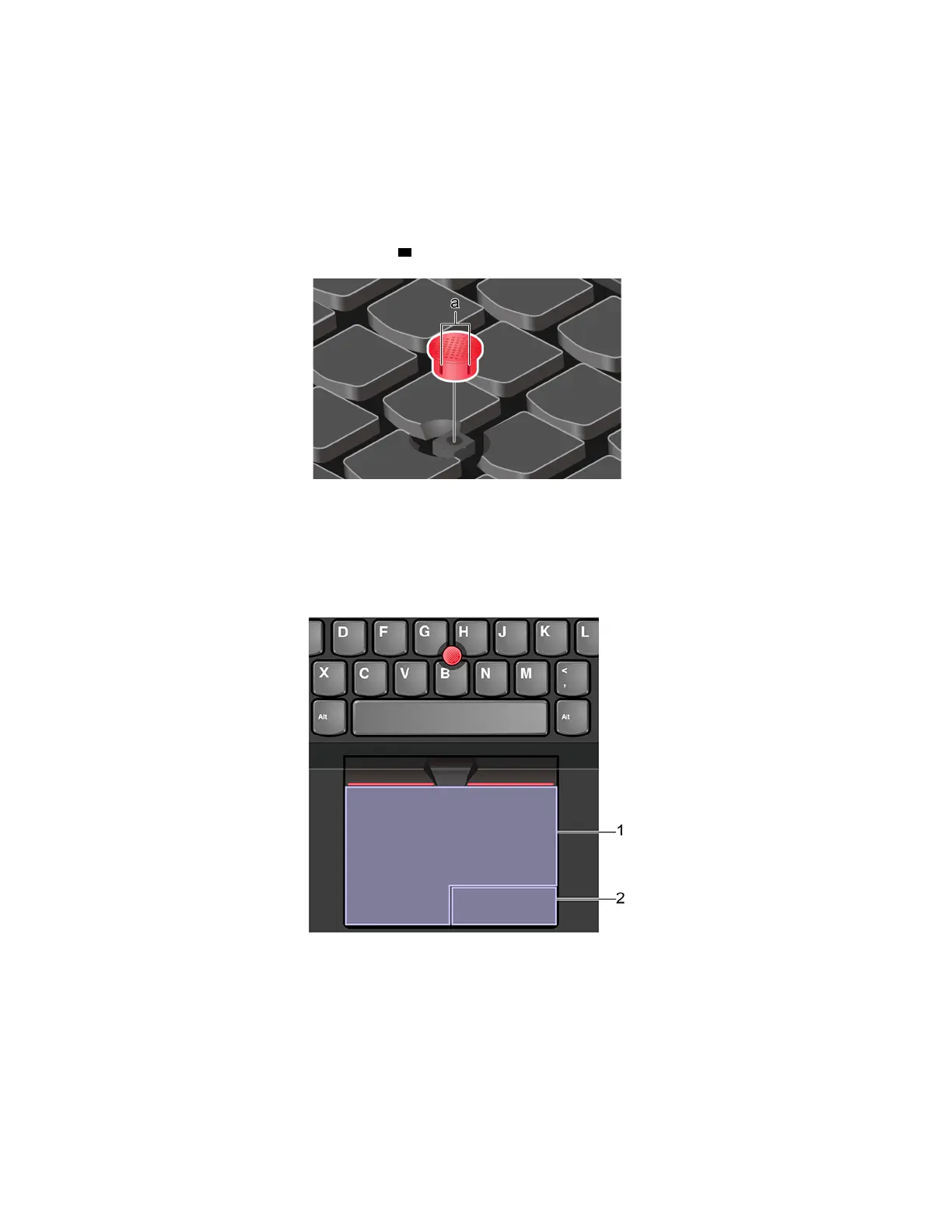
Replace the pointing-stick nonslip cap
Note: Ensure that the new cap has grooves
a .
Use the trackpad
The entire trackpad surface is sensitive to finger touch and movement. You can use the trackpad to perform
all the pointing, clicking, and scrolling functions of a traditional mouse.
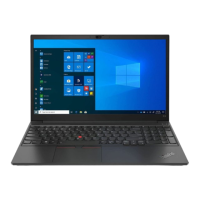
Use the trackpad
1. Left-click zone
Press to select or open an item.
You also can tap anywhere on the surface of the trackpad with one finger to perform the left-click action.
2. Right-click zone
Press to display a shortcut menu.
16
E14/R14/E15/S3 Gen 2 User Guide








 To Next Page