Attention: When you attach a USB cable to this connector, ensure that the USB mark is facing upward.
Otherwise the connector might get damaged.
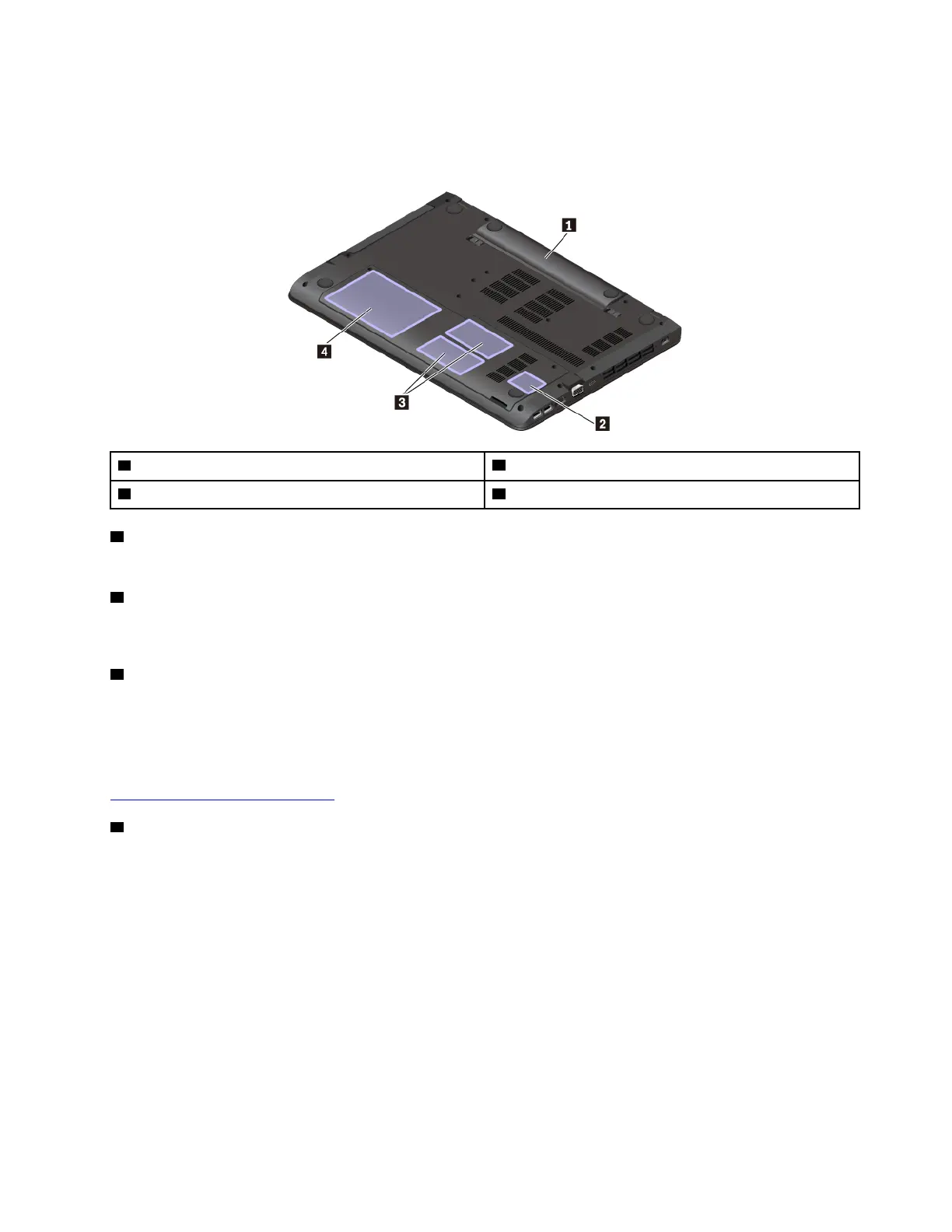
Bottom view
1 Battery 2 Wireless-LAN-card slot
3 Memory slots 4 Internal storage drive
1 Battery
You can use the computer with battery power whenever ac power is unavailable.
2 Wireless-LAN-card slot
Your computer might have a wireless LAN card installed in this slot so that you can establish wireless LAN
connections.
3 Memory slots
You can increase the amount of memory in your computer by installing a memory module in the memory slot.
Memory modules are available as options from Lenovo.
To purchase a memory module, go to:
http://www.lenovo.com/essentials
4 Internal storage drive
Depending on the model, the computer might have a large-capacity, customer-upgradable hard disk drive
that can meet various storage demands.
Some models have a solid-state drive for data storage. The solid-state drive makes your computer light,
small, and fast.
Some models are equipped with a hybrid drive, which is a storage device that combines NAND flash solid-
state memory with hard disk drive technology.
Note: The hidden service partition is the reason why there is less free space than expected on your storage
drive. This reduction is more noticeable on the solid-state drive because of its smaller capacity.
Status indicators
This topic provides information about locating and identifying the various status indicators on your computer.
Chapter 1. Product overview 5













 To Next Page