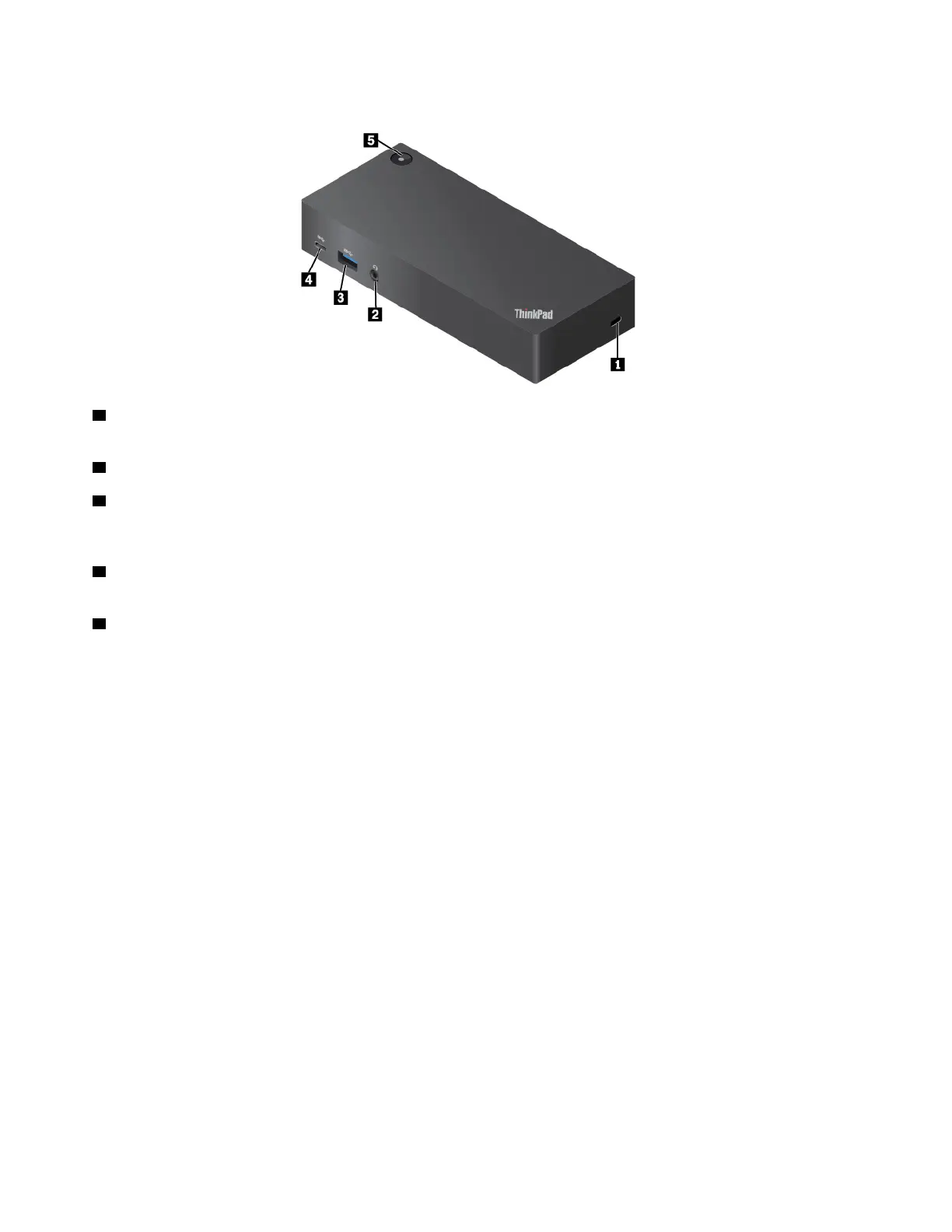
ThinkPad USB–C Dock overview
1 Security-lock slot: To protect your dock from theft, lock the dock to a desk, table, or other non-
permanent fixture. Purchase a security cable lock that fits this security-lock slot.
2 Audio connector: Connect headphones or a headset with a 3.5-mm (0.14-inch), 4-pole plug.
3 USB 3.0 connector: Connect USB-compatible devices, such as a USB keyboard, a USB mouse, a USB
storage device, or a USB printer. For optimal data transfer, connect a USB 3.0 device to a USB 3.0
connector instead of a USB 2.0 connector.
4 USB-C connector: Connect USB-C compatible devices for data transfer only, such as a USB-C storage
device.
5 Power button with indicator: The power button works differently in the following situations:
• When you connect the dock only to ac power but not the computer, press this power button to turn on or
turn off the dock.
• When you connect the dock to both ac power and the computer, this button has the same function as the
computer power button.
The indicator in the power button shows the dock status and computer status:
• Off: The dock is off, the computer is off, or the computer is in hibernation mode.
• White: The computer is on.
• White and blinks slowly: The computer is in sleep mode.
• Yellow: The dock is on.
34
ThinkPad E570, E570c, and E575 User Guide













 To Next Page