Loading trays
CAUTION—POTENTIAL INJURY: To reduce the risk of
equipment instability, load each tray separately. Keep all other
trays closed until needed.
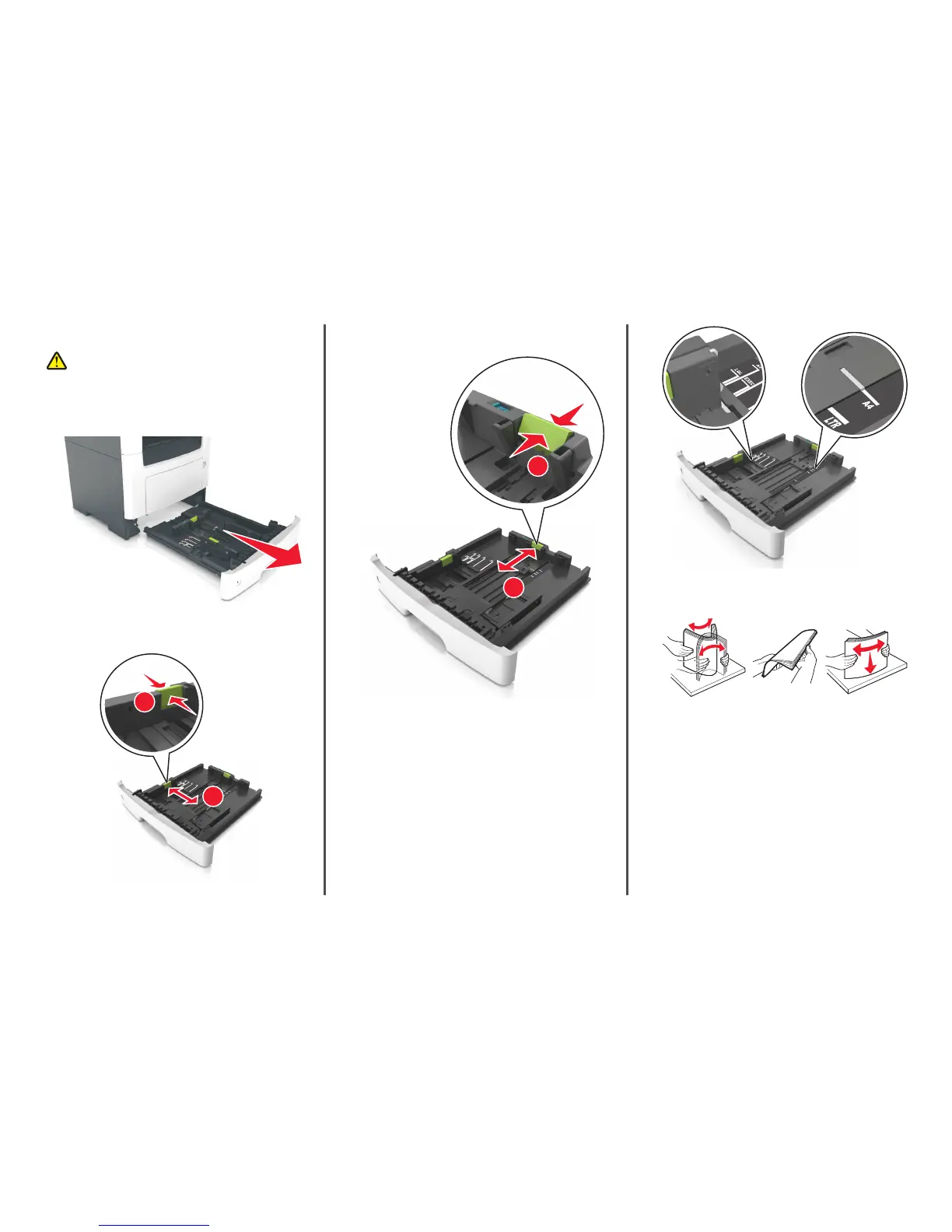
1 Pull out the tray completely.
Note: Do not remove trays while a job prints or while Busy
appears on the printer display. Doing so may cause a jam.
2 Squeeze and then slide the width guide tab to the correct position
for the size of the paper you are loading.
A
4
LT
R
E
X
E
C
B
5
A5
2
1
3 Squeeze and then slide the length guide tab to the correct position
for the size of the paper you are loading.
A
4
LT
R
E
XE
C
B5
A
5
2
1
Notes:
• For some paper sizes like letter, legal, and A4, squeeze and
slide the length guide tab backward to accommodate their
length.
• When loading legal‑size paper, the length guide extends
beyond the base leaving the paper exposed to dust. To
protect the paper from dust, you can purchase a dust cover
separately. For more information, contact customer support.
• If you are loading A6-size paper in the standard tray, then
squeeze and then slide the length guide tab toward the
center of the tray to the A6‑size position.
• Make sure the width and length guides are aligned with the
paper size indicators on the bottom of the tray.
A
4
LT
R
E
X
E
C
B5
A
5
4 Flex the sheets back and forth to loosen them, and then fan them.
Do not fold or crease the paper. Straighten the edges on a level
surface.
2


 To Next Page