EasyManua.ls Logo

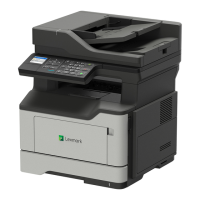
Lexmark MX410 - User Manual

Lexmark MX410
329 pages
Print Icon
To Next Page IconTo Next Page
Loading...
MX410 and MX510 Series
User's Guide
October 2012 www.lexmark.com
Machine type(s):
7015
Model(s):
470, 630, 670, 675, 679

Table of Contents

Questions and Answers

  • R
    rstewartAug 31, 2025
    What to do when Lexmark All in One Printer displays 'Maintenance kit low'?
    • D
      Debbie StevensonAug 31, 2025
      Your Lexmark All in One Printer indicates that the maintenance kit is low. If necessary, select Continue to clear the message and continue printing.
  • A
    Anna PerezAug 25, 2025
    What to do if my Lexmark All in One Printer has a scanner jam?
    • G
      Gina SmithAug 25, 2025
      To fix a scanner jam on your Lexmark All in One Printer, remove the jammed paper from the scanner.
  • C
    Catherine HensonAug 25, 2025
    How to clear 'Cartridge low' message on Lexmark MX410?
    • T
      Tanya BakerAug 26, 2025
      Your Lexmark All in One Printer indicates that the toner cartridge is low. You may need to order a new toner cartridge. If you wish to continue printing, select Continue on the printer control panel to clear the message.
  • T
    Trevor HawkinsAug 26, 2025
    How to replace imaging unit on Lexmark All in One Printer when 0 pages remain?
    • S
      Steven MorganAug 26, 2025
      To resolve this issue on your Lexmark All in One Printer, replace the imaging unit to continue printing. If you do not have a replacement imaging unit, visit www.lexmark.com for ordering information.
  • S
    Sarah AndersonAug 27, 2025
    How to clear 'Imaging unit low' message on Lexmark MX410?
    • W
      wpriceAug 27, 2025
      Your Lexmark All in One Printer indicates that the imaging unit is low. You may need to order a new imaging unit. If you wish to continue printing, select Continue on the printer control panel to clear the message.
  • L
    Lauren StanleyAug 27, 2025
    What to do when Lexmark MX410 All in One Printer fax memory is full?
    • K
      Kathleen TravisAug 27, 2025
      To clear the 'Fax memory full' message on your Lexmark All in One Printer, touch Continue on the printer control panel.
  • D
    Derek DanielsAug 28, 2025
    How to clear 'Cartridge nearly low' message on Lexmark MX410?
    • J
      Jacqueline DicksonAug 28, 2025
      Your Lexmark All in One Printer is indicating that the cartridge is nearly low. If necessary, select Continue on the printer control panel to clear the message and continue printing.
  • J
    Joshua BurnettAug 29, 2025
    How to clear 'Imaging unit nearly low' message on Lexmark MX410 All in One Printer?
    • B
      batesbrianAug 29, 2025
      Your Lexmark All in One Printer is indicating that the imaging unit is nearly low. If necessary, select Continue on the printer control panel to clear the message and continue printing.
  • M
    Michelle MitchellAug 29, 2025
    What to do when Lexmark MX410 says 'Cartridge very low'?
    • R
      Reginald LindseyAug 29, 2025
      Your Lexmark All in One Printer indicates that the toner cartridge is very low and may need to be replaced soon. If you want to proceed, select Continue on the printer control panel to clear the message.
  • L
    Lauren FuentesAug 30, 2025
    What to do when Lexmark MX410 All in One Printer says 'Imaging unit very low'?
    • T
      tammy04Aug 30, 2025
      Your Lexmark All in One Printer indicates that the imaging unit is very low and may need replacement soon. Select Continue on the printer control panel to clear the message and continue printing.

Summary

Safety information

Setting up and using the home screen applications

Accessing the Embedded Web Server

Guide on how to access and use the printer's web-based interface for configuration.

Additional printer setup

Installing internal options

Details on installing memory cards, fonts, firmware cards, and other internal components.

Installing hardware options

Instructions for installing physical hardware options like trays and network adapters.

Setting up the printer software

Steps for installing the necessary printer drivers and software on your computer.

Networking

Installing the printer on an Ethernet network

Step-by-step guide for connecting the printer to an Ethernet network.

Printing

Copying

Making copies

Instructions on how to perform basic copying tasks using the printer.

E-mailing

Setting up the printer to e-mail

Configuration steps to enable and set up the printer's email functionality.

Faxing

Setting up the printer to fax

Initial setup and connection procedures for using the printer's fax capabilities.

Scanning

Using Scan to Network

Instructions for scanning documents directly to network folders.

Scanning to an FTP address

Steps for scanning documents to a File Transfer Protocol (FTP) server.

Securing the printer

Erasing non-volatile memory

Procedures for securely erasing device settings and data from the printer.

Maintaining the printer

Clearing jams

Avoiding jams

Tips and procedures to prevent paper jams in the printer.

Troubleshooting

Lexmark MX410 Specifications

General IconGeneral
Print TechnologyLaser
Print SpeedUp to 40 ppm
Print Resolution1200 x 1200 dpi
Scan TypeFlatbed, ADF
ADF Capacity50 sheets
Duplex PrintingYes
Standard Memory256 MB
Display2.4-inch color LCD
FunctionsPrint, Copy, Scan, Fax
Max Copying SpeedUp to 40 cpm
Max Copying Resolution600 x 600 dpi
Max Printing SpeedUp to 40 ppm
Optical Resolution1200 x 600 dpi
Fax Transmission Speed33.6 Kbps
Processor Speed800 MHz
Operating System CompatibilityWindows, Mac, Linux
ConnectivityUSB, Ethernet
Paper Capacity250 sheets
Mobile PrintingYes

Related product manuals