EasyManua.ls Logo

Lexmark X1100 Series - User Manual

Lexmark X1100 Series
35 pages
Print Icon
To Next Page IconTo Next Page
Loading...
X1100 Series
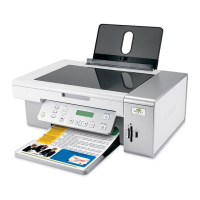
All-In-One
User’s Guide
Learning about the All-In-One
Understanding the software
Using the All-In-One
Maintenance
Troubleshooting
www.lexmark.com

Other manuals for Lexmark X1100 Series

Questions and Answers

  • A
    Alexander SullivanJul 26, 2025
    What to do if the print is too dark or smudged on my Lexmark All in One Printer?
    • M
      manncourtneyJul 26, 2025
      If the print from your Lexmark All in One printer is too dark or smudged, check if the color cartridge is secure in the left carrier and the black print cartridge is secure in the right carrier (if both are installed).
  • T
    Tammy WrightAug 4, 2025
    What to do if my Lexmark All-In-One printer is not communicating with the computer?
    • A
      Angela JonesAug 4, 2025
      Check if the USB cable is securely attached to both the computer and the Lexmark All-In-One printer.
  • M
    mariaortizAug 14, 2025
    How to fix Lexmark X1100 if power light does not come on?
    • Y
      Yvonne GordonAug 14, 2025
      Ensure the power supply is firmly attached to both the All-In-One printer and the electrical outlet.

Summary

Learning About the All-In-One

Understanding the Software

Using the All-In-One

Maintenance

Replacing the Print Cartridges

Detailed steps for removing and installing print cartridges, including warnings.

Troubleshooting

Troubleshooting Checklist

A checklist of common issues to verify before attempting to solve problems.

Setup Troubleshooting

Guidance for resolving problems encountered during the initial setup process.

Printing Troubleshooting

Solutions for common printing issues like slow printing or poor quality.

Removing and Reinstalling the Software

Other Help Sources

Lexmark X1100 Series Specifications

General IconGeneral
BrandLexmark
ModelX1100 Series
CategoryAll in One Printer
LanguageEnglish

Related product manuals