EasyManua.ls Logo

Lexmark XM7170 - User Manual

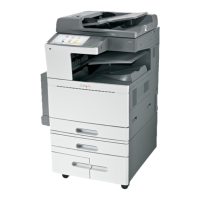
Lexmark XM7170
388 pages
Print Icon
To Next Page IconTo Next Page
Loading...
XM7100 and XM7200 Series
User's Guide
August 2016 www.lexmark.com
Machine type(s):
7463
Model(s):
496, 696, 896

Table of Contents

Other manuals for Lexmark XM7170

Questions and Answers

  • V
    Vickie CombsAug 20, 2025
    What to do if my Lexmark All in One Printer says 'Cartridge very low'?
    • F
      fwilsonAug 20, 2025
      To resolve the 'Cartridge very low' message on your Lexmark All in One Printer, you may need to replace the toner cartridge soon. If you want to clear the message and continue printing, touch Continue on the printer control panel.
  • L
    Laura WilliamsAug 22, 2025
    What to do if Lexmark All in One Printer says 'Cartridge low'?
    • W
      William LewisAug 22, 2025
      If your Lexmark All in One Printer displays 'Cartridge low', you might need to order a replacement toner cartridge. To clear the message and continue printing temporarily, touch Continue on the printer control panel.
  • S
    Samantha FrancisAug 25, 2025
    How to replace missing cartridge on Lexmark All in One Printer?
    • T
      Tracy RogersAug 25, 2025
      To clear the message on your Lexmark All in One Printer, install the missing cartridge.
  • P
    Phillip GarnerAug 26, 2025
    What to do if Lexmark All in One Printer says 'Cartridge nearly low'?
    • M
      Michael WilliamsAug 26, 2025
      If your Lexmark All in One Printer displays 'Cartridge nearly low', touch Continue on the printer control panel to clear the message and continue printing.
  • D
    Donna CrosbyAug 27, 2025
    How to fix 'Check tray connection' on Lexmark All in One Printer?
    • L
      Lauren ButlerAug 27, 2025
      To fix the 'Check tray [x] connection' error on your Lexmark All in One Printer, try the following: * Turn the printer off and then on again. * If the error persists: 1. Turn off the printer. 2. Unplug the power cord. 3. Remove and reattach the indicated tray. 4. Reconnect the power cord and turn the printer back on. * If the error continues, remove the tray and contact customer support. Alternatively, you can touch Continue on the printer control panel to clear the message and resume the job.
  • V
    Virginia Coleman MDAug 29, 2025
    Why does my Lexmark All in One Printer say 'Close door or insert cartridge'?
    • K
      Kara JonesAug 29, 2025
      The 'Close door or insert cartridge' message on your Lexmark All in One Printer means that the toner cartridge is either missing or not correctly installed. Insert the cartridge properly, and ensure that all doors and covers are completely closed.
  • K
    Kaitlyn LongAug 31, 2025
    How to fix 'Too many trays attached' error on Lexmark All in One Printer?
    • A
      albertrasmussenAug 31, 2025
      To fix the 'Too many trays attached' error on your Lexmark All in One Printer: 1. Turn off the printer. 2. Unplug the power cord from the electrical outlet. 3. Remove the extra trays. 4. Connect the power cord to a properly grounded electrical outlet. 5. Turn the printer back on.
  • J
    John JohnsonSep 2, 2025
    How do I fix 'Change paper source' on my Lexmark All in One Printer?
    • G
      Garrett SanfordSep 2, 2025
      To resolve the 'Change [paper source] to [custom string] load [orientation]' message on your Lexmark All in One Printer, you can try the following: * Load the correct size and type of paper in the tray, then specify the paper size and type in the Paper menu on the control panel. Touch Finished changing paper. * Touch Use current [paper source] to use the available paper size and type in the tray. * Touch Reset active bin to reset the active bin for a linked set of bins. * You can also cancel the print job.
  • J
    Jessica PaulSep 4, 2025
    What to do if Lexmark All in One Printer shows 'Complex page' error?
    • C
      Christy WatsonSep 4, 2025
      To address the 'Complex page' error on your Lexmark All in One Printer, you can: * Touch Continue on the printer control panel to ignore the message and continue printing. * Cancel the current print job. * Install additional printer memory.
  • A
    April RuizSep 6, 2025
    What to do if Lexmark All in One Printer shows 'Defective flash detected'?
    • J
      janet59Sep 6, 2025
      To resolve the 'Defective flash detected' error on your Lexmark All in One Printer, you can: * Replace the defective flash memory card. * Touch Continue on the printer control panel to ignore the message and continue printing. * Cancel the current print job.

Summary

Safety information

Conventions

Explains the meaning of notes, warnings, and cautions used in the manual.

Learning about the printer

Finding information about the printer

Guides users on where to find setup and usage instructions for the printer.

Understanding the printer control panel

Using the printer control panel

Explains the functions of the printer's control panel buttons and display.

Understanding the home screen

Explains the printer's home screen and its interactive elements.

Using the touch-screen buttons

Details the functions of various touch-screen buttons and icons.

Setting up and using the home screen applications

Accessing the Embedded Web Server

Explains how to access the printer's web interface for configuration.

Understanding the different applications

Describes various preinstalled home screen applications and their uses.

Additional printer setup

Installing internal options

Covers the installation of internal hardware and memory options for the printer.

Loading paper and specialty media

Loading the 550-sheet tray

Step-by-step guide for loading paper into the 550-sheet tray.

Loading the 2100-sheet tray

Step-by-step guide for loading paper into the 2100-sheet tray.

Loading the multipurpose feeder

Instructions for loading paper into the multipurpose feeder.

Paper and specialty media guide

Using specialty media

Tips for using card stock, envelopes, and other specialty media with the printer.

Paper guidelines

Information on paper characteristics affecting print quality and reliability.

Printing

Printing from a computer

Steps for sending print jobs from a computer to the printer.

Printing from a mobile device

Instructions for printing from mobile devices using various services.

Printing from a flash drive

Steps for printing documents directly from a USB flash drive.

Printing confidential and other held jobs

Procedures for printing jobs that are held or confidential.

Copying

Making copies

Instructions for performing quick copies using the ADF or scanner glass.

Copying on specialty media

Instructions for copying documents on specialty media like transparencies.

Creating a copy shortcut using the printer control panel

How to save and reuse custom copy settings as shortcuts.

E-mailing

Setting up the printer to e-mail

Configuration steps to enable the printer's e-mail functionality.

Creating an e-mail shortcut

Instructions for creating shortcuts for e-mailing documents.

E-mailing a document

Methods for scanning and e-mailing documents using various options.

Faxing

Setting up the printer to fax

Initial setup procedures for faxing, including name and number configuration.

Choosing a fax connection

Explains different methods for connecting the printer to a telephone line for faxing.

Sending a fax

Various methods for sending faxes from the printer.

Creating shortcuts

Methods for creating shortcuts for fax destinations.

Scanning

Using Scan to Network

Instructions for scanning documents directly to network folders.

Scanning to an FTP address

Guides on scanning documents to an FTP server.

Scanning to a computer or flash drive

Procedures for scanning documents to a computer or flash drive.

Understanding the printer menus

Menus list

An overview of the printer's menu structure and available options.

Paper menu

Details on settings related to paper handling, including default sources and MP feeder configuration.

Network;Ports menu

Details on network settings, including NIC, Ethernet, and TCP/IP configurations.

Security menu

Settings related to printer security, user access, and password management.

Saving money and the environment

Saving paper and toner

Strategies and settings to reduce paper and toner consumption for cost savings and environmental benefits.

Saving energy

Explains how to save energy through Eco-Mode and adjusting sleep/hibernate settings.

Securing the printer

Erasing printer hard disk memory

Procedures for securely erasing data from the printer's hard disk.

Configuring printer hard disk encryption

How to enable hard disk encryption to protect sensitive data.

Maintaining the printer

Cleaning printer parts

Instructions for cleaning the printer's exterior and internal components.

Cleaning the scanner glass

Steps to clean the scanner glass and ADF glass for better image quality.

Ordering supplies

Information on how to order genuine Lexmark parts and supplies.

Replacing the toner cartridge

Step-by-step guide for replacing the toner cartridge.

Replacing the imaging unit

Step-by-step guide for replacing the imaging unit.

Moving the printer

Safety precautions and procedures for moving the printer.

Managing the printer

Setting up e-mail alerts

Configuration steps to receive e-mail alerts for supplies or paper jams.

Restoring factory default settings

Procedures for resetting printer settings to their factory defaults.

Clearing jams

Avoiding jams

Tips and best practices to prevent paper jams.

Identifying jam locations

How to identify the location of paper jams within the printer.

Paper jam in the front cover

Steps to clear paper jams located in the front cover area.

Paper jam in the rear door

Steps to clear paper jams located behind the rear door.

Paper jam in the automatic document feeder

Steps to clear paper jams from the ADF.

Troubleshooting

Understanding the printer messages

Explains various printer messages and error codes.

Solving printer problems

General troubleshooting for print job failures.

Solving scanner problems

Troubleshooting issues related to the scanner functionality.

Solving fax problems

Troubleshooting issues related to faxing functionality.

Solving copy problems

Troubleshooting issues related to the copying function.

Print quality problems

General troubleshooting for print quality issues.

Scanner unit does not close

How to resolve issues with the scanner unit not closing properly.

Contacting customer support

Information on how to contact customer support for assistance.

Notices

Product information

Basic product details including name, machine type, and model numbers.

Temperature information

Specifies ambient, shipping, and storage temperature ranges for the printer.

Extent of limited warranty

Outlines the limitations and exclusions of the product's limited warranty.

Limitation of liability

Specifies the limits of Lexmark's liability regarding product performance and damages.

Power consumption

Product power consumption

Details the power consumption of the printer in various operating modes.

Sleep Mode

Explains the energy-saving Sleep Mode and its timeout settings.

Lexmark XM7170 Specifications

General IconGeneral
Print technologyLaser
Maximum resolution1200 x 1200 DPI
Time to first page (black, normal)4 s
Print speed (black, normal quality, A4/US Letter)70 ppm
All-in-one functionsCopy, Fax, Print, Scan
Networking standardsIEEE 802.3, IEEE 802.3ab, IEEE 802.3u
Color all-in-one functionsScan
Digital senderNo
Maximum duty cycle300000 pages per month
Copier resize25 - 400 %
Maximum copy resolution- DPI
Copy speed (black, normal quality, A4)70 cpm
Scanner typeFlatbed scanner
Duplex scanningYes
Scan speed (color)67 ppm
Duplex scan speed (color)66 ppm
Optical scanning resolution600 x 600 DPI
FaxingMono faxing
Modem speed33.6 Kbit/s
Paper input typePaper tray
Total input capacity1200 sheets
Total output capacity1050 sheets
Maximum input capacity2300 sheets
Multi-Purpose tray input capacity100 sheets
Envelopes sizes7 3/4, 9, 10, B5, C5
Paper tray media typesBanner, Card stock, Envelopes, Labels, Transparencies
Non-ISO print media sizesExecutive (184 x 267mm), Folio (media size), Legal (media size), Letter (media size), Oficio (media size), Statement (140 x 216mm)
ISO A-series sizes (A0...A9)A4, A5, A6
JIS B-series sizes (B0...B9)B5
Maximum ISO A-series paper sizeA4
DisplayLCD
Control typeTouch
Product colorBlack, White
Display diagonal10.2 \
Market positioningBusiness
Direct printing-
Standard interfacesEthernet, USB 2.0
Optional connectivityParallel, Serial (RS-232), Wireless LAN
USB 2.0 ports quantity3
Cabling technology10/100/1000BaseT(X)
Processor frequency800 MHz
Maximum internal memory3072 MB
Sound pressure level (copying)56 dB
Sound pressure level (scanning)57 dB
Power consumption (average operating)- W
Operating altitude0 - 3048 m
Operating temperature (T-T)16 - 32 °C
Operating relative humidity (H-H)8 - 80 %
Sustainability certificatesENERGY STAR
Weight and Dimensions IconWeight and Dimensions
Depth657.86 mm
Width610.87 mm
Height1203.96 mm

Related product manuals