EasyManua.ls Logo

Lexmark X2450 - User Manual

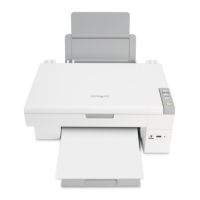
Lexmark X2450
9 pages
Print Icon
To Next Page IconTo Next Page
Loading...
The X2450 can only copy and scan when attached to a PC.

Questions and Answers

  • J
    Julia MitchellJul 29, 2025
    What to do if my Lexmark X2450 Printer page does not print?
    • R
      rebecca70Jul 29, 2025
      First, ensure the Lexmark Printer is set as the default printer and is not on hold or paused. Also, verify that the tape has been removed from the print cartridge and that the print cartridge has been installed properly.
  • W
    Wesley AndersonAug 9, 2025
    How to fix Lexmark X2450 when the light is not lit?
    • G
      Gina BrownAug 9, 2025
      1. Disconnect the power cord from the wall outlet and then from the printer. 2. Plug the cord all the way into the power supply on the printer. 3. Plug the cord into an electrical outlet that other electrical devices have been using. 4. If the light is not on, press the power button.
  • J
    Jerry MossAug 18, 2025
    How to fix Lexmark X2450 Printer software that does not install?
    • J
      Joe VasquezAug 18, 2025
      If the software does not launch automatically when you insert the CD: 1. Close all open software applications. 2. Temporarily disable any anti-virus programs. 3. Double-click the My Computer icon (For Windows XP, click Start to access the My Computer icon). 4. Double-click the CD-ROM drive icon. If necessary, double-click setup.exe. 5. Follow the instructions on the computer screen to install the software. Remember to re-enable your anti-virus software after installation.

Summary

Setting Up and Troubleshooting the Printer

Printer Setup Procedures

Instructions for setting up the printer with or without a computer.

Troubleshooting Common Printer Issues

Solutions for printer light, software installation, and page printing problems.

Printer Operations and Features

Checking Printer Status

Steps to verify the printer's operational status and default settings.

Using the Control Panel

Guide to using the printer's control panel buttons for various functions.

Printing Documents and Projects

Instructions for printing standard documents and creative projects.

Advanced Printer Functions

Copying Documents

Step-by-step guide on how to make copies of documents.

Scanning Documents

Instructions for scanning items using the printer's scanner.

Printing Photos with Digital Cameras

Procedure for printing photos directly from a PictBridge-enabled camera.

Print Quality and Maintenance

Print Quality Troubleshooting

Solutions for poor text and graphic quality, including margin settings.

Improving Print Quality

Tips and methods to enhance the overall print quality.

Cartridge Maintenance

Procedures for cleaning print cartridge nozzles and contacts.

Lexmark X2450 Specifications

General IconGeneral
BrandLexmark
ModelX2450
CategoryPrinter
LanguageEnglish

Related product manuals