EasyManua.ls Logo

Lexmark XM5163 - User Manual

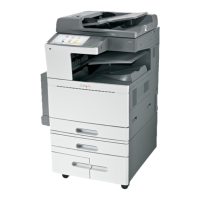
Lexmark XM5163
510 pages
Print Icon
To Next Page IconTo Next Page
Loading...
Repair information
Removal precautions
CAUTION—SHOCK HAZARD: For personal safety and to prevent damage to the printer, remove the power cord
from the electrical outlet before you connect or disconnect any cable, electronic board, or assembly. Disconnect
any connections between the printer and the PCs/peripherals.
CAUTION—POTENTIAL INJURY: The printer weight is greater than 18 kg (40 lb) and requires two or more
trained personnel to lift it safely
Data security notice
1 This printer contains various types of memory that are capable of storing device and network settings, information
from embedded solutions, and user data. The types of memory, along with the types of data stored by each, are
described below.
Volatile memory—This device utilizes standard Random Access Memory (RAM) to temporarily buffer user data
during simple print and copy jobs.
Non-volatile memory—This device may utilize two forms of non-volatile memory: EEPROM and NAND (flash
memory). Both types are used to store the operating system, device settings, network information, scanner and
bookmark settings, and embedded solutions.
Hard disk memory—Some devices have a hard disk drive installed. The printer hard disk is designed for device-
specific functionality and cannot be used for long term storage for data that is not print-related. The hard disk
does not provide the capability for users to extract information, create folders, create disk or network file shares,
or transfer FTP information directly from a client device. The hard disk can retain buffered user data from
complex print jobs, as well as form data and font data.
To erase volatile memory, turn off the printer.
To erase non-volatile memory, see the menu item under
“Configuration menu” on page 356 pertaining to this.
To erase the printer hard disk, see the menu item under
“Configuration menu” on page 356 pertaining to this.
The following parts are capable of storing memory:
printer control panel
UICC (User Interface Controller Card)
controller board
optional hard drives
Note: The printer control panel and controller board contain NVRAM.
2 After removing the old part, it must be returned to your next level of support.
7463
Repair information
371


Questions and Answers

  • C
    Courtney JacksonSep 10, 2025
    What to do if my Lexmark Mfp says 'Configuration change, some held jobs were not restored [57]'?
    • P
      Peter LynnSep 10, 2025
      If your Lexmark Mfp displays the message 'Configuration change, some held jobs were not restored [57]', touch Continue from the printer control panel to clear the message.
  • C
    Christopher WillisAug 23, 2025
    What to do if my Lexmark Mfp says 'Cartridge low [88.xy]'?
    • M
      Megan MorrisAug 23, 2025
      If your Lexmark Mfp displays a 'Cartridge low [88.xy]' message, it indicates that you may need to order a replacement toner cartridge. You can touch Continue on the printer control panel to clear the message and continue printing temporarily.
  • U
    umillerAug 25, 2025
    What to do if my Lexmark Mfp says 'Imaging unit low [84.xy]'?
    • M
      Mrs. Leslie Brown MDAug 25, 2025
      If your Lexmark Mfp shows an 'Imaging unit low [84.xy]' message, you may need to order a replacement imaging unit. You can select Continue on the printer control panel to clear the message and continue printing.
  • A
    Ashley MossAug 26, 2025
    What to do if my Lexmark Mfp displays 'Cartridge nearly low [88.xy]'?
    • M
      Mary ThomasAug 27, 2025
      If your Lexmark Mfp displays the message 'Cartridge nearly low [88.xy]', you can touch Continue on the printer control panel to clear the message and continue printing.
  • J
    jessemorganAug 28, 2025
    What does 'Close door or insert cartridge' mean on my Lexmark Mfp, and how do I fix it?
    • J
      Jenny GouldAug 28, 2025
      The 'Close door or insert cartridge' message on your Lexmark Mfp indicates that the toner cartridge is either missing or not installed correctly. To resolve this, insert the cartridge properly, and then ensure that all doors and covers are securely closed.
  • P
    parsonslisaAug 29, 2025
    What to do if Lexmark Mfp displays 'Invalid cartridge introduced. replace cartridge [58]'?
    • O
      Olivia SmithAug 29, 2025
      If your Lexmark Mfp displays the message 'Invalid cartridge introduced. replace cartridge [58]', it means that you may need to order a replacement toner cartridge. If necessary, touch Continue on the printer control panel to clear the message and continue printing.
  • E
    Erika BennettSep 18, 2025
    What does 'Scanner disabled by admin [840.01]' mean on my Lexmark Mfp and how to fix it?
    • M
      Michele SanchezSep 18, 2025
      If your Lexmark Mfp displays the message 'Scanner disabled by admin [840.01]', you can print without the scanner, or contact your system support person.
  • D
    Duane HallSep 12, 2025
    What to do if Lexmark Mfp displays 'Complex page, some data may not have printed [39]'?
    • D
      David FrenchSep 12, 2025
      If your Lexmark Mfp displays the message 'Complex page, some data may not have printed [39]', touch Continue on the printer control panel to ignore the message and continue printing.
  • J
    Johnny MaySep 8, 2025
    What to do if Lexmark Mfp says 'Disk full [62]'?
    • P
      Peter GomezSep 8, 2025
      If your Lexmark Mfp displays a 'Disk full [62]' message, touch Continue on the printer control panel to clear the message and continue processing.
  • S
    scottstewartSep 5, 2025
    What to do if my Lexmark Mfp says 'Error reading USB hub. Remove hub.'?
    • M
      Michael WeaverSep 5, 2025
      If your Lexmark Mfp displays the message 'Error reading USB hub. Remove hub.', it indicates that an unsupported USB hub has been inserted. Remove the USB hub, and then install a supported one.

Lexmark XM5163 Specifications

General IconGeneral
Print technologyLaser
Maximum resolution1200 x 1200 DPI
Time to first page (black, normal)4.4 s
Print speed (black, normal quality, A4/US Letter)63 ppm
All-in-one functionsCopy, Fax, Print, Scan
Color all-in-one functionsScan
Digital senderNo
Maximum duty cycle275000 pages per month
Recommended duty cycle5000 - 25000 pages per month
Copier resize25 - 400 %
Maximum copy resolution- DPI
Time to first copy (black, normal)4.2 s
Copy speed (black, normal quality, A4)63 cpm
Scanner typeFlatbed scanner
Duplex scanningYes
Scan speed (color)67 ppm
Duplex scan speed (black)70 ppm
Duplex scan speed (color)66 ppm
Optical scanning resolution600 x 600 DPI
FaxingMono faxing
Modem speed33.6 Kbit/s
Total input capacity650 sheets
Total output capacity550 sheets
Maximum input capacity3300 sheets
Auto document feeder (ADF) input capacity100 sheets
Envelopes sizes7 3/4, 9, 10, B5, C5, DL
Maximum print size210 x 297 mm
Paper tray media typesCard stock, Labels, Transparencies
Non-ISO print media sizesExecutive (184 x 267mm), Folio (media size), Legal (media size), Letter (media size), Oficio (media size), Statement (140 x 216mm)
ISO A-series sizes (A0...A9)A4, A5, A6
JIS B-series sizes (B0...B9)B5
Maximum ISO A-series paper sizeA4
DisplayLCD
Control typeTouch
Product colorBlack, White
Display diagonal7 \
Market positioningBusiness
Direct printing-
Standard interfacesEthernet, USB 2.0
Optional connectivityParallel, Serial (RS-232), Wireless LAN
USB 2.0 ports quantity3
Cabling technology10/100/1000BaseT(X)
Internal memory512 MB
Maximum internal memory2560 MB
Sound pressure level (copying)58 dB
Sound pressure level (printing)57 dB
Power consumption (average operating)- W
Operating altitude0 - 3048 m
Operating temperature (T-T)16 - 32 °C
Operating relative humidity (H-H)8 - 80 %
Sustainability certificatesENERGY STAR
Weight and Dimensions IconWeight and Dimensions
Depth657.86 mm
Width610.87 mm
Height1203.96 mm

Related product manuals