ENGLISH
20
WATCHING TV
Using favorite channels
Add the channels that you watch frequently to the
favorite list.
Setting up your favorite list
1
Select a channel to add to the favorite list.
2
Press
Q.MENU
.
3
Press the Navigation buttons to scroll to
Del/Add/Fav
.
4
Press the Navigation buttons to scroll to
Favorite
.
5
Press
OK
to add the selected channel to the favorite
list.
Selecting a channel on the favorite list
1
Press
FAV
to access the favorite list.
- To move to the previous or next page,
press
CH (
, )
.
2
Select a channel you want and press
OK
.
Using additional options
Adjusting aspect ratio
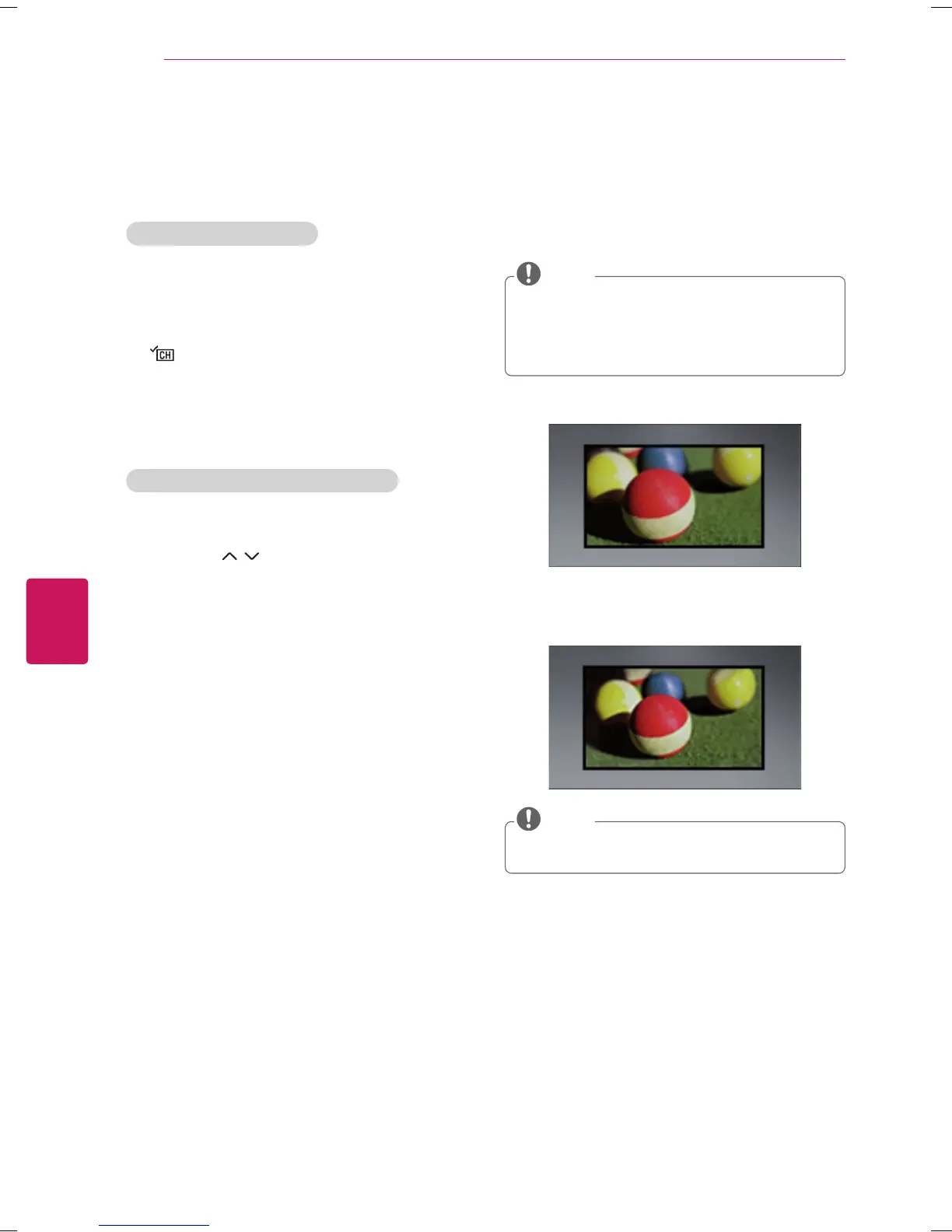
Resize an image to view at its optimal size by pressing
RATIO
while you are watching TV.
You can also change the image size by pressing
Q.MENU
or accessing
Aspect Ratio
in the
PICTURE
menu.
The available ratio varies depending on the input
source.
NOTE
-
16:9
: Resizes images to fit the screen width.
-
Just Scan
: Displays video images in the original size
without cutting off the edges. (This function works in
Component/HDMI (720P/1080i/1080p) Mode.)
If you select
Just Scan
, you may see image noises
at the edge or edges of the screen.
NOTE


 To Next Page