ENGLISH
34
CUSTOMIZING TV SETTINGS
PICTURE Settings
1
Press
SETTINGS
to access the main menus.
2
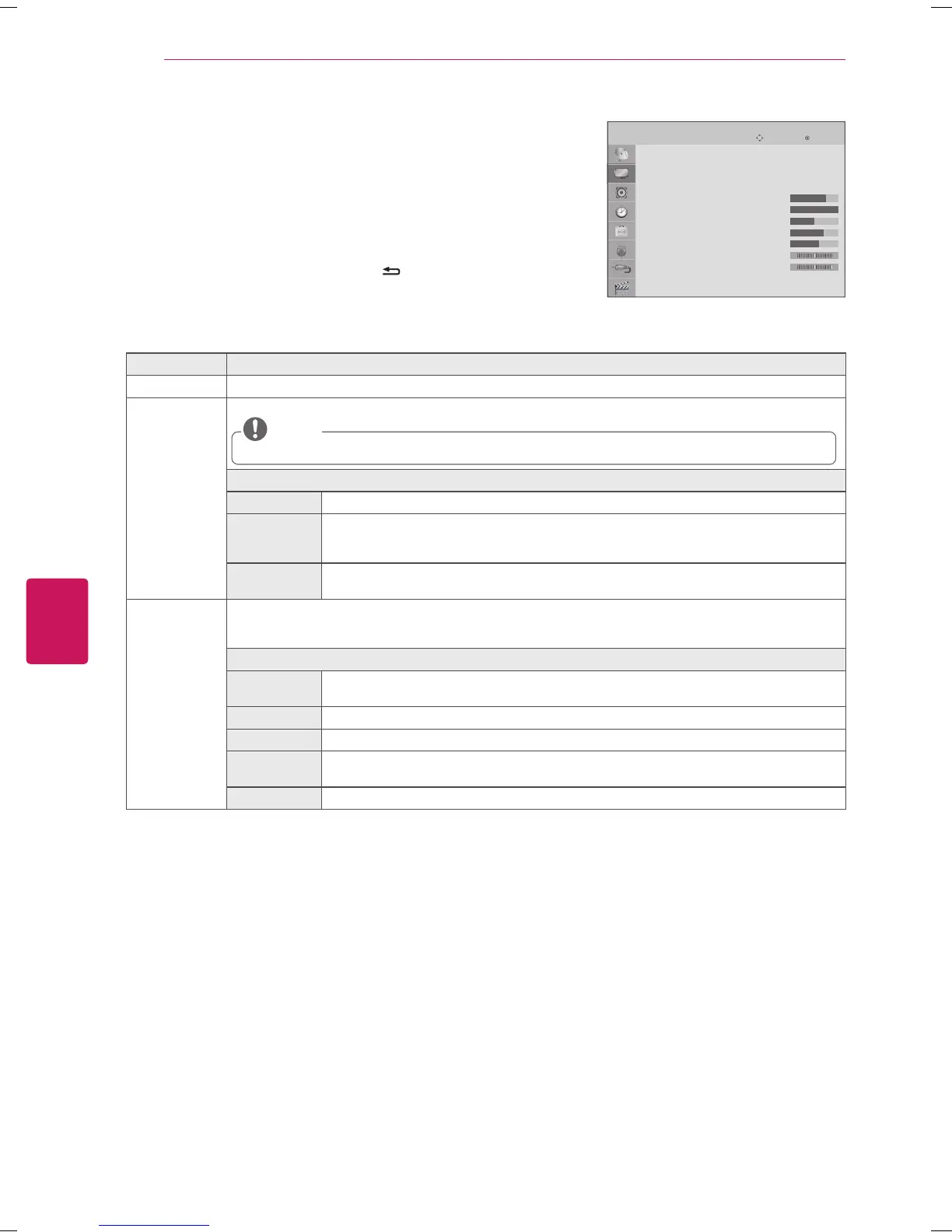
Press the Navigation buttons to scroll to
PICTURE
and press
OK
.
3
Press the Navigation buttons to scroll to the setting or option you want
and press
OK
.
- To return to the previous level, press
BACK
.
4
When you are finished, press
EXIT
.
The available picture settings are described in the following.
Setting Description
Aspect Ratio Changes the image size to view images at its optimal size. (See p. 20)
ꕊ
Energy
Saving
Reduces the power consumption by adjusting the screen brightness.
When selecting
Maximum
,
Backlight
will not work.
NOTE
Option
Off Select if this feature is not necessary.
Minimum/
Medium/
Maximum
Selects the brightness level.
Screen off The screen turns off in 3 seconds.
Pressing any button of the remote control will turn on the screen again.
Picture Mode Selects one of the preset image or customizes options in each mode for the best TV screen performance. You are
also able to customize advanced options of each mode. The available preset picture modes vary depending on the
TV.
Mode
Vivid Adjusts the video image for the retail environment by enhancing the contrast, brightness, color,
and sharpness.
Standard Adjusts the image for a normal environment.
Cinema Optimizes the video image for a cinematic look to enjoy movies as if you are in a movie theater.
Sport Optimizes video images for high and dynamic actions by emphasizing primary colors such as
white, grass, or sky blue.
Game Optimizes the video image for fast moving video such as PCs or games.


 To Next Page