EasyManua.ls Logo

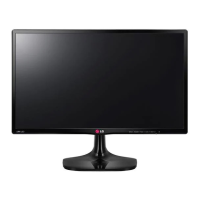
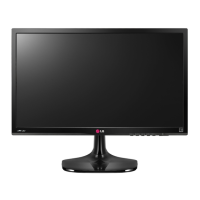
LG 24MP55HQ - User Manual

LG 24MP55HQ
32 pages
Print Icon
To Next Page IconTo Next Page
Loading...
www.lg.com
OWNER’S MANUAL
IPS LED MONITOR
22MP55HQ
23MP55HQ
24MP55HQ
27MP55HQ
Please read this manual carefully before operating
your set and retain it for future reference.
IPS LED MONITOR MODEL
ENGLISH

Questions and Answers

  • C
    Curtis LarsonSep 23, 2025
    How to unlock the OSD on my LG Monitor?
    • J
      Jessica WilliamsSep 23, 2025
      You can unlock the OSD controls on your LG Monitor at any time by pushing the MENU button for several seconds until the message “OSD UNLOCKED” appears.
  • S
    Shawn BrownAug 25, 2025
    How to stop my LG 24MP55HQ Monitor screen from blinking?
    • S
      Sarah HoldenAug 25, 2025
      To stop your LG Monitor screen from blinking, check if the screen is set to interlace mode. If it is, change it to the recommended resolution.
  • M
    Michael HumphreyAug 25, 2025
    What to do if my LG Monitor screen is flickering?
    • C
      Cynthia DavisAug 26, 2025
      If your LG Monitor screen is flickering, check if the screen is set to interlace mode. If it is, change it to the recommended resolution.
  • D
    Dr. Reginald VelasquezAug 27, 2025
    What to do if no image appears on my LG Monitor?
    • K
      Kelly CrossAug 27, 2025
      If no image appears on your LG Monitor, try these steps: Ensure the power cord is properly connected to the outlet, press the Power button, adjust the brightness and contrast settings. If the display is in power saving mode, move the mouse or press a key. Also, verify that your PC is turned on. If a message appears indicating the signal from the PC is out of range, consult the 'Specifications' section of the manual to configure your display. Note that the monitor enters DPM mode if it's on "No-Signal" for 5 minutes.
  • M
    Michelle DeleonAug 27, 2025
    What to do if display image is incorrect on LG 24MP55HQ?
    • K
      Kim MooreAug 27, 2025
      If your LG monitor's display image is incorrect, press the AUTO button to automatically adjust the image to the ideal setting. Also, check Control Panel ? Display ? Settings and adjust the display to the recommended resolution, ensuring the color setting is higher than 24 bits (true color).
  • R
    robertsjeanneSep 15, 2025
    How to unlock OSD on LG 24MP55HQ Monitor if it is locked?
    • A
      Anne LambSep 15, 2025
      If you see an "OSD LOCKED" message on the screen of your LG Monitor, you can unlock the OSD controls by pushing the MENU button for several seconds until the message “OSD UNLOCKED” appears.
  • L
    Lynn DouglasSep 12, 2025
    What to do if my LG 24MP55HQ Monitor shows "Unrecognized monitor, Plug&Play (VESA DDC) monitor found"?
    • N
      Natalie PerezSep 13, 2025
      If your LG Monitor displays the message "Unrecognized monitor, Plug&Play (VESA DDC) monitor found", install the display driver from the CD (or diskette) that came with your display. Also, verify that your video card supports the Plug&Play function.
  • W
    Whitney RussellSep 14, 2025
    How to fix the screen color if it is mono or abnormal on my LG 24MP55HQ Monitor?
    • D
      Diana WilliamsonSep 14, 2025
      If the screen color on your LG Monitor appears mono or abnormal, check that the signal cable is properly connected, tightening it with a screwdriver if necessary. Also, ensure that the video card is correctly inserted in its slot. Finally, verify that the color setting is set higher than 24 bits (true color) in the Control Panel settings.
  • D
    Danielle HollandSep 5, 2025
    Why does my LG 24MP55HQ Monitor screen blink?
    • B
      Bob TranSep 5, 2025
      If the screen of your LG Monitor blinks, check if the screen is set to interlace mode. If it is, change it to the recommended resolution.
  • D
    David WestSep 3, 2025
    How to fix horizontal noise on LG Monitor?
    • K
      Kevin BartlettSep 3, 2025
      If any horizontal noise appears in any image or characters are not clearly portrayed on your LG Monitor, first, press the AUTO button to automatically adjust your display image to the ideal setting. If the issue persists, go to Control Panel ? Display ? Settings and adjust the display to the recommended resolution or adjust the display image to the ideal setting. Also, ensure that the color setting is higher than 24 bits (true color).

Summary

Assembling and Preparing

Parts and Buttons

Identifies and explains the function of each button and connection port on the monitor.

Using the Monitor Set

Connecting to a PC

Explains how to connect the monitor to a PC using D-SUB and HDMI cables.

Customizing Settings

Picture Settings

Adjusts screen brightness, contrast, response time, and image aspect ratio.

Color Settings

Customizes color temperature, gamma, hue, and saturation for optimal display.

Troubleshooting

Image and Signal Issues

Resolves problems like no image, 'OUT OF RANGE', 'NO SIGNAL', and incorrect display.

Specifications

Model-Specific Specifications

Detailed technical specifications for each monitor model (22MP55HQ to 27MP55HQ).

LG 24MP55HQ Specifications

General IconGeneral
BrandLG
Model24MP55HQ
CategoryMonitor
LanguageEnglish

Related product manuals