EasyManua.ls Logo

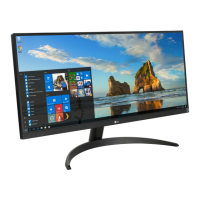
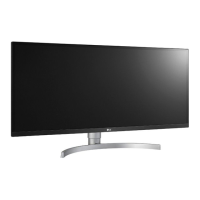
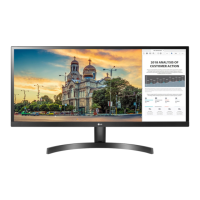
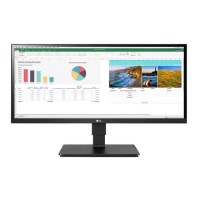
LG 29BN650 - User Manual

LG 29BN650
25 pages
Print Icon
To Next Page IconTo Next Page
Loading...
* LG LED Monitor applies LCD screen with LED backlights.
Please read this manual carefully before operating your set and
retain it for future reference.
29BN650
34BN670
OWNER’S MANUAL
LED LCD MONITOR
(LED Monitor*)
www.lg.com
Copyright © 2019 LG Electronics Inc. All Rights Reserved.

Other manuals for LG 29BN650

Questions and Answers

  • E
    Elizabeth GoodmanJul 29, 2025
    What to do if nothing is displayed on my LG 29BN650 screen?
    • M
      Mr. Jesse Terry MDJul 29, 2025
      If your LG Monitor screen is blank, try these steps: * Ensure the power cord is securely plugged into the outlet. * Check the power cable connection and press the power button. * Verify the connected input is enabled in the monitor's settings (Settings > Input). * Inspect the signal cable between your PC and the monitor; reconnect it if necessary. * Confirm that the signals from your PC (graphics card) are within the monitor's horizontal or vertical frequency range. Refer to the Product Specification section of this manual to set the correct frequency.
  • P
    Patricia GreerAug 6, 2025
    Why is my LG Monitor screen display unstable and shaky?
    • M
      Melissa WrightAug 6, 2025
      An unstable or shaky display on your LG Monitor, or shadow trails on images, can occur if the resolution is set to HDMI 1080i 60/50 Hz (interlaced). To resolve this, change the resolution to 1080p or the recommended resolution. Also, make sure your graphics card is set to the optimal resolution for the monitor. Incorrect resolution settings can cause blurred text, a dimmed screen, a truncated display, or misalignment.
  • S
    Stephen CannonAug 12, 2025
    How to fix no sound from the headphone port on my LG Monitor?
    • C
      Christopher HendersonAug 12, 2025
      If there's no sound from the headphone port on your LG monitor: * Ensure the headphone port connections are properly made. * Try increasing the volume using the joystick. * Set the audio output of your PC to the monitor you are using. The settings may differ depending on your operating system.
  • L
    Lori McphersonAug 21, 2025
    Are some functions not available when I press the Menu button on my LG 29BN650 Monitor?
    • J
      Jennifer YuAug 21, 2025
      If some functions are unavailable when you press the Menu button on your LG Monitor, the OSD might be locked. To fix this, disable OSD Lock in the General settings.

Summary

Assembly and Preparation

Product and Button Overview

Joystick Button Operation

Explains how to control monitor functions using the joystick button.

Table Installation

Using the Monitor

User Settings

Accessing the Main Menu

Guide on how to access and navigate the monitor's main menu using the joystick.

Main Menu Options

OSD Menu Navigation

Explains how to navigate and adjust various settings within the OSD menu.

Quick Settings Menu

Picture Settings

Picture Mode Selection

Details on different picture modes available based on input signal.

Picture Adjustment Options

Gaming Adjustments

Response Time Settings

Adjusting response time settings for smooth motion in games or videos.

General Configuration

Troubleshooting Guide

No Screen Display Issues

Troubleshooting steps for when the monitor screen remains blank.

Unstable Display and Ghosting

Resolving issues with unstable screen display or image ghosting.

Disabled Feature Resolution

Troubleshooting when monitor functions are unavailable or locked.

Connectivity Troubleshooting

Product Specifications

29 BN650 Model Specifications

Technical specifications for the 29BN650 model, including power and dimensions.

34 BN670 Model Specifications

Technical specifications for the 34BN670 model, including power and dimensions.

LG 29BN650 Specifications

General IconGeneral
Screen Size29 inches
Resolution2560 x 1080
Panel TypeIPS
Aspect Ratio21:9
Refresh Rate75Hz
Response Time5ms (GtG)
Contrast Ratio1000:1
sRGB99%
VESA Mount100 x 100 mm
Brightness250 cd/m²
Color Support16.7 million colors
ConnectivityHDMI, DisplayPort
FeaturesReader Mode, Flicker Safe
Viewing Angle178º/178°

Related product manuals