EasyManua.ls Logo

LG 29UM69G - User Manual

LG 29UM69G
31 pages
Print Icon
To Next Page IconTo Next Page
Loading...
www.lg.com
Please read the safety information carefully before using the product.
IPS LED Monitor (LED Monitor) Model List
Owner's Manual
IPS LED MONITOR
(LED MONITOR*)
*LG LED Monitors are LCD Monitors with LED Backlighting.
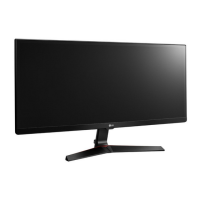
29UM69G
34UM69G

Questions and Answers

  • A
    aaron53Jul 27, 2025
    How to fix LG 29UM69G when nothing is displayed on the screen?
    • S
      Sergio RobertsonJul 27, 2025
      If nothing is displayed on your LG Monitor screen, ensure the power cord is correctly plugged into the power outlet, testing the outlet with another device. Also, check the power cable connection and press the power button. Verify that the connected input is enabled via Menu > Input > Input list. If the monitor is in sleep mode, move the mouse or press any key. Confirm that your computer is turned on. If signals from the PC are out of the monitor's frequency range, refer to the Product Specification section of the manual to set the appropriate frequency. Finally, check the cable and reconnect it.
  • Z
    Zachary NavarroJul 31, 2025
    How to fix no sound from LG 29UM69G Monitor headphone port?
    • W
      warnernicoleJul 31, 2025
      If you are getting no sound from the headphone port or speaker of your LG Monitor, first, try increasing the volume using the button on the monitor. If that doesn't work, set the audio output of the PC to the monitor you are using. On Microsoft Windows, go to Control Panel > Hardware and Sound > Sound and set the monitor as the default device.
  • T
    Tanya SanchezAug 4, 2025
    What to do if my LG 29UM69G Monitor screen display is unstable and shaky?
    • P
      Pamela VillaAug 4, 2025
      To resolve an unstable or shaky screen display or shadow trails on your LG Monitor, if the selected resolution is HDMI 1080i 60/50 Hz (interlaced), the screen may be flickering. Change the resolution to 1080P or the recommended resolution.
  • R
    Ryan StephensonAug 9, 2025
    Why does my LG 29UM69G screen retain an image?
    • M
      melissa09Aug 9, 2025
      If the screen of your LG Monitor retains an image, displaying a still image for a prolonged time may cause damage, resulting in image retention. To extend the monitor's lifespan, use a screensaver.
  • T
    Trevor BellAug 13, 2025
    Why is the display color abnormal on my LG 29UM69G?
    • E
      eric81Aug 13, 2025
      If the display color on your LG Monitor is abnormal, first, set the color to 24 bit (true color) or higher by navigating to Control Panel > Display > Settings > Color Quality in Windows. Then, check if the signal cable is properly connected, reconnecting it or reinserting the PC's graphics card. Note that if the troubleshooting steps do not resolve the issue, it might not be an error related to the monitor's performance.
  • R
    Ruben DayAug 17, 2025
    Why does my LG 29UM69G Monitor show "Unrecognized monitor, Plug&Play (VESA DDC) monitor found"?
    • B
      Brian AlvarezAug 17, 2025
      If you see an "Unrecognized monitor, Plug&Play (VESA DDC) monitor found" message on your LG Monitor, install the display driver from the provided CD (or diskette). Alternatively, download the driver from http://www.lg.com. Also, ensure that your video card supports the Plug&Play function.
  • B
    bdavisAug 22, 2025
    How to turn off OSD lock on LG 29UM69G?
    • W
      William RosarioAug 22, 2025
      If the OSD lock message is being displayed on your LG Monitor, go to Menu > General and set OSD Lock to Off.

Summary

LICENSE

ASSEMBLING AND PREPARING

Product Components

Lists all items included in the product box for setup.

Supported Drivers and Software

Details the drivers and software compatible with the monitor.

Monitor Components and Controls

Describes monitor parts, buttons, and joystick operation.

Input Connectors

Identifies and illustrates the available input ports on the monitor.

Moving and Lifting Precautions

Safety guidelines for handling and transporting the monitor.

Monitor Installation and Stand Assembly

Step-by-step guide for assembling the stand and installing the monitor.

Cable Management

Instructions for organizing cables using the cable holder.

Table Installation

Procedure for placing and connecting the monitor on a table.

Screen Angle Adjustment

How to adjust the monitor's viewing angle for comfort.

Stand Height Adjustment

Guide on modifying the monitor's vertical height.

Kensington Lock Usage

Information on installing and using the security lock.

Stand Removal

Steps to detach the monitor stand from the unit.

Wall Mounting Guide

Instructions for securely mounting the monitor on a wall.

USING THE MONITOR

Connecting to PC via HDMI

Connects PC to monitor via HDMI for video and audio signals.

Connecting to PC via DisplayPort

Connects PC to monitor via DisplayPort for video and audio signals.

Connecting to PC via USB-C

Connects PC to monitor using USB-C for video and audio signals.

Connecting AV Devices via HDMI

Connects AV devices to monitor via HDMI for video and audio.

Connecting Headphones

How to connect headphones to the monitor's audio port.

USER SETTINGS

Accessing the Main Menu

Steps to access and navigate the monitor's main menu.

Main Menu Features

Overview of the main menu options and their functions.

Quick Settings, Input, and Picture Mode

Configures basic settings, input selection, and picture modes.

Picture Adjustments and Game Settings

Fine-tunes picture quality and optimizes gaming-specific features.

Color, Gamma, and Reset Options

Adjusts color parameters, gamma, and allows resetting settings.

Sound and General Settings

Configures audio output, system language, and power saving.

TROUBLESHOOTING

No Display Issues

Solutions for common problems when the screen shows no image.

OSD Lock and Image Retention

Addresses OSD lock messages and image sticking on the screen.

Screen Instability and Shadow Trails

Solutions for flickering, unstable display, or shadow trails.

Abnormal Display Color

Troubleshooting steps for discolored or unstable screen colors.

Monitor Recognition Errors

Resolves issues with the monitor not being recognized by the PC.

Audio Output Problems

Troubleshooting audio issues when using DisplayPort or HDMI.

SPECIFICATIONS

29 UM69 G Model Specifications

Detailed technical specifications for the 29UM69G monitor model.

34 UM69 G Model Specifications

Detailed technical specifications for the 34UM69G monitor model.

Factory Support Modes (PC)

Lists supported resolutions and frequencies for PC input signals.

Factory Support Modes (Video)

Details video timings for different preset modes (e.g., 480p, 720p).

Power LED Indicators

Explains the meaning of LED colors for different monitor power states.

LG 29UM69G Specifications

General IconGeneral
3D-
DDC/CIYes
HD typeQXGA
Pixel pitch0.2628 x 0.2628 mm
Screen shapeFlat
Response time14 ms
SmartResponse5 ms
Display surfaceMatt
Display diagonal29 \
Display resolution2560 x 1080 pixels
Display technologyLED
Native aspect ratio21:9
Peak luminance ratio90 %
Supported video modes1080p
sRGB coverage (typical)99 %
Contrast ratio (typical)1000:1
Display number of colors16.78 million colors
Display brightness (typical)250 cd/m²
Supported graphics resolutions2560 x 1080
Dynamic contrast ratio marketing nameMega Contrast
RMS rated power10 W
Number of speakers2
AC input voltage100 - 240 V
AC input frequency50 - 60 Hz
Energy efficiency scaleA to G
Power consumption (off)0.3 W
Power consumption (standby)0.5 W
Tilt angle range-5 - 20 °
Number of OSD languages17
Panel mounting interface75 x 75 mm
On Screen Display (OSD) languagesCHI (SIMPL), CHI (TR), DEU, ENG, ESP, FIN, FRE, GRE, ITA, JPN, KOR, POL, POR, RUS, SWE, UKR
CertificationUL(cUL), TUV-Type, FCC-B, CE, CCC, EPA7.0, Erp
Product colorBlack, Red
Package depth403 mm
Package width812 mm
Package height151 mm
Package weight7600 g
Cables includedAC, HDMI
Weight and Dimensions IconWeight and Dimensions
Depth (with stand)204.1 mm
Height (with stand)415 mm
Weight (with stand)5500 g
Depth (without stand)63.8 mm
Width (without stand)702.5 mm
Height (without stand)328.4 mm
Weight (without stand)5000 g

Related product manuals