EasyManua.ls Logo

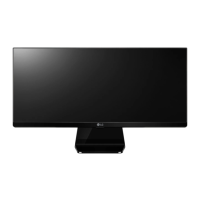
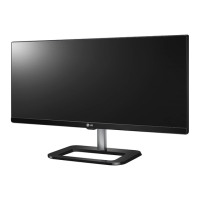
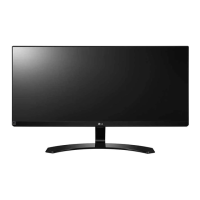
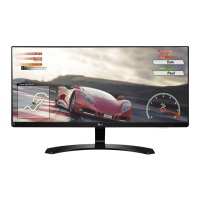
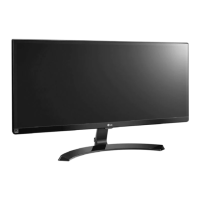
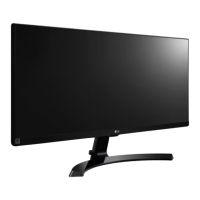
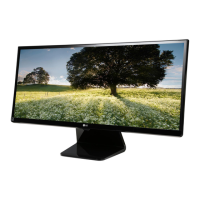
LG 29UM67-P - User Manual

LG 29UM67-P
52 pages
Print Icon
To Next Page IconTo Next Page
Loading...
www.lg.com
29UM67
29UB67
34UM67
34UB67
Please read the safety information carefully before using the
product.
IPS LED Monitor (LED Monitor) Model List
Owner's Manual
IPS LED MONITOR
(LED MONITOR*)
*LG LED Monitors are LCD Monitors with LED Backlighting.

Questions and Answers

  • J
    Juan ThomasJul 28, 2025
    Why is my LG 29UM67-P screen flickering?
    • M
      Michelle HollowayJul 29, 2025
      If your LG Monitor screen is flickering and you're using HDMI 1080i at 60/50 Hz, this could be the cause. The solution is to change the resolution to the recommended setting of 1080P.
  • J
    Jessica MillerAug 2, 2025
    Why does my LG 29UM67-P screen blink?
    • W
      walterhoffmanAug 2, 2025
      If your LG Monitor screen blinks, check if the screen is set to interlace mode. If it is, change it to the recommended resolution.
  • D
    dunnnicoleAug 7, 2025
    How to fix no image on LG 29UM67-P Monitor?
    • C
      charlenesilvaAug 8, 2025
      If your LG Monitor displays no image, ensure the power cord is securely connected to the outlet and that the monitor is turned on by pressing the Power button. If the monitor is in sleep mode, try moving the mouse or pressing any key on the keyboard. Also, verify that your PC is turned on. If you see a message indicating the signal from the PC (video card) is out of the display's frequency range, consult the 'Specifications' section of the manual to reconfigure your display settings. Finally, the monitor enters DPM (Display Power Management) mode if it remains on 'No-Signal' for 5 minutes.
  • D
    David AlexanderAug 12, 2025
    What to do if the display image is incorrect on LG Monitor?
    • D
      Deborah AllenAug 12, 2025
      If the display image on your LG Monitor appears incorrect, first, check that the signal cable is properly connected, tightening it with a screwdriver if necessary. Next, ensure the video card is correctly inserted in its slot. Finally, set the color setting to higher than 24 bits (true color) via Control Panel settings.
  • M
    Mrs. Amber ChristianAug 17, 2025
    What to do if my LG 29UM67-P says 'Unrecognized monitor, Plug&Play (VESA DDC) monitor found'?
    • J
      Jesse BatesAug 17, 2025
      If you see an 'Unrecognized monitor, Plug&Play (VESA DDC) monitor found' message on your LG Monitor, install the display driver from the CD or diskette that came with your display. Alternatively, you can download the driver from the LG website. Also, make sure your video card supports the Plug&Play function.
  • M
    Marcus RobinsonAug 22, 2025
    How to unlock OSD controls on LG 29UM67-P?
    • M
      Michael DanielsAug 22, 2025
      If you can't control some functions in the OSD (On-Screen Display) of your LG Monitor, you can unlock the OSD controls by entering the OSD lock menu and changing the settings to 'off'.

Summary

ASSEMBLING AND PREPARING

Component and Button Description

Details the monitor's buttons and input connectors.

How to Use the Joystick Button

Explains how to operate the monitor using the joystick button.

Installing the Monitor

Guides on assembling the monitor stand base.

Installing to a wall

Guidance on mounting the monitor on a wall, including VESA standards.

USING THE MONITOR

Connecting to a PC

Explains how to connect the monitor to a computer via DVI.

DisplayPort connection

Details connecting the monitor using a DisplayPort cable.

HDMI connection

Guides on connecting the monitor using an HDMI cable.

USER SETTINGS

Activating the Main Menu

Instructions on how to access and navigate the monitor's main menu.

Customizing settings -Quick Settings

Guides on adjusting basic settings like brightness, contrast, and volume.

-Picture

Explains various picture modes and adjustments for optimal display.

TROUBLESHOOTING

No image appears

Troubleshooting steps for when the display shows no image.

Display image is incorrect

Addresses issues with screen color or blinking.

SPECIFICATIONS

LG 29UM67-P Specifications

General IconGeneral
3DNo
HD type2K Ultra HD
Panel typeAH-IPS
Pixel pitch0.264 x 0.264 mm
Aspect ratio21:9
Backlight typeW-LED
Display surface-
Display diagonal29 \
Display resolution2560 x 1080 pixels
Display technologyLED
Horizontal scan range30 - 90 kHz
Supported video modes1080p
Viewable size, vertical290.2 mm
Contrast ratio (dynamic)5000000:1
Contrast ratio (typical)1000:1
Display number of colors16.78 million colors
Viewable size, horizontal677 mm
Display brightness (typical)300 cd/m²
Supported graphics resolutions2560 x 1080
On/off switchYes
DVI-D ports quantity1
VGA (D-Sub) ports quantity0
RMS rated power14 W
Number of speakers2
CertificationTCO 6.0, TÜV, CE, EMC, EN, UL, cUL, FCC-B
Product colorBlack
Tilt angle range5 - 20 °
Cable lock slot typeKensington
Panel mounting interface75 x 75 mm
On Screen Display (OSD) languagesDEU, ENG, ESP, FIN, FRE, GRE, ITA, JPN, KOR, POL, POR, RUS, SWE
AC input voltage90 - 240 V
AC input frequency47/63 Hz
Power consumption (max)47 W
Annual energy consumption53 kWh
Power consumption (standby)0.3 W
Power consumption (typical)36 W
Sustainability certificatesENERGY STAR
Package depth151 mm
Package width405 mm
Package height814 mm
Package weight8940 g
Cables includedAudio (3.5mm), HDMI
Weight and Dimensions IconWeight and Dimensions
Depth (with stand)181 mm
Height (with stand)418 mm
Weight (with stand)6200 g
Depth (without stand)64 mm
Width (without stand)703 mm
Height (without stand)328 mm
Weight (without stand)5200 g

Related product manuals