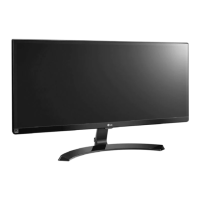
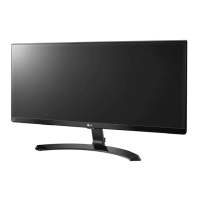
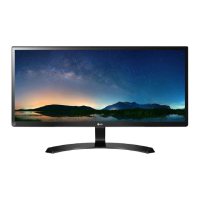
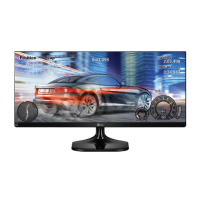
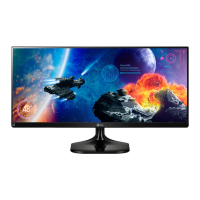
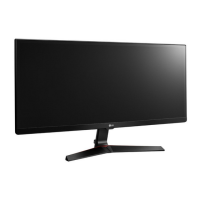
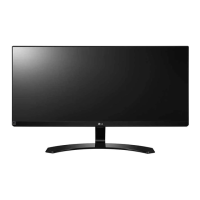
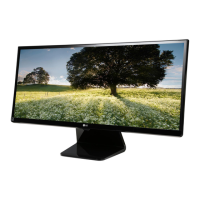
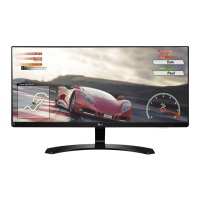
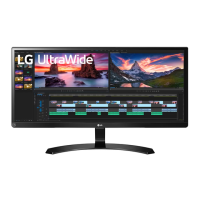
This document is the owner's manual for an LG IPS LED Monitor (LED Monitor*), specifically model 29UM59. The asterisk clarifies that LG LED Monitors are LCD Monitors with LED Backlighting. The manual provides comprehensive instructions for assembling, preparing, using, customizing settings, troubleshooting, and maintaining the monitor, along with important safety information.
The monitor's primary function is to display digital video and audio signals from PCs and AV devices. It supports a wide range of resolutions and frequencies, ensuring compatibility with various input sources. The monitor is designed with user convenience in mind, featuring a joystick button for easy navigation of the On-Screen Display (OSD) menu and quick access to various settings.
Assembly and Preparation:
The manual details the steps for assembling the monitor, starting with checking all components included in the box. It emphasizes the importance of using genuine LG components to ensure safety and product performance, warning that the warranty will not cover damage from counterfeit parts. The assembly process involves attaching the stand base to the stand body and securing it with screws. Illustrations guide the user through each step, including placing the screen face down and covering it with a soft cloth to prevent scratches.
Usage Features:
The LG IPS LED Monitor offers several user-friendly features. The joystick button, located at the bottom of the monitor, serves as a multi-functional control. A single press turns the monitor on, while a press and hold action turns it off. Moving the joystick left or right allows for volume control. The OSD menu, accessed via the joystick, provides extensive customization options.
Connecting Devices:
The monitor supports multiple input options, including two HDMI ports (HDMI IN 1 and HDMI IN 2), allowing connection to various PCs and AV devices. The manual explains how to connect these devices using HDMI cables and how to select the desired input option through the OSD menu. It recommends using certified HDMI cables to avoid compatibility issues or connection errors. For audio output, the monitor includes a headphone port, and the manual advises using straight earphones to prevent interference with other external devices.
Customizing Settings:
The OSD menu is divided into several categories: Quick Settings, Picture, General, and Reset.
- Quick Settings: This section allows users to quickly adjust Brightness, Contrast, and Volume. It also includes an Input selection for switching between connected devices and a Ratio setting to adjust the screen aspect ratio (Wide or Original). A helpful note indicates that pressing the joystick button down in the Volume menu mutes/unmutes the sound.
- Picture Settings: This category offers various picture modes tailored for different viewing experiences, such as Custom, Reader, Photo, Cinema, FPS1, FPS2, RTS, and Custom (Game). Each mode optimizes the screen for specific content, from newspaper reading to fast-paced gaming. Users can also fine-tune Picture Adjustments like Sharpness and Black Level. Black Stabilizer is a notable feature for gamers, enhancing visibility in dark scenes. Response Time can be adjusted (High, Middle, Low, Off) to suit the speed of displayed pictures. The FreeSync feature, when used with a compatible graphic card, provides seamless and natural images by synchronizing the vertical frequency of the input signal. Color Adjustments include Gamma, Color Temp (Warm, Medium, Cool, Custom), and Six Color controls (Red, Green, Blue, Cyan, Magenta, Yellow Hue and Saturation) for precise color calibration.
- General Settings: This section covers Language selection, SMART ENERGY SAVING (High, Low, Off) to conserve power, Power LED control (On/Off), and Automatic Standby, which automatically turns off the monitor after a set period of inactivity. OSD Lock is also available to prevent incorrect key input.
- Reset: This option allows users to return all settings to their default values.
Troubleshooting:
The manual includes a comprehensive troubleshooting section to address common issues. It provides solutions for problems like no display on the screen, the power indicator not working correctly, "OUT OF RANGE" or "CHECK SIGNAL CONNECTION" messages, and image sticking. It advises checking power cord connections, ensuring the computer is turned on, and verifying signal cable connections. For "OUT OF RANGE" errors, users are directed to adjust the PC's video card settings to match the monitor's supported horizontal and vertical frequencies.
Maintenance Features:
While not explicitly detailed as "maintenance features," the manual provides guidance that contributes to the longevity and proper functioning of the monitor:
- Careful Handling: Instructions for moving and lifting the monitor emphasize holding the top and bottom frame firmly, avoiding the panel itself, and preventing strong shocks or vibrations. It also advises placing the monitor in its original box for transport.
- Screen Protection: When assembling or placing the monitor face down, the manual recommends covering the surface with a soft cloth to protect the screen from scratches.
- Cable Management: The inclusion of a cable holder helps organize cables, preventing clutter and potential damage.
- Kensington Lock: The monitor is equipped with a Kensington security system connector, allowing users to secure the monitor to a table and deter theft.
- Proper Posture: A dedicated section on "Proper Posture for Using the Monitor" encourages users to adjust the screen angle for comfortable viewing, take regular breaks, and maintain correct body posture to reduce fatigue and promote long-term health.
The manual also includes information on HDMI Timing (Video) and Power Indicator behavior, providing a complete guide for users to maximize their experience with the LG IPS LED Monitor.


 To Next Page
 General