EasyManua.ls Logo

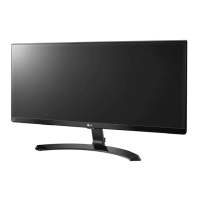
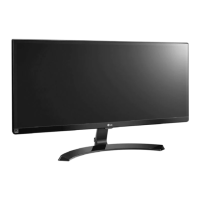
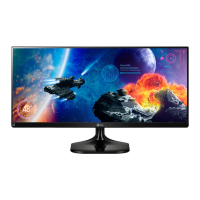
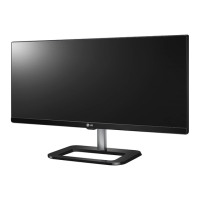
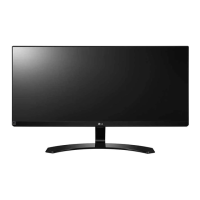
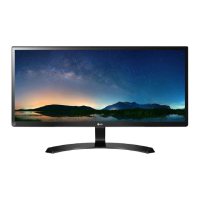
LG 29UM59A-P - User Manual

LG 29UM59A-P
27 pages
Print Icon
To Next Page IconTo Next Page
Loading...
www.lg.com
Please read the safety information carefully before using the product.
IPS LED Monitor (LED Monitor) Model List
Owner's Manual
IPS LED MONITOR
(LED MONITOR*)
*LG LED Monitors are LCD Monitors with LED Backlighting.
29UM59A

Questions and Answers

  • K
    Katelyn BlairJul 28, 2025
    What to do if nothing is displayed on my LG Monitor screen?
    • D
      David PerryJul 28, 2025
      If nothing is displayed on your LG Monitor, try these steps: First, ensure the power cord is correctly plugged into the power outlet and that the power cable is properly connected. Then, press the power button. Also, verify that the connected input source is enabled by navigating to Menu > Input > Input List. If the monitor is in sleep mode, move the mouse or press any key on the keyboard. Make sure your computer is turned on. If the signals from your PC are out of the monitor's frequency range, check the Product Specification section of this manual to set the appropriate frequency. Finally, if the signal cable is loose, check the cable and reconnect it.
  • W
    watsonthomasJul 31, 2025
    How to fix no sound from LG 29UM59A-P headphone port?
    • A
      Amber JenkinsJul 31, 2025
      If there is no sound from the headphone port or speaker of your LG monitor, first try increasing the volume using the button on the monitor. If that doesn't work, set the audio output of your PC to the monitor you are using. On Microsoft Windows, go to Control Panel > Hardware and Sound > Sound and set the monitor as the default device.
  • J
    Jill WarnerAug 5, 2025
    Why is my LG Monitor screen display unstable and shaky?
    • D
      Dr. Danielle LambAug 5, 2025
      If your LG Monitor's screen display is unstable, shaky, or images leave shadow trails, and the selected resolution is HDMI 1080i 60/50 Hz (interlaced), change the resolution to 1080P or the recommended resolution.
  • J
    Jeff SmithAug 9, 2025
    What to do if my LG Monitor screen retains an image?
    • D
      David BlackAug 9, 2025
      If your LG Monitor screen retains an image, it may be due to displaying a still image for a prolonged time, which can cause damage. To extend the lifetime of the monitor, use a screensaver.
  • K
    Kimberly SimpsonAug 14, 2025
    Why is the display color abnormal on my LG Monitor?
    • G
      gravesjasonAug 14, 2025
      If the display color on your LG Monitor is abnormal, try setting the color to 24 bit (true color) or higher via Control Panel > Display > Settings > Color Quality in Windows. Also, check if the signal cable is properly connected; reconnect the cable or reinsert the PC's graphics card. Note that pixilated spots (red, green, blue, white, or black) may appear on the screen, which is normal for an LCD screen and not related to the monitor's performance.
  • K
    Karen DickersonAug 17, 2025
    How to fix 'Unrecognized monitor, Plug&Play (VESA DDC) monitor found' message on LG Monitor?
    • C
      Christopher RayAug 18, 2025
      To resolve the 'Unrecognized monitor, Plug&Play (VESA DDC) monitor found' message on your LG Monitor, install the display driver from the LG website. Also, ensure that your video card supports the Plug&Play function.
  • P
    Phillip MeyerAug 22, 2025
    How to turn off OSD lock on LG 29UM59A-P Monitor?
    • M
      Michelle CardenasAug 22, 2025
      To turn off the OSD lock on your LG Monitor, go to Menu > General and set OSD Lock to Off.

Summary

ASSEMBLING AND PREPARING

USING THE MONITOR

Connecting to a PC

Instructions for connecting the monitor to a personal computer via HDMI or USB-C for display.

USER SETTINGS

Activating and Navigating Menus

How to access and use the monitor's On-Screen Display (OSD) menu system for adjustments.

Picture and Display Settings

Adjusting brightness, contrast, aspect ratio, and picture modes for optimal viewing experience.

TROUBLESHOOTING

Display and Signal Issues

Resolving problems like no display, out of range messages, and signal loss.

Image Quality and Performance

Addressing screen retaining images, unstable display, and shadow trails.

SPECIFICATIONS

LG 29UM59A-P Specifications

General IconGeneral
3DNo
DDC/CIYes
HD typeQXGA
Color gamut99 %
Pixel pitch0.2628 x 0.2628 mm
Screen shapeFlat
Display diagonal29 \
Display resolution2560 x 1080 pixels
Display technologyLED
Native aspect ratio21:9
Maximum refresh rate75 Hz
Supported video modes1080p
Contrast ratio (typical)1000:1
Display number of colors16.78 million colors
Display brightness (typical)250 cd/m²
Supported graphics resolutions2560 x 1080
Dynamic contrast ratio marketing nameMega Contrast
Display modesPicture-in-Picture
Package weight6.8 kg
TV tuner integrated-
USB hub version3.2 Gen 2 (3.1 Gen 2)
USB upstream port typeUSB Type-C
VGA (D-Sub) ports quantity0
AC input voltage100 - 240 V
AC input frequency50 - 60 Hz
Power consumption (standby)- W
Power consumption (typical)24 W
Tilt angle range-5 - 15 °
Panel mounting interface100 x 100 mm
6803.89 gWeight of the packaged product in gram.
Package depth142.24 mm
Package width764.54 mm
Package height411.48 mm
Cables includedHDMI
CertificationUL(cUL) TUV-type FCC-B, CE CCC (for China) EPA7.0 ErP
Product colorBlack
Weight and Dimensions IconWeight and Dimensions
Depth (with stand)213.36 mm
Height (with stand)414.02 mm
Weight (with stand)5216.3 g
Depth (without stand)63.5 mm
Width (without stand)703.58 mm
Weight (without stand)4717.36 g

Related product manuals