EasyManua.ls Logo

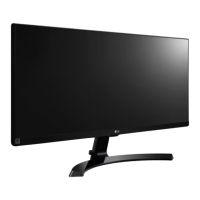
LG 29UM50 - User Manual

LG 29UM50
27 pages
Print Icon
To Next Page IconTo Next Page
Loading...
www.lg.com
Please read the safety information carefully before using the product.
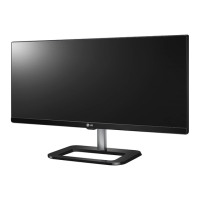
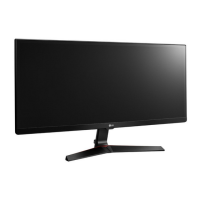
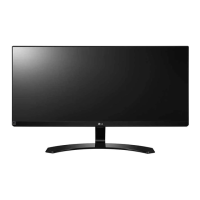
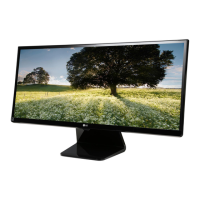
IPS LED Monitor (LED Monitor) Model List
Owner's Manual
IPS LED MONITOR
(LED MONITOR*)
*LG LED Monitors are LCD Monitors with LED Backlighting.
29UM50
29UM60
34UM60

Questions and Answers

  • C
    Christina PaceJul 28, 2025
    How to troubleshoot no sound from LG Monitor headphone port?
    • W
      William JohnsonJul 28, 2025
      If you're experiencing no sound from the headphone port or speaker on your LG Monitor, first try increasing the volume using the button on the monitor. Also, ensure that the audio output of your PC is set to the monitor. On Microsoft Windows, go to Control Panel > Hardware and Sound > Sound and set the monitor as the default device.
  • S
    Stephanie HolmesAug 3, 2025
    How to fix an LG 29UM50 Monitor when nothing is displayed on the screen?
    • H
      Heather BaileyAug 3, 2025
      If nothing is displayed on your LG Monitor screen, start by ensuring the power cord is securely plugged into the power outlet. Also, verify the power cable connection and press the power button. Make sure the connected input is enabled via Menu > Input > Input list. If the monitor is in sleep mode, try moving the mouse or pressing a key on the keyboard. Finally, confirm that your computer is turned on and check the cable connection, reconnecting it if necessary. If signals from the PC are out of range, check the Product Specification section of this manual to set the appropriate frequency.
  • D
    David McdanielAug 8, 2025
    Why is the display color abnormal on my LG 29UM50 Monitor?
    • B
      Bethany DonovanAug 8, 2025
      If the display color on your LG Monitor is abnormal, set the color to 24 bit (true color) or higher by navigating to Control Panel > Display > Settings > Color Quality in Windows. Also, check if the signal cable is properly connected; reconnect the cable or reinsert the PC's graphics card. Note that pixilated spots (red, green, blue, white, or black) may appear on the screen, which is normal for an LCD screen and not an error.
  • P
    Pamela JohnsonAug 13, 2025
    Why does my LG Monitor show 'Unrecognized monitor, Plug&Play (VESA DDC) monitor found'?
    • B
      brandy68Aug 13, 2025
      If you see an "Unrecognized monitor, Plug&Play (VESA DDC) monitor found" message on your LG Monitor, ensure you install the display driver from the display driver CD (or diskette) that came with your display. Also, you can download the driver from the LG website. Make sure to check if the video card supports Plug&Play function.
  • P
    phillipsjamesAug 17, 2025
    Why does my LG 29UM50 Monitor screen retain an image?
    • K
      kevinwilliamsAug 18, 2025
      If your LG Monitor screen retains an image, it may be due to displaying a still image for a prolonged time, which can cause damage. To extend the monitor's lifetime, use a screensaver.
  • J
    James WilsonAug 22, 2025
    How to turn off OSD lock on LG Monitor?
    • A
      Amber KingAug 22, 2025
      If the OSD lock message is being displayed on your LG Monitor, go to Menu > General and set OSD Lock to Off.

Summary

Assembling and Preparing Your LG Monitor

Product Components Identification

Lists and identifies all items included in the product box for setup.

Safe Monitor Handling and Transport

Instructions for safely moving and lifting the monitor to prevent damage.

Monitor Stand Assembly

Step-by-step guide to assemble the monitor stand base securely.

Wall Mounting Procedures

Guidelines for installing the monitor on a wall with bracket and screw specs.

Using the Monitor

Connecting and Using with a PC

How to connect the monitor to a PC via HDMI or DisplayPort and Plug & Play.

User Settings and Customization

Activating and Navigating the Main Menu

Instructions on how to access and control the monitor's OSD menu.

Monitor Settings Configuration (OSD)

Detailed guide to configuring settings like Quick Settings, Input, and Picture.

Troubleshooting Common Issues

Screen Display and OSD Lock Issues

Troubleshooting for no display, OSD lock, and image retention problems.

Monitor Specifications

LG 29UM50 Specifications

General IconGeneral
Screen Size29 inches
Resolution2560 x 1080
Panel TypeIPS
Aspect Ratio21:9
Refresh Rate60 Hz
Brightness250 cd/m²
Viewing Angle178° (H) / 178° (V)
Stand AdjustmentsTilt
PortsHDMI
Response Time5 ms (GTG)
Contrast Ratio1000:1 (Typical), Mega ∞:1 (Dynamic)

Related product manuals