EasyManua.ls Logo

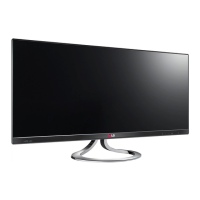
LG 29EA93 - User Manual

LG 29EA93
42 pages
Print Icon
To Next Page IconTo Next Page
Loading...
www.lg.com
Owner's Manual
IPS LED MONITOR
(LED LCD MONITOR)
29EA93
29EB93
Please read the safety information carefully before using the product.
IPS LED Monitor (LED LCD Monitor) Model List
ENGLISH

Questions and Answers

  • P
    Patricia HubbardAug 12, 2025
    What to do if nothing is displayed on my LG 29EA93 Monitor screen?
    • C
      Christopher WhiteAug 12, 2025
      If your LG Monitor screen is blank, try these steps: Ensure the power cord is securely plugged into the outlet. Check the power cable connection and press the power button. Verify the correct input is selected via Menu - Input. If the monitor is in power-saving mode, move the mouse or press a key. Also, confirm that your computer is turned on. If the signals from your PC are out of the monitor's frequency range, refer to the 'Product Specification' section of the manual to set the appropriate frequency. Finally, check and reconnect the signal cable between the PC and the monitor to ensure it's not loose or disconnected.
  • H
    Heather CoxAug 16, 2025
    What to do if my LG 29EA93 screen is blank?
    • J
      Jennifer JonesAug 16, 2025
      If nothing is displayed on your LG Monitor screen, try the following: Ensure the power cord is correctly plugged into the power outlet. Check the power cable connection and press the power button. Verify that the connected input is enabled in the Menu under Input. If the monitor is in power-saving mode, move the mouse or press any key on the keyboard. Also, make sure your computer is turned on. If the signals from the PC are out of the monitor's frequency range, refer to the Product Specification section of the manual to set the appropriate frequency. Finally, check and reconnect the signal cable between the PC and the monitor to ensure it's not missing or disconnected.
  • J
    John MeltonAug 19, 2025
    Why is the display color abnormal on my LG 29EA93?
    • J
      James JonesAug 19, 2025
      If the display color on your LG Monitor seems off, try these solutions: First, set the color to 24 bit (true color) or higher via Control Panel > Display > Settings > Color Quality in Windows. Next, check the signal cable connection; reconnect it or reinsert the PC's video card. Note that pixilated spots (red, green, blue, white, or black) can appear; this is normal for LCD screens and not a defect.
  • C
    Carol WalkerAug 25, 2025
    How to prevent image retention on LG Monitor?
    • E
      Erica LeAug 25, 2025
      Displaying a still image for a prolonged time may cause damage to the screen of your LG Monitor, resulting in the retention of the image. To prevent this, use a screen saver to protect the screen when using the monitor for extended periods.
  • S
    sara29Aug 27, 2025
    How to unlock OSD on LG 29EA93 Monitor?
    • B
      Billy ManningAug 27, 2025
      If the message "OSD LOCKED" is displayed on your LG Monitor, navigate to Menu > Settings and set "OSD Lock" to Unlock.
  • M
    Mark SheltonAug 31, 2025
    Why does the color on my LG 29EA93 Monitor look wrong?
    • N
      Nicholas GonzalezAug 31, 2025
      If the display color on your LG Monitor appears abnormal, try setting the color to 24 bit (true color) or higher via Control Panel > Display > Settings > Color Quality in Windows. Also, check if the signal cable is properly connected; reconnect it or reinsert the PC's video card. Note that pixilated spots (red, green, blue, white, or black) may appear, which is normal for LCD screens and not related to the monitor's performance.
  • S
    stewartsandraSep 4, 2025
    How to prevent image retention on my LG 29EA93 Monitor?
    • Z
      Zachary MathewsSep 4, 2025
      Displaying a still image for a prolonged time may cause damage to the screen, resulting in the retention of the image. Use a screen saver to protect the screen when using the monitor for a prolonged period of time.
  • C
    Casey AguilarSep 7, 2025
    What to do if the 'OSD LOCKED' message is displayed on my LG Monitor?
    • A
      Anthony GibbsSep 7, 2025
      If the 'OSD LOCKED' message appears on your LG Monitor, go to Menu > Settings and set "OSD Lock" to Unlock.

Summary

Owners Manual

ASSEMBLING AND PREPARING

Product Components

Lists all the components included in the product box for initial use.

Component and Button Description

Details the components and buttons for the 29EA93 monitor model.

Moving and Lifting the Monitor

Provides instructions on how to safely move and lift the monitor to prevent damage.

Assembling the stand base

Step-by-step guide to attach the stand base to the monitor.

Detaching the stand base

Instructions on how to remove the stand base from the 29EA93 monitor.

Installing onto a table

Guide to placing the monitor on a table and connecting power.

Adjusting the stand height

Steps to adjust the vertical height of the monitor's stand.

Adjusting the angle

Instructions on how to tilt the monitor screen for optimal viewing.

USING THE MONITOR

INSTALLING TUSB3410 DRIVER

INSTALLING TRUE COLOR FINDER

INSTALLING SCREEN SPLIT

CUSTOMIZING SETTINGS

TROUBLESHOOTING

Nothing is displayed on the screen.

Troubleshooting steps for when the monitor screen remains blank.

The display color is abnormal.

Solutions for abnormal display colors, including discoloration or spots.

PROPER POSTURE

Proper Posture for Using the Monitor

Guidelines for setting up an ergonomic posture for comfortable monitor use.

LG 29EA93 Specifications

General IconGeneral
Screen Size29 inches
Resolution2560 x 1080
Panel TypeAH-IPS
Aspect Ratio21:9
Brightness300 cd/m²
Contrast Ratio1000:1
Response Time5 ms
Refresh Rate60 Hz
Viewing Angle178° (H) / 178° (V)
Color GamutsRGB 99%
VESA Mount100 x 100 mm
ConnectivityHDMI, DisplayPort, DVI-D

Related product manuals