EasyManua.ls Logo

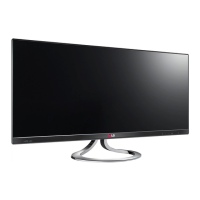
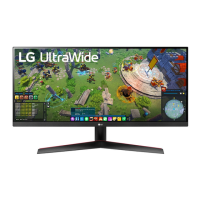
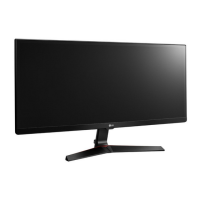
LG 29EA93-P - User Manual

LG 29EA93-P
40 pages
Print Icon
To Next Page IconTo Next Page
Loading...
www.lg.com
Owner's Manual
IPS LED MONITOR
(LED LCD MONITOR)
29EA93
29EB93
Please read the safety information carefully before using the
product.
IPS LED Monitor (LED LCD Monitor) Model List
ENGLISH

Other manuals for LG 29EA93-P

Questions and Answers

  • J
    James FloresAug 10, 2025
    What to do if my LG Monitor screen is blank?
    • D
      debra20Aug 10, 2025
      If nothing is displayed on your LG Monitor screen, try the following: Ensure the power cord is correctly plugged into the power outlet. Check the power cable connection and press the power button. Verify that the connected input is enabled in the Menu under Input. If the monitor is in power-saving mode, move the mouse or press any key on the keyboard. Also, make sure your computer is turned on. If the signals from the PC are out of the monitor's frequency range, refer to the Product Specification section of the manual to set the appropriate frequency. Finally, check and reconnect the signal cable between the PC and the monitor to ensure it's not missing or disconnected.
  • M
    Michelle AllenAug 17, 2025
    Why does the color on my LG 29EA93-P look wrong?
    • H
      halljeremyAug 17, 2025
      If the display color on your LG Monitor appears abnormal, try setting the color to 24 bit (true color) or higher via Control Panel > Display > Settings > Color Quality in Windows. Also, check if the signal cable is properly connected; reconnect it or reinsert the PC's video card. Note that pixilated spots (red, green, blue, white, or black) may appear, which is normal for LCD screens and not related to the monitor's performance.
  • A
    alyssajohnsonAug 26, 2025
    How to prevent image retention on my LG 29EA93-P?
    • M
      Miranda SalasAug 26, 2025
      Displaying a still image for a prolonged time may cause damage to the screen, resulting in the retention of the image. Use a screen saver to protect the screen when using the monitor for a prolonged period of time.
  • T
    Tiffany ToddSep 2, 2025
    How to unlock OSD on LG 29EA93-P Monitor?
    • J
      John DelgadoSep 2, 2025
      If the message "OSD LOCKED" is displayed on your LG Monitor, navigate to Menu > Settings and set "OSD Lock" to Unlock.

Summary

ASSEMBLING AND PREPARING

Product Components

Lists all included items in the product box.

Component and Button Description

Details buttons, ports, and indicators for the 29EA93 model.

Assembling the Monitor Stand

Step-by-step guide for attaching the monitor stand base.

Installing Monitor to a Wall

Guidelines and precautions for mounting the monitor on a wall.

USING THE MONITOR

Connecting to a PC

How to connect your computer to the monitor for display output.

HDMI Connection Guide

Connects PC and AV devices via HDMI for video and audio signals.

INSTALLING LG MONITOR SOFTWARE

LG Monitor Software Installation Guide

Step-by-step instructions for installing the LG Monitor Software on your PC.

CUSTOMIZING SETTINGS

Activating the OSD Menu

Explains how to access and navigate the monitor's On-Screen Display (OSD) menu.

TROUBLESHOOTING

Display Issues Troubleshooting

Solutions for common problems like no display, OSD lock, and image retention.

SPECIFICATIONS

Monitor Technical Specifications

Details LCD screen type, resolution, signal, power, dimensions, and weight.

LG 29EA93-P Specifications

General IconGeneral
BrandLG
Model29EA93-P
CategoryMonitor
LanguageEnglish

Related product manuals