EasyManua.ls Logo

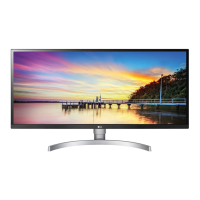
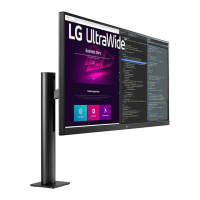
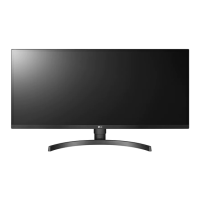
LG 34BK95U - User Manual

LG 34BK95U
28 pages
Print Icon
To Next Page IconTo Next Page
Loading...
* LG LED Monitor applies LCD screen with LED backlights.
Please read this manual carefully before operating your set and
retain it for future reference.
34WK95U 34BK95U
OWNER’S MANUAL
LED LCD MONITOR
(LED Monitor*)
www.lg.com
Copyright © 2018 LG Electronics Inc. All Rights Reserved.

Questions and Answers

  • C
    Christina BrownJul 29, 2025
    How to fix an LG 34BK95U when nothing is displayed on the screen?
    • P
      Philip KimJul 29, 2025
      If nothing appears on your LG Monitor screen, first, ensure the power cord is securely plugged into the outlet. Then, check the power cable connection and press the power button. Next, verify that the correct input is enabled in the monitor's Settings under the Input section. Also, inspect the cable and reconnect it. If the issue persists, for HDMI Input, disable HDMI ULTRA HD Deep Color in the monitor's General settings. For DisplayPort Input, match the DisplayPort Version in the monitor's General settings to the connected device. Refer to the Product Specification section of this manual for the appropriate frequency settings. For PCs supporting only USB-C output, use a USB-C Cable (sold separately). Finally, confirm with your PC manufacturer whether your PC supports ThunderboltTM 3.
  • S
    Stacy AndrewsAug 6, 2025
    Why is my LG 34BK95U Monitor screen unstable and shaky?
    • M
      Melissa AndersonAug 6, 2025
      If the screen display of your LG Monitor is unstable, shaky, or images leave shadow trails, and if the resolution is HDMI 1080i 60/50 Hz (interlaced), the screen might be flickering. Try changing the resolution to 1080p or the recommended setting. Also, ensure the graphics card is set to the recommended (optimal) resolution to avoid blurred text, a dimmed screen, a truncated display area, or misalignment. If problems persist, contact the computer or graphics card manufacturer for further assistance.
  • O
    okellyAug 20, 2025
    Why does image sticking occur on my LG 34BK95U?
    • M
      Michael MillerAug 20, 2025
      Displaying a still image for a prolonged time may cause damage to the screen of your LG Monitor, potentially resulting in image retention. To mitigate this, use a screensaver to extend the monitor's lifespan.
  • A
    Amy BaileyNov 12, 2025
    What to do if some features are disabled on my LG Monitor?
    • L
      Lisa WatkinsNov 12, 2025
      If some features on your LG Monitor are disabled, try disabling OSD Lock in the General settings. Also ensure that the display driver from the provided CD (or diskette) is installed, or download it from the LG website. Check if the graphics card supports Plug and Play. Verify that the headphone port connections are properly made and increase the volume using the joystick. Set the PC's audio output to the monitor, and ensure the cable is properly connected. Set the correct resolution and refresh rate in the PC's screen resolution settings or the player's option menu. Note that some features are only available on external devices supporting 4K/5K resolution. To enable certain features, go to Settings > General > HDMI ULTRA HD Deep Color or Settings > General > DisplayPort Version to set the ...

Summary

Assembling and Preparing

Safety Precautions for Assembly

Important safety guidelines and warnings for assembling the monitor.

Product and Button Description

Using the Joystick Button

Instructions on operating the monitor using the joystick button.

Moving and Lifting the Monitor

Guidelines for safely moving and lifting the monitor without damage.

Screen Handling Cautions

Warnings about touching the screen and stability issues with the stand.

Installing on a Table

Adjusting the Stand Height

Instructions for adjusting the monitor's stand height for optimal viewing.

Electrical Safety and Installation

Safety warnings regarding power cords and electrical connections during installation.

Finger Safety During Adjustment

Precautions to avoid finger injury when adjusting screen height or angle.

Using the Kensington Lock

Installing the Wall Mount Plate

Information on specifications and compatibility for wall mount plates.

Installing on the Wall

Instructions for safely mounting the monitor on a wall with proper ventilation.

Wall Mounting Installation Details

Wall Mounting Safety and Screw Guidelines

Safety warnings and screw length recommendations for wall mounting.

Using the Monitor

Screen Usage Cautions

Precautions to avoid image distortion, retention, and connection issues.

Connecting AV Devices and Peripherals

USB Device Cautions

Cautions regarding USB device recognition, support, and power requirements.

HDMI;DP Input Scenarios

User Settings Overview

Activating the Main Menu

Instructions on how to access and navigate the main menu using the joystick.

Main Menu Features and Navigation

Quick Settings

Picture-by-Picture (PBP) Details

Picture Settings - SDR

Picture Settings - HDR

HDR Performance and Settings Notes

Notes on HDR compatibility with Windows 10, graphic card performance, and potential flickering.

Picture Adjust Settings

Color Adjust and Response Time

General Settings

Advanced General Settings

HDMI ULTRA HD Deep Color

Enables deeper color depth for sharper images via HDMI if supported by the device.

System and Reset Settings

Troubleshooting Common Issues

No Display or Signal Issues

Solutions for when the screen is blank, shows 'No Signal', or is not displayed.

Out of Range Message Troubleshooting

Troubleshooting 'Out of Range' messages related to PC frequency settings.

Thunderbolt 3 Connectivity Issues

Checking PC compatibility and cable usage for Thunderbolt™ 3 connections.

Unstable Screen or Shadow Trails

Resolving screen instability, shakiness, or shadow trails related to resolution.

Image Sticking and Pixel Spots

Addressing image sticking from prolonged display and normal pixel spots.

Feature Accessibility and Resolution Issues

Disabled Menu Functions Resolution

Resolving issues where menu functions are disabled, likely due to OSD Lock.

Unrecognized Monitor Message Troubleshooting

Troubleshooting 'Unrecognized monitor' messages by installing display drivers.

No Sound from Headphone Port Solutions

Solutions for no sound from the headphone port, checking connections and volume.

4 K;5 K Resolution Unavailable Troubleshooting

Troubleshooting unavailable 4K/5K resolutions by checking cables, settings, and device support.

Product Specifications

Color Depth and Resolution Specifications

Supported color depth and maximum/recommended resolutions for various connections.

Power Sources and Consumption Details

Specifications for power rating, typical operating, sleep, and off mode consumption.

HDMI Preset Modes and Timing

USB-C;Thunderbolt;DP Preset Modes

LG 34BK95U Specifications

General IconGeneral
BrandLG
Model34BK95U
CategoryMonitor
LanguageEnglish

Related product manuals