EasyManua.ls Logo

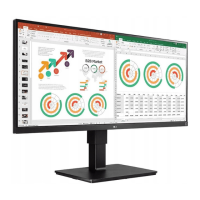
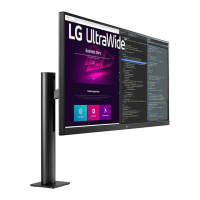
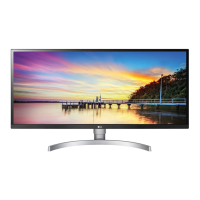
LG 34BN670 - User Manual

LG 34BN670
24 pages
Print Icon
To Next Page IconTo Next Page
Loading...
* LG LED Monitor applies LCD screen with LED backlights.
Please read this manual carefully before operating your set and
retain it for future reference.
29BN650
34BN670
OWNER’S MANUAL
LED LCD MONITOR
(LED Monitor*)
www.lg.com
Copyright © 2019 LG Electronics Inc. All Rights Reserved.

Questions and Answers

  • M
    mguzmanJul 29, 2025
    What to do if nothing is displayed on my LG Monitor screen?
    • J
      John GrahamJul 29, 2025
      If nothing is displayed on your LG Monitor, first, ensure the power cord is correctly plugged into the power outlet. Next, check the power cable connection and press the power button. Also, verify that the connected input is enabled in the monitor's settings under the Input option. If the issue persists, check the signal cable between your PC and the monitor to ensure it's properly connected. Finally, if signals from your PC are out of the monitor's frequency range, refer to the Product Specification section of this manual to set the appropriate frequency.
  • A
    Andrew JohnsonAug 2, 2025
    Why is my LG 34BN670 Monitor screen display unstable and shaky?
    • W
      William ArroyoAug 2, 2025
      If your LG Monitor screen display is unstable and shaky or images leave shadow trails, and you're using HDMI 1080i 60/50 Hz (interlaced) resolution, the screen may be flickering. Try changing the resolution to 1080p or the recommended resolution. Also, ensure your graphics card is set to the recommended resolution to avoid blurred text, a dimmed screen, a truncated display area, or misalignment of the display. For further assistance, contact the manufacturer of your computer or graphics card.
  • J
    Jennifer French DDSAug 7, 2025
    Why is there no sound from the headphone port on my LG Monitor?
    • D
      Donald SimsAug 7, 2025
      If you are not getting any sound from the headphone port on your LG Monitor, first ensure that the headphone port connections are properly made. Then, try increasing the volume using the joystick. Finally, set the audio output of your PC to the monitor you are using. Note that the settings may differ depending on your operating system.
  • K
    Kathryn NormanAug 13, 2025
    How to enable disabled features on LG 34BN670 Monitor?
    • A
      Ashley TaylorAug 13, 2025
      If some features are disabled on your LG Monitor, it may be due to the OSD being locked. To resolve this, disable OSD Lock in the General settings.
  • J
    Joseph ParrishAug 17, 2025
    What to do if I see an "Unrecognized monitor, Plug and Play (VESA DDC) monitor found" message on my LG 34BN670 Monitor?
    • M
      Michael PeckAug 17, 2025
      If you see an "Unrecognized monitor, Plug and Play (VESA DDC) monitor found" message on your LG Monitor, be sure to install the display driver from the LG website. Also, make sure to check if your graphics card supports the Plug and Play function.
  • E
    Erik NguyenAug 22, 2025
    How to prevent image sticking on LG Monitor?
    • J
      Judy KingAug 22, 2025
      To extend the lifetime of your LG Monitor and prevent image sticking, use a screensaver, as displaying a still image for a prolonged time may cause damage to the screen, resulting in the retention of the image.

Summary

Assembling and Preparing the Monitor

Safety Precautions for Assembly

Essential safety warnings for using genuine components and proper handling during assembly.

Monitor Controls and Handling

Safe Moving and Lifting Guidelines

Instructions for safely moving and lifting the monitor to prevent damage.

Screen Handling Cautions

Warnings about touching the monitor screen and potential instability without the stand.

Monitor Installation and Adjustment

Table Installation Requirements

Instructions for placing the monitor on a table for proper ventilation.

Installation Safety Warnings

Critical safety advice concerning power cords and installation procedures.

Wall Mounting Specifications and Safety

Wall Mounting Safety Precautions

Crucial safety warnings related to wall mounting, including electrical hazards and screw usage.

Using the Monitor and PC Connection

Monitor Usage Best Practices

Guidelines for optimal monitor use, avoiding screen damage and image retention.

User Settings and Menu Navigation

Main Menu Features and Navigation

Quick Settings and Input Options

Adjusting Brightness, Contrast, and Volume

How to adjust screen brightness, contrast, and audio volume.

Picture Mode Settings

Selecting Picture Modes

Details on various preset picture modes for different content types.

Advanced Picture Adjustments

Brightness, Contrast, and Sharpness Control

Fine-tuning screen brightness, contrast, and sharpness.

Super Resolution+ Settings

Using Super Resolution+ to enhance image clarity, with usage recommendations.

Game-Specific Display Settings

FreeSync Technology Setup

Configuring FreeSync for tear-free gaming, including requirements.

Color and Sound Adjustments

Gamma and Color Temperature Control

Adjusting gamma for image darkness and setting custom color temperatures.

General Monitor Configuration

Resetting to Factory Defaults

How to reset all monitor settings to their original factory state.

Troubleshooting Common Issues

No Display or Signal Problems

Solutions for scenarios where the screen shows no image or a "No Signal" message.

Display Instability and Image Artifacts

Addressing screen flickering, shaky images, or shadow trails.

Advanced Troubleshooting

LG 34BN670 Specifications

General IconGeneral
Screen Size34 inches
Resolution2560 x 1080
Panel TypeIPS
Refresh Rate75Hz
Aspect Ratio21:9
Brightness300 cd/m²
Contrast Ratio1000:1
Response Time5ms (GtG)
Color GamutsRGB 99%
VESA Mount100 x 100 mm
ConnectivityHDMI, DisplayPort
FeaturesHDR10, AMD FreeSync
Viewing Angle178°/178°

Related product manuals