EasyManua.ls Logo

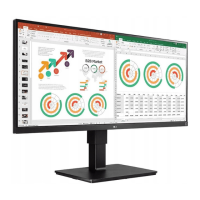
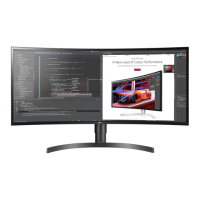
LG 34BK650 - User Manual

LG 34BK650
32 pages
Print Icon
To Next Page IconTo Next Page
Loading...
www.lg.com
Please read the safety information carefully before using the product.
Owner's Manual
LED LCD Monitor
(LED Monitor*)
*LG LED Monitors are LCD Monitors with LED Backlighting.
29WK600
34WK650
34BK650

Questions and Answers

  • R
    Ryan AlexanderJul 27, 2025
    What to do if nothing is displayed on my LG 34BK650 Monitor screen?
    • L
      Lauren RossJul 28, 2025
      If nothing is displayed on your LG Monitor, try these steps: First, check if the power cord is correctly plugged into the power outlet and test the outlet with another device. Then, verify the power cable connection and press the power button on the monitor. Ensure that the connected input source is enabled in the monitor settings (Settings > Input > Input list). If the monitor is in sleep mode, move the mouse or press any key on the keyboard. Also, make sure your computer is turned on. Check the signal cable and reconnect it properly. If the issue persists, the signals from your PC might be out of range. Refer to the Product Specification section of the manual to set the appropriate frequency.
  • S
    Sara MolinaAug 1, 2025
    Why is there no sound from the headphone port or speaker of my LG 34BK650?
    • J
      Jeffrey Smith MDAug 1, 2025
      If there is no sound from the headphone port or speaker of your LG Monitor, try increasing the volume using the button on the monitor. Also, set the audio output of the PC to the monitor you are using. On Microsoft Windows, go to Control Panel > Hardware and Sound > Sound and set the monitor as the default device.
  • J
    Jared BrownAug 5, 2025
    What to do if my LG Monitor screen display is unstable and shaky?
    • A
      Alexander GibsonAug 5, 2025
      If your LG Monitor screen display is unstable and shaky, or images leave shadow trails, and if the selected resolution is HDMI 1080i 60/50 Hz (interlaced), the screen may be flickering. Try changing the resolution to 1080P or the recommended resolution.
  • D
    Daniel KellyAug 10, 2025
    Why is the display color abnormal on my LG 34BK650 Monitor?
    • B
      Beverly BrownAug 10, 2025
      If the display color on your LG monitor is abnormal, first, set the color to 24 bit (true color) or higher by navigating to Control Panel > Display > Settings > Color Quality in Windows. Next, check if the signal cable is properly connected, and if not, reconnect it or reinsert the PC's graphics card. Note that pixilated spots (red, green, blue, white, or black) may appear on the screen, which is normal for an LCD screen and not related to the monitor's performance.
  • J
    johnsanchezAug 14, 2025
    How to fix the OSD lock message on my LG 34BK650?
    • J
      Julie VelasquezAug 14, 2025
      To resolve the OSD lock message on your LG Monitor, navigate to Settings > General and set OSD Lock to Off.
  • D
    David MckeeAug 18, 2025
    What to do if I see an "Unrecognized monitor, Plug&Play (VESA DDC) monitor found" message on my LG 34BK650?
    • A
      Allison Sharp MDAug 18, 2025
      Be sure to install the display driver from the LG website. Also, make sure to check if the video card supports Plug&Play function.
  • M
    Mark SchneiderAug 22, 2025
    How to prevent image retention on my LG 34BK650 Monitor?
    • S
      Sarah DavisAug 22, 2025
      Displaying a still image for a prolonged time may cause damage to the screen, resulting in the retention of the image. To extend the lifetime of your LG monitor, use a screensaver.

Summary

ASSEMBLING AND PREPARING

Product Components

Lists and describes the items included in the product box.

Component and Button Description

Explains the physical components and buttons of the monitor.

How to Use the Joystick Button

Guides users on operating the monitor using the joystick button.

Assembling the stand base

Details the process of assembling the monitor stand base.

USING THE MONITOR

Connecting to a PC

Explains how to connect the monitor to a personal computer.

USER SETTINGS

Activating the Main Menu

Instructions on how to access and navigate the monitor's main menu.

Main Menu Features

Overview of the main menu options available for settings.

Menu Settings

Details how to configure various settings like Quick Settings, Input, Picture, Sound, and General.

Picture Adjust

Covers adjustments for brightness, contrast, sharpness, black level, and DFC.

Settings > General

Covers language, energy saving, power LED, standby, compatibility, buzzer, OSD lock, and information.

TROUBLESHOOTING

Nothing is displayed on the screen

Provides solutions for scenarios where the screen displays nothing.

Screen display is unstable and shaky; Images displayed on the monitor leave shadow trails

Offers solutions for unstable display, flickering, or shadow trail problems.

The display color is abnormal

Helps diagnose and fix issues related to abnormal display colors.

LG 34BK650 Specifications

General IconGeneral
BrandLG
Model34BK650
CategoryMonitor
LanguageEnglish

Related product manuals