EasyManua.ls Logo

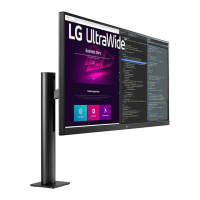
LG 34BN770 - User Manual

LG 34BN770
32 pages
Print Icon
To Next Page IconTo Next Page
Loading...
* LG LED Monitor applies LCD screen with LED backlights.
Please read this manual carefully before operating your set and
retain it for future reference.
34WN750/34WN750P
34BN770
OWNER’S MANUAL
LED LCD MONITOR
(LED Monitor*)
www.lg.com
Copyright © 2019 LG Electronics Inc. All Rights Reserved.

Other manuals for LG 34BN770

Questions and Answers

  • M
    melissa63Sep 10, 2025
    How to fix an "Unrecognized monitor, Plug and Play (VESA DDC) monitor found" message on my LG monitor?
    • C
      Crystal CervantesSep 10, 2025
      If you see an "Unrecognized monitor, Plug and Play (VESA DDC) monitor found" message, be sure to install the display driver from the LG website. Also, make sure to check if the graphics card supports Plug and Play function.
  • Y
    yjonesAug 22, 2025
    Why is there no sound from the headphone port on my LG 34BN770 Monitor?
    • M
      Mr. Charles Snyder PhDAug 22, 2025
      If there is no sound from the headphone port on your LG monitor, first ensure that the headphone port connections are made properly. If the connections are correct, try increasing the volume using the joystick. Also, make sure to set the audio output of the PC to the monitor you are using. Note that the settings may differ depending on the operating system you use.
  • R
    Reginald KellyAug 25, 2025
    Why is there nothing displayed on my LG Monitor screen?
    • L
      Lisa JonesAug 25, 2025
      If nothing is displayed on your LG Monitor, please check the following: Ensure the power cord is correctly plugged into the power outlet. Verify the power cable connection and press the power button. Confirm that the connected input is enabled in the monitor's settings under Input. Also, check the signal cable between your PC and the monitor to ensure it is properly connected. Finally, the signals transferred from the PC (graphics card) may be out of the horizontal or vertical frequency range of the monitor; refer to the Product Specification section of the manual to set the appropriate frequency.
  • T
    Taylor WestAug 27, 2025
    How to fix LG 34BN770 with no sound from the headphone port?
    • D
      Donna AllenAug 27, 2025
      If there is no sound from the headphone port on your LG monitor, verify that the headphone port connections are properly made. Try increasing the volume using the joystick. Also, ensure that the audio output of your PC is set to the monitor you are using. Note that the settings may differ depending on your operating system.
  • L
    Linda DouglasAug 28, 2025
    How to fix LG 34BN770 when nothing is displayed on the screen?
    • K
      Katie FergusonAug 28, 2025
      If nothing is displayed on your LG Monitor screen, first, ensure the power cord is correctly plugged into the power outlet. Then, check the power cable connection and press the power button. Verify that the connected input is enabled in the monitor settings (Settings > Input). Also, check the signal cable between the PC and the monitor, ensuring it is properly connected. Finally, if the issue persists, the signals from your PC might be outside the monitor's frequency range; refer to the Product Specification section of the manual to set the appropriate frequency.
  • C
    Craig CareyAug 29, 2025
    What to do if LG 34BN770 screen display is unstable and shaky?
    • A
      ahernandezAug 29, 2025
      If you are experiencing an unstable and shaky screen display or shadow trails on your LG Monitor, and the resolution is set to HDMI 1080i 60/50 Hz (interlaced), the screen may be flickering. Try changing the resolution to 1080p or the recommended resolution. Also, ensure that your graphics card is set to the recommended (optimal) resolution. If not, it may result in blurred text, a dimmed screen, a truncated display area, or misalignment. If issues persist, contact the manufacturer of your computer or graphics card for assistance.
  • J
    jose14Sep 18, 2025
    Why does image sticking occur on my LG 34BN770 Monitor even when it's off?
    • K
      karen68Sep 18, 2025
      Displaying a still image for a prolonged time may cause damage to the screen, resulting in the retention of the image. To extend the lifetime of your LG Monitor, use a screensaver.
  • V
    vzavalaSep 12, 2025
    How to solve "Unrecognized monitor, Plug and Play (VESA DDC) monitor found" message on LG 34BN770 Monitor?
    • B
      Beth McconnellSep 12, 2025
      To resolve the "Unrecognized monitor, Plug and Play (VESA DDC) monitor found" message on your LG monitor, be sure to install the display driver from the LG website. Also, make sure to check if your graphics card supports the Plug and Play function.
  • K
    Kenneth HodgeSep 8, 2025
    What to do if my LG Monitor screen display is unstable and shaky?
    • S
      Seth JacksonSep 8, 2025
      If your LG monitor's screen display is unstable or shaky, or if images displayed on the monitor leave shadow trails, and the selected resolution is HDMI 1080i 60/50 Hz (interlaced), the screen may be flickering. Try changing the resolution to 1080p or the recommended resolution. Also, not setting the graphics card to the recommended (optimal) resolution may result in blurred text, a dimmed screen, a truncated display area or misalignment of the display.
  • L
    Lydia MorrisSep 5, 2025
    How to enable disabled features on LG 34BN770 Monitor?
    • H
      Hannah WiseSep 5, 2025
      If some features are disabled on your LG monitor, the OSD might be locked. To enable the features, disable OSD Lock in the General settings.

LG 34BN770 Specifications

General IconGeneral
Screen Size34 inches
Resolution3440 x 1440
Panel TypeIPS
Refresh Rate75 Hz
Aspect Ratio21:9
Brightness300 cd/m²
Contrast Ratio1000:1
Response Time5ms (GtG)
ConnectivityHDMI, DisplayPort, USB-C
HDR SupportHDR10
CurvatureFlat
Color GamutsRGB 99%
Ports2 x HDMI, 1 x DisplayPort, 1 x USB-C, 2 x USB 3.0
VESA Mount100 x 100 mm
Weight7.5 kg
Viewing Angle178°

Related product manuals