22
USER SETTINGS
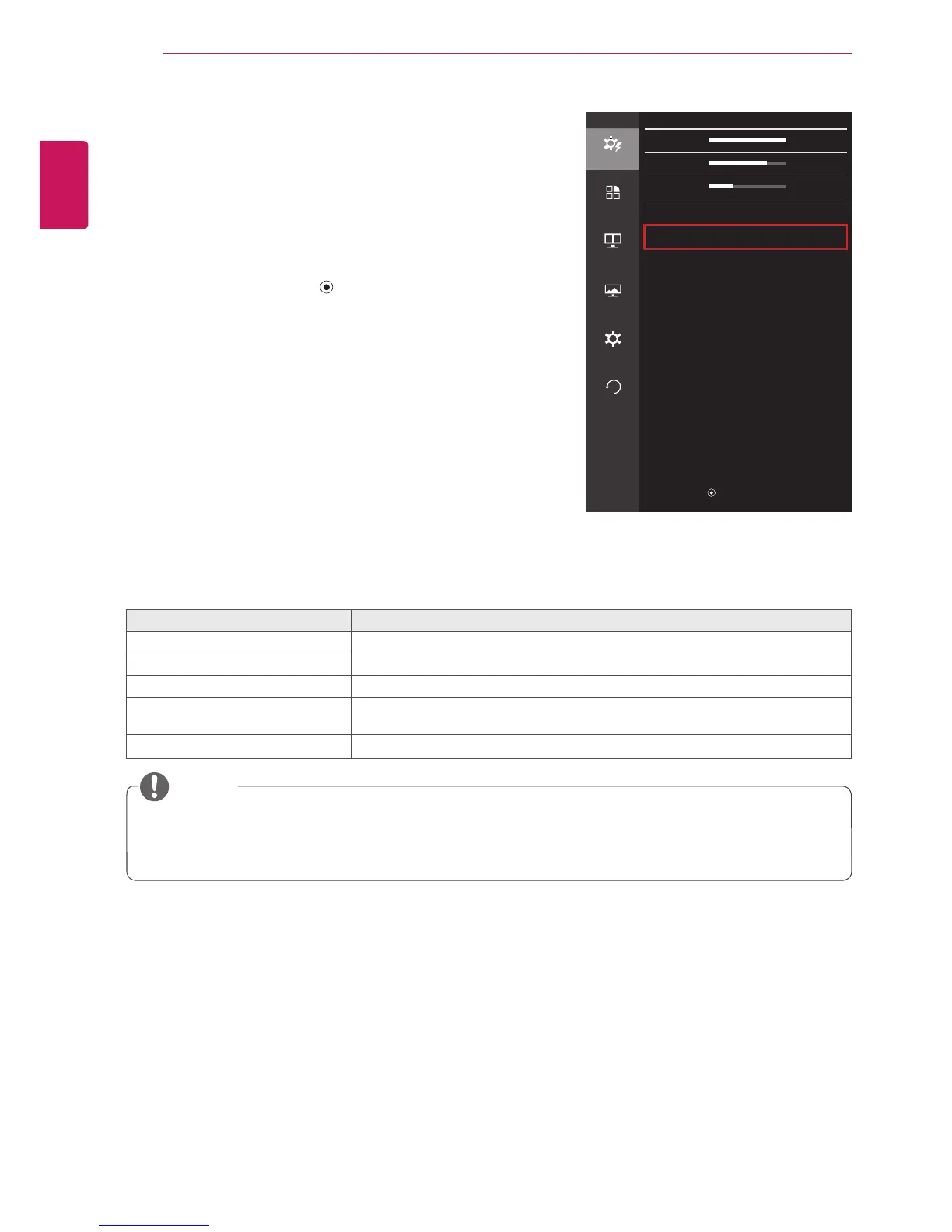
Ratio
1
To view the OSD menu, press the joystick button at the
bottom of the monitor and then enter the Menu.
2
Go to Easy control > Ratio by moving the joystick.
3
Configure the options following the instructions that appear in
the bottom right corner.
4
To return to the upper menu or set other menu items, move the
joystick to
◄
or pressing ( / OK) it.
5
If you want to exit the OSD menu, move the joystick to
◄
until
you exit.
Each option is described below.
Menu > Easy control > Ratio Description
Wide Displays the video in widescreen, regardless of the video signal input.
Original Displays video according to the aspect ratio of the video signal input.
Cinema 1 Enlarges the screen with an aspect ratio of 21:9. (at 1080p)
Cinema 2 Enlarges the screen with an aspect ratio of 21:9, including the black box at the bottom
for subtitles. (at 1080p)
1:1 The aspect ratio is not adjusted from the original.
y
The display may look the same for Wide, Original, and 1:1 options at the recommended resolution (3440 x
1440).
y
The ratio is disabled in the interlaced signal.
NOTE
Easy control
Easy control
Brightness
100
>
Contrast 70
>
Function
Volume
30
>
Input HDMI1
>
PBP
Ratio Wide
>
Screen
Settings
Reset
▲/▼
: Move
/
►
: OK
◄
: Back


 To Next Page