EasyManua.ls Logo

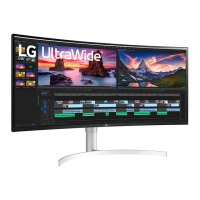
LG 38BN95C - User Manual

LG 38BN95C
31 pages
Print Icon
To Next Page IconTo Next Page
Loading...
* LG LED Monitor applies LCD screen with LED backlights.
Please read this manual carefully before operating your set and
retain it for future reference.
38WN95C
38BN95C
OWNER’S MANUAL
LED LCD MONITOR
(LED Monitor*)
www.lg.com
Copyright © 2020 LG Electronics Inc. All Rights Reserved.

Questions and Answers

  • E
    Emily PattersonAug 2, 2025
    How to fix no sound from the headphone port on LG 38BN95C Monitor?
    • J
      Justin AdamsAug 2, 2025
      If you're not getting any sound from the headphone port on your LG monitor, first, make sure the headphone connections are properly made. If that doesn't work, try increasing the volume using the joystick. Also, ensure that the audio output of your PC is set to the monitor you are using.
  • N
    nealrebeccaAug 7, 2025
    What to do if the LG 38BN95C screen display is unstable and shaky?
    • L
      Linda ReidAug 7, 2025
      If your LG Monitor screen display is unstable, it might be due to the selected resolution being HDMI 1080i 60/50 Hz (interlaced). Try changing the resolution to 1080p or the recommended resolution. Also, ensure that your graphics card is set to the recommended (optimal) resolution. Contact the manufacturer of the computer or graphics card for assistance, if needed.
  • B
    Brenda CampbellAug 13, 2025
    What to do if image sticking occurs on LG 38BN95C even when it is turned off?
    • L
      Lisa HallAug 13, 2025
      If image sticking occurs on your LG Monitor, displaying a still image for a prolonged time may cause damage to the screen. To extend the lifetime of the monitor, use a screensaver.
  • W
    William SharpAug 17, 2025
    Why are some features disabled on my LG Monitor?
    • S
      samuel37Aug 17, 2025
      Some features might be disabled on your LG Monitor because the OSD is locked. To resolve this, disable OSD Lock in the General settings.
  • Z
    Zachary JimenezAug 22, 2025
    What to do if my LG 38BN95C shows "Unrecognized monitor, Plug and Play (VESA DDC) monitor found" message?
    • N
      Natalie ChandlerAug 22, 2025
      To address the "Unrecognized monitor, Plug and Play (VESA DDC) monitor found" message on your LG Monitor, install the display driver from the display driver CD (or diskette) that came with your display. Also, make sure to check if the graphics card supports Plug and Play function.
  • O
    okimOct 28, 2025
    Why LG Monitor screen is not displaying anything?
    • L
      Lawrence SanchezOct 28, 2025
      There might be several reasons why your LG Monitor screen is blank. First, ensure the power cord is correctly plugged into the outlet and that the power cable is properly connected, then press the power button. Check that the connected input is enabled in the monitor's Settings under the Input section. If you're using a signal cable, verify it's correctly connected; for HDMI, try turning off HDMI Compatibility Mode in the monitor's General settings; for DisplayPort, match the DisplayPort Version in General settings to your device. If the issue persists, the signals from your PC might be out of the monitor's frequency range, so refer to the Product Specification section of the manual to set the appropriate frequency. For PCs supporting only USB-C output, use a USB-C Cable (sold separately)....

Summary

Open Source Software Notice

Supported Drivers and Software

Lists drivers and software available for download from the CD or LG website.

Product and Button Description

Joystick Button Overview

Details the physical joystick button and its basic functions on the monitor.

Moving and Lifting the Monitor

Safe Handling Instructions

Provides guidelines for safely moving and lifting the monitor without damage or scratches.

Installing on a Table

Table Installation Guidelines

Instructions for placing the monitor upright on a table, ensuring proper ventilation.

Adjusting the Stand Height

Stand Height Adjustment

Steps and safety advice for adjusting the monitor's stand height.

Adjusting the Monitor Angle

Angle Adjustment Procedure

How to adjust the screen angle forward/backward, with safety precautions.

Using the Kensington Lock

Kensington Lock Installation

Information on connecting the Kensington security system cable to the monitor.

Installing the Wall Mount Plate

Wall Mount Plate Specifications

Details on VESA compatibility, screw types, and optional plate for wall mounting.

Installing on the Wall

Wall Mounting Guidelines

Instructions for wall mounting, including clearance and ventilation requirements.

Using the Monitor

PC Connection Options

Guides on connecting the monitor to a PC via HDMI, DisplayPort, and Thunderbolt.

Connecting Peripherals

USB Device Connection

Information on connecting USB devices, including hub functionality and notes.

Thunderbolt 3 Input Details

Explains connecting peripherals via Thunderbolt 3 input and related cautions.

Headphones Connection

Connecting Headphones

How to connect headphones to the monitor and recommended usage.

User Settings

Activating the Main Menu

Steps to access and navigate the monitor's On-Screen Display (OSD) menu using the joystick.

Menu Settings and Features

Main Menu Navigation

How to access and navigate the monitor's main menu and its features.

Quick Settings

Adjusting Display Parameters

Guides on adjusting brightness, contrast, volume, and color temperature settings.

Input Settings

Managing Input Sources and Aspect Ratio

How to select input modes and adjust screen aspect ratios for optimal display.

Picture-by-Picture (PBP) Settings

PBP Configuration and Aspect Ratio

Details on setting up Picture-by-Picture mode and adjusting aspect ratios for dual inputs.

Picture Settings

Picture Mode Selection

Explains various picture modes (Vivid, Cinema, FPS, etc.) for different content types.

HDR Picture Mode Settings

Optimizing Picture for HDR Content

Describes picture modes optimized for HDR content and related performance notes.

Picture Adjust Settings

Fine-tuning Picture Quality

Adjusting sharpness, resolution, black level, and contrast for optimal image display.

Game Adjust Settings

Optimizing for Gaming

Adjusting response time, Adaptive-Sync, and black stabilizer for enhanced gaming experience.

Color Adjust Settings

Customizing Color and Gamma

Adjusting gamma, color temperature, RGB, and six color settings for personalized display.

General Settings

System Configuration Options

Managing language, energy saving, power LED, standby, and DisplayPort version settings.

General Settings

Advanced Display Features

Configuring HDMI compatibility, local dimming, and variable backlight for enhanced visuals.

General Settings

System Management and Reset

Options for buzzer, OSD lock, deep sleep mode, information display, and resetting settings.

Troubleshooting

Common Display and Connection Issues

Solutions for common problems like no signal, out of range, unstable display, and image issues.

Troubleshooting Continued

Feature and Sound Issues

Addresses issues with disabled features, unrecognized monitors, and no sound from the headphone port.

Product Specifications

Technical Details Summary

Comprehensive technical specifications including resolution, power, dimensions, and environmental conditions.

Product Specifications

Technical Details Summary

Comprehensive technical specifications for model 38BN95C, including resolution, power, and dimensions.

Factory Support Mode (PC)

HDMI Preset Modes

Lists factory preset modes for PC input via HDMI, including frequencies and remarks.

Factory Support Mode (Thunderbolt;DP)

Thunderbolt 3 and DP Preset Modes

Lists preset modes for Thunderbolt 3 and DisplayPort connections with technical details.

HDMI Timing (Video)

Video Signal Timing

Specifies horizontal and vertical frequencies for standard video resolutions via HDMI.

LG 38BN95C Specifications

General IconGeneral
Screen Size38 inches
Resolution3840 x 1600
Panel TypeIPS
Refresh Rate144 Hz
Contrast Ratio1000:1
Response Time1 ms (GtG)
VESA Mount CompatibleYes (100 x 100 mm)
Aspect Ratio21:9
HDR SupportHDR10
CurvatureFlat
Color GamutDCI-P3 98%
ConnectivityDisplayPort, HDMI, USB
Brightness450 cd/m²

Related product manuals