EasyManua.ls Logo

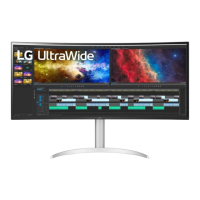
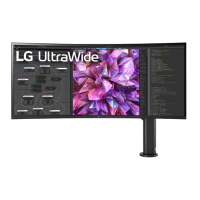
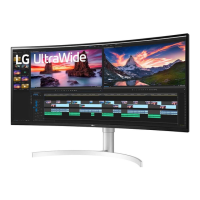
LG 38WP85C - User Manual

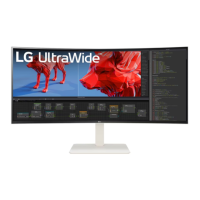
LG 38WP85C
32 pages
Print Icon
To Next Page IconTo Next Page
Loading...
* LG LED Monitor applies LCD screen with LED backlights.
Please read this manual carefully before operating your set and
retain it for future reference.
38WP85C
38BP85C
OWNER’S MANUAL
LED LCD MONITOR
(LED Monitor*)
www.lg.com
Copyright © 2021 LG Electronics Inc. All Rights Reserved.

Questions and Answers

  • S
    Steven PerezJul 27, 2025
    What to do if nothing is displayed on my LG 38WP85C screen?
    • T
      terrellmichaelJul 27, 2025
      If nothing is displayed on your LG Monitor screen, several factors could be the cause. First, check if the monitor's power cord is properly plugged into the power outlet. If the power LED is off, check the power cable connection and press the power button. If the power is on and the LED displays white, ensure the connected input is enabled via Settings > Input. If you see a 'No Signal' message, verify the signal cable between your PC and the monitor is correctly connected. For HDMI input, set HDMI Compatibility Mode to off in the monitor's General settings. For DisplayPort, set the DisplayPort Version to match the connected device.
  • A
    Ashley PadillaJul 31, 2025
    How to fix LG Monitor showing 'Out of Range' message?
    • B
      Brandon BartonAug 1, 2025
      The 'Out of Range' message appears when signals from your PC's graphics card exceed the LG monitor's frequency range. To resolve this, refer to the Product Specification section of this manual to set the appropriate frequency.
  • P
    penadominiqueAug 4, 2025
    What to do if my LG 38WP85C Monitor displays a 'No Signal' message?
    • D
      Donna BennettAug 5, 2025
      The 'No Signal' message on your LG Monitor indicates that the signal cable between your PC and the monitor is either missing or disconnected. Check the cable and reconnect it securely. If the screen remains blank, for HDMI input, disable HDMI Compatibility Mode in the monitor's General settings. For DisplayPort input, match the DisplayPort Version in the monitor's General settings to the version supported by your external device.
  • K
    kblairAug 9, 2025
    How to resolve resolution issues on my LG 38WP85C?
    • K
      Kim DavisAug 9, 2025
      If you're experiencing flickering on your LG Monitor with HDMI 1080i 60/50 Hz (interlaced) resolution, switch to 1080p or the recommended resolution. In general, using the graphics card's recommended resolution prevents issues like blurred text, a dimmed screen, or display misalignment. Setting methods vary by computer or OS, and some resolutions depend on your graphics card's capabilities. Contact the computer or graphics card manufacturer for further assistance if needed.
  • T
    Thomas BoydAug 13, 2025
    How to fix LG 38WP85C Monitor displaying images without sound?
    • G
      George CervantesAug 14, 2025
      If your LG Monitor displays images without sound, first ensure that the headphone port connections are properly made. Then, try increasing the volume using the joystick. Finally, set the audio output of your PC to the monitor you are using. Note that the settings may differ depending on your operating system.
  • K
    Kathleen WilliamsAug 17, 2025
    Why does image sticking occur on my LG 38WP85C Monitor?
    • A
      Amber KelleyAug 17, 2025
      Displaying a still image for an extended period on your LG Monitor can cause damage to the screen, resulting in image retention. To prolong the monitor's lifespan, use a screensaver.
  • M
    Michael AndersonAug 22, 2025
    What does it mean if there are spots on my LG Monitor screen?
    • J
      James JonesAug 22, 2025
      When using the LG Monitor, you might notice pixilated spots (red, green, blue, white, or black) on the screen. This is a normal characteristic of LCD screens and does not indicate an error or affect the monitor's performance.

Summary

ASSEMBLING AND PREPARING

Product and Button Description

Joystick Button Operation

Explains how to control monitor functions using the joystick button.

Installation and Setup

Wall Mounting Procedures

USING THE MONITOR

Connecting to a PC

How to connect the monitor to a computer using HDMI or DisplayPort.

USER SETTINGS

Main Menu Activation and Navigation

Step-by-step guide to accessing and navigating the monitor's main menu.

Main Menu Features

Understanding Menu Settings Navigation

Explains how to navigate and use the various settings within the monitor's OSD.

Quick Settings Overview

Input Settings Overview

Picture Settings

Picture Mode for SDR Signals

Explains various picture modes available for SDR signals.

Picture Mode for HDR Signals

Details picture modes optimized for High Dynamic Range (HDR) content.

Picture Adjustments

Adjustments for brightness, contrast, sharpness, black level, and DFC.

General Settings

TROUBLESHOOTING

No Display or Signal Issues

Solutions for issues where the screen remains blank or shows no signal.

Display Instability and Image Trails

Troubleshooting unstable display, flickering, or image trails.

Screen Artifacts and Sticking

Addresses image retention and normal pixel variations on the screen.

PRODUCT SPECIFICATION (38 WP85 C)

PRODUCT SPECIFICATION (38 BP85 C)

LG 38WP85C Specifications

General IconGeneral
Screen Size38 inches
Resolution3840 x 1600
Panel TypeIPS
Aspect Ratio21:9
Contrast Ratio1000:1
VESA Mount CompatibleYes (100 x 100 mm)
Curvature2300R
VESA Mount100 x 100 mm
Response Time5 ms
ConnectivityHDMI, DisplayPort, USB-C
USB Ports2 x USB 3.0
SpeakersYes (2 x 5W)
Color GamutsRGB 99%
Ports2 x HDMI, 1 x DisplayPort, 1 x USB-C
AdjustabilityHeight, Tilt
Brightness300 cd/m²

Related product manuals